

How do I customize the form fields for the escalation/help desk?
A guide to customizing escalation form fields in LearnWise help desks so you can collect the right information, use autofill, and map data into integrated ticketing systems.
2 min readUpdated
On this page
Customizing Form Fields for Support Case Escalation #
Customizing escalation form fields in LearnWise is essential for institutions that want to collect specific data from students or faculty to help support agents solve questions and close cases faster. You can also map the data collected in LearnWise to fields within integrated ticketing systems to segment questions. Here’s how to modify these fields to ensure seamless support ticket creation and to enhance data collection processes:
Why Customize Escalation Form Fields? #
- Collect Specific Data to Resolve Cases Faster Customize forms to ensure you gather all necessary information from users to assist them effectively.
- Ticketing System Integration: Mapping form fields to your institution's ticketing system can streamline the support process, making sure that all information translates directly into your support workflow.
- Autocomplete for Efficiency: Certain field types can be auto-filled if LearnWise can authenticate the user, making the process quicker and reducing user effort.
Steps to Customize Escalation Form Fields #
-
Log In and Access Assistant Settings:
- Enter your LearnWise admin account via https://admin.learnwise.ai
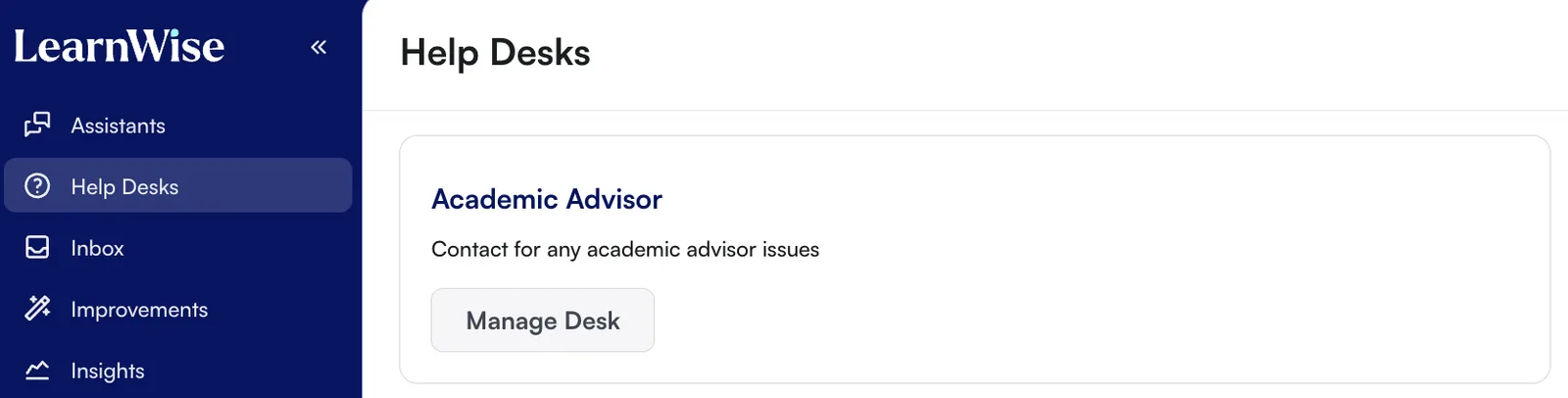
- Go to the ‘Help Desks’ section and 'Manage' the Help Desk you want to modify.
-
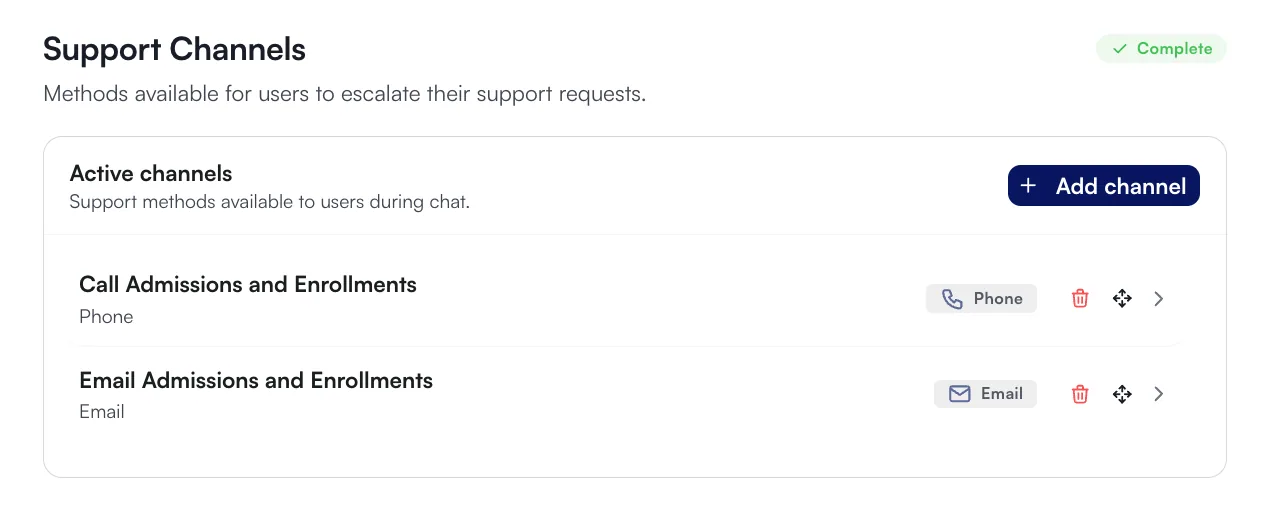
Scroll to “Support Channels”
- Add an modify the desired escalation options in this section.
-
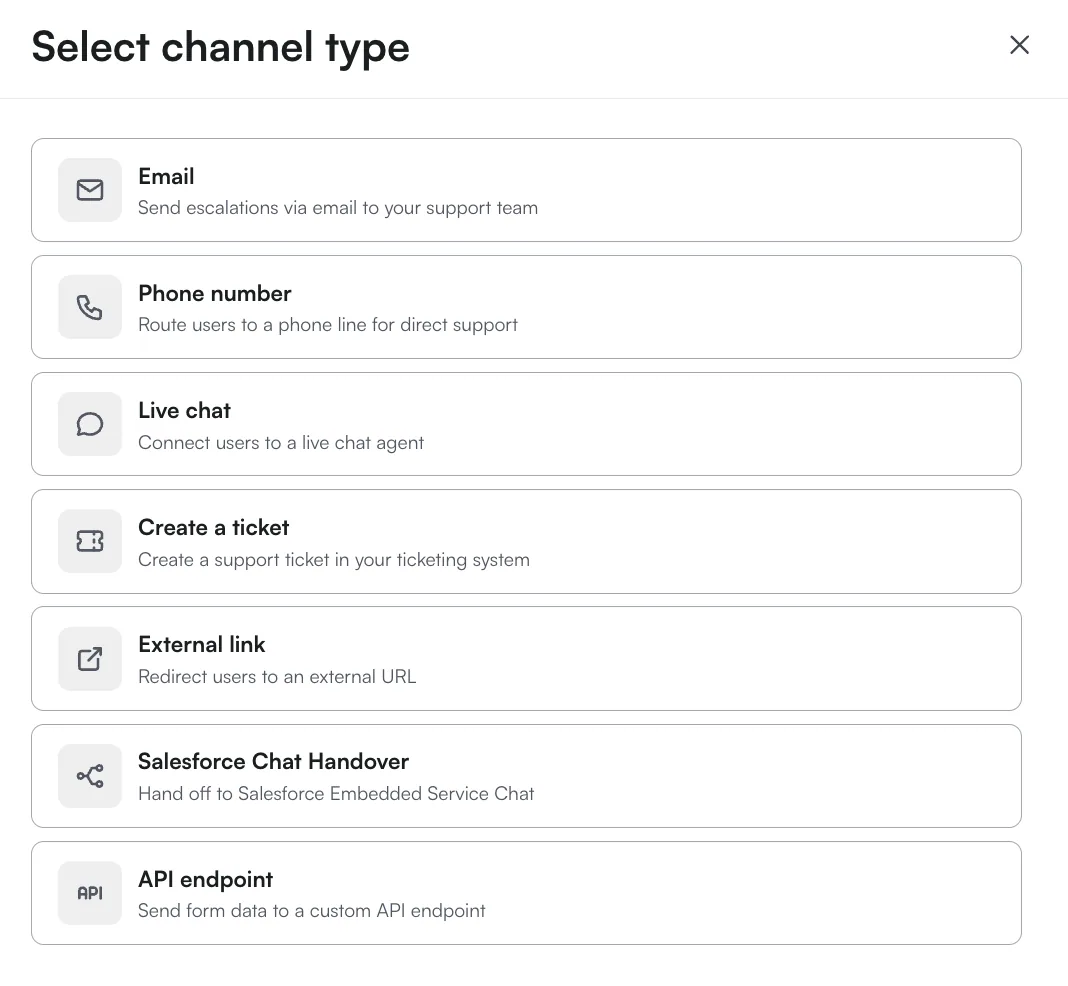
Select Escalation Type
- Select from a variety of escalation options. Common options include, email, live chat, and creating a ticket.
-
Add Form Fields
- Once you have created this a escalation, you will need to map data into the correct form fields.
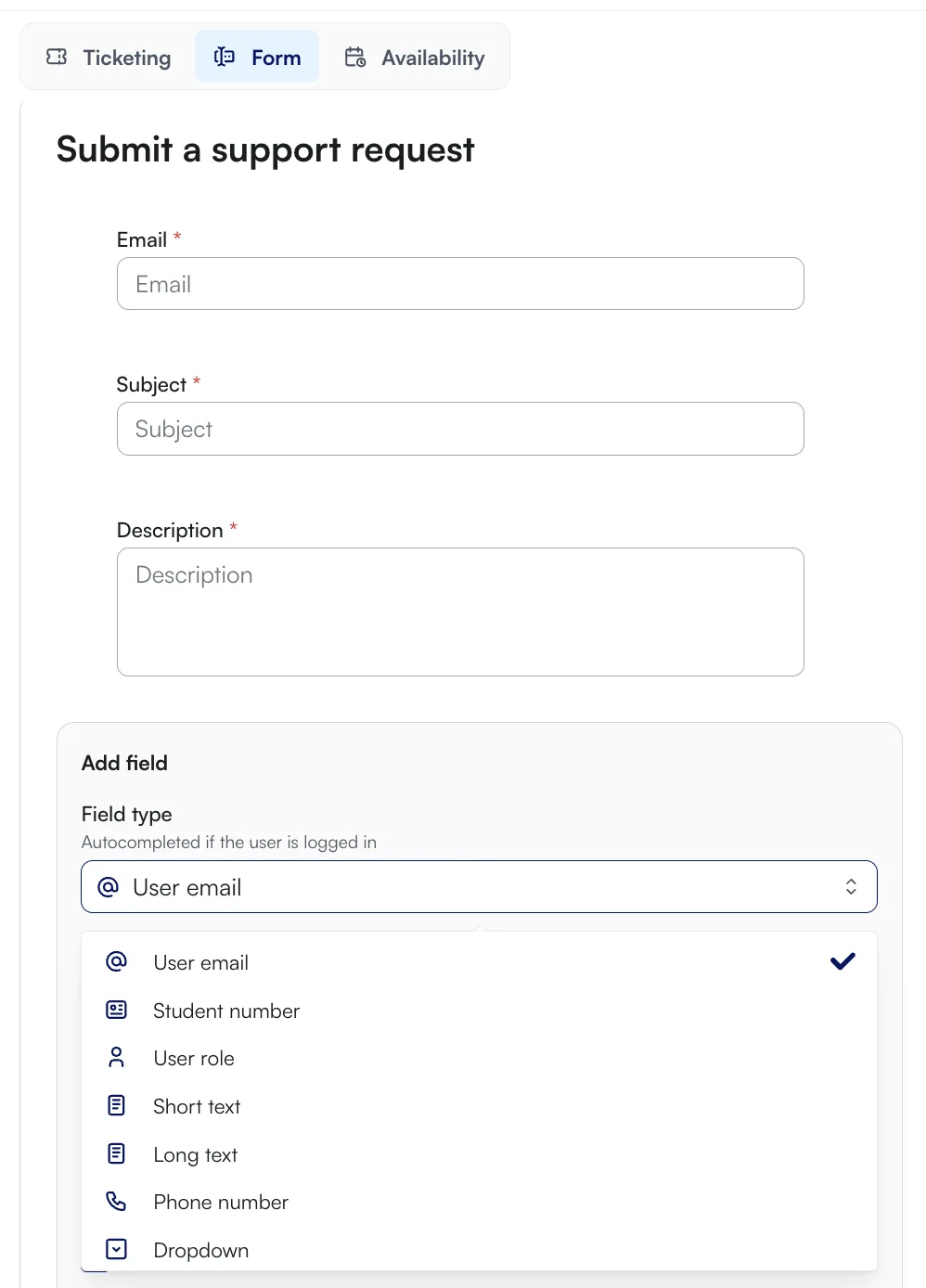
- Once you have created this a escalation, you will need to map data into the correct form fields.
-
Map Fields to Ticketing System:
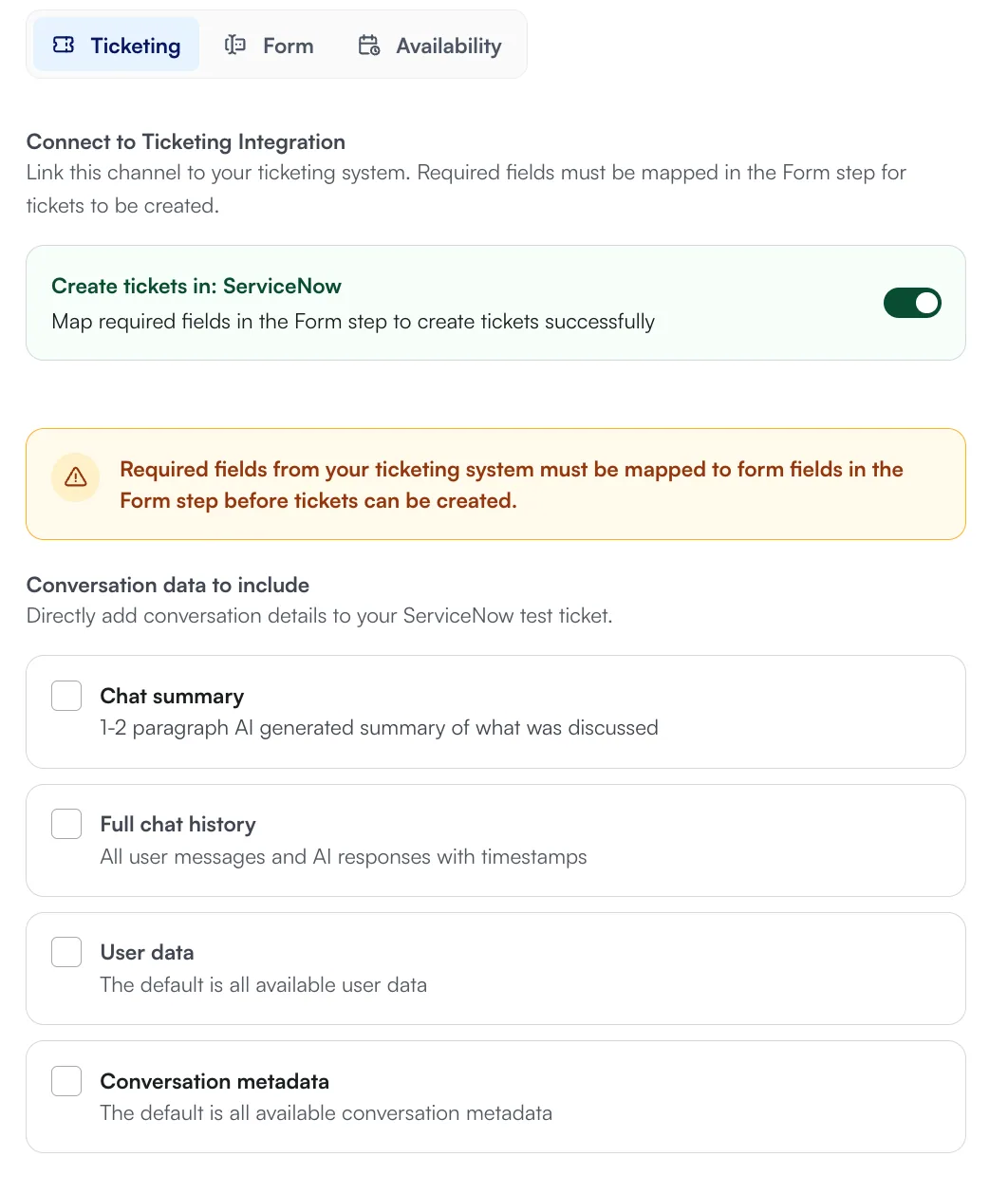
- If your support desk is integrated with a ticketing system - like ServiceNow, TOPdesk, and others - you can map form fields directly to ticketing system fields to ensure data consistency and accuracy. You can also choose to include information such as full chat history, a chat summary, or detailed conversation metadata in the ticket.
-
Save Your Configurations:
- After customizing the form fields to your satisfaction, save the changes to update the assistant’s escalation process.
If the connected ticketing integration has required fields that are not yet mapped, an alert is shown directly in the form field configuration UI listing the unmapped required fields. Resolve these before saving to avoid submission errors for end users.
Summary #
By customizing the escalation form fields, you can tailor the support experience to meet the unique needs of your institution and the specific help desk, ensuring that all necessary information is collected efficiently. This not only enhances the user experience by streamlining the support request process but also aids your support team in addressing issues more effectively.
Remember, if there are changes in your ticketing system or support process, revisit these settings to keep the escalation form fields up to date. If you need assistance with form customization or have questions about integration, contact LearnWise support for guidance.
Still stuck?
Ask the LearnWise assistant. It answers from these guides.
Related guides
- How can I integrate a ticketing system?Build your assistant
- How do I create a new Help Desk?Build your assistant
- How do I integrate Salesforce ticketing system?Build your assistant
- How do I integrate ServiceNow ticketing system?Build your assistant
- How do I integrate with HubSpot ticketing system?Build your assistant