

How to install LearnWise into Open edX
A short guide to embedding the LearnWise assistant (Aiden) into an Open edX instance by adding a small JavaScript snippet or env-based config to the LMS theme so it appears as a floating helper alongside courses.
1 min readUpdated
On this page
Placing LearnWise in your Open edX Instance #
Aiden can now fully live alongside your courses in Open edX. If any of your users are facing any pressing questions, they can access Aiden in the bottom right of the screen with a simple click and ask away.
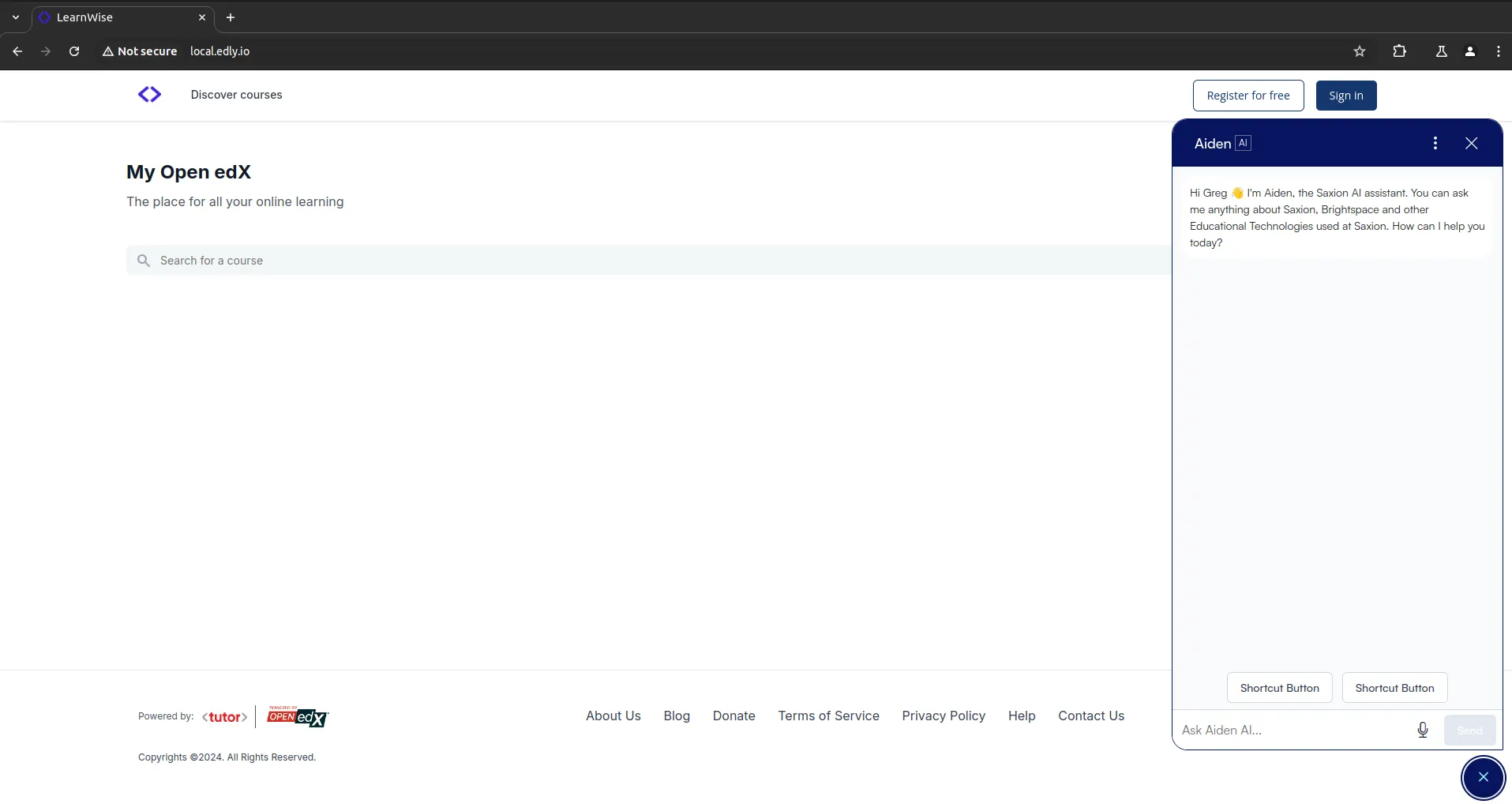
To make Aiden available on any Open edX instance, follow the steps below.
Step By Step #
-
(OPTIONAL) Within the LMS environment variables, it could be useful to add the LearnWise Aiden’s id. This allows to flexibly change the assistant id in the future.
LEARNWISE_ASSISTANT_ID: "ADD ASSISTANT ID HERE" -
If you’re using a custom template then it might be necessary to copy the
lms/templates/main.htmlinto your templates folder. A sample of this template can be found in Open edX repository https://github.com/openedx/edx-platform/blob/master/lms/templates/main.html -
Now in the
lms/templates/main.htmladd the following lines of code anywhere within the<head>tags of the mako file.<%
assistant_id = None
if hasattr(settings, 'LEARNWISE_ASSISTANT_ID'):
assistant_id = static.get_value("LEARNWISE_ASSISTANT_ID", settings.LEARNWISE_ASSISTANT_ID)
%>
% if assistant_id:
<script type="text/javascript">
console.log("setting up assistant")
window.learnWiseSetup = {
host: '<https://aiden.learnwise.dev>',
chatSrc: '<https://chat.learnwise.dev>',
assistantId: '${assistant_id}',
};
var script = document.createElement('script');
script.src = window.learnWiseSetup.host + '/chat_launcher.js';
document.head.appendChild(script);
</script>
% endifNOTE: if step 1 was skipped (setting the Aiden environemnt variable), then you have to place the assistant id in the main..html file. This option will work but will offer less flexibility if the assistant id should be replaced. An alternative script that avoids using env variables can be seen below. As with above, place anywhere inside the
<head>tag:<script type="text/javascript">
console.log("setting up assistant")
window.learnWiseSetup = {
host: '<https://aiden.learnwise.dev>',
chatSrc: '<https://chat.learnwise.dev>',
assistantId: "ADD ASSISTANT ID HERE",
};
var script = document.createElement('script');
script.src = window.learnWiseSetup.host + '/chat_launcher.js';
document.head.appendChild(script);
</script>
And with that you have updated your theme and, Aiden should render in your Open edX instance!
Still stuck?
Ask the LearnWise assistant. It answers from these guides.
Related guides
- How do I publish AI Campus Support into Brightspace?Build your assistant
- How can I add AI Student Tutor within Blackboard?Build your assistant
- How do I install AI Campus Support on the Brightspace Login Page?Build your assistant
- How do I publish an assistant in Blackboard via the Ultra Extension Framework (UEF)?Build your assistant
- How do I publish an assistant into Microsoft Sharepoint?Build your assistant