

How do I integrate Salesforce ticketing system?
A step‑by‑step guide to integrating Salesforce with LearnWise help desks so chat escalations can create Salesforce cases with mapped fields and routing.
3 min readUpdated
On this page
How do I integrate Salesforce ticketing system with Learnwise? #
LearnWise integrates seamlessly with Salesforce through a plugin, enabling support cases to be created directly from LearnWise and routed to the relevant Salesforce channels. These cases can pre-populate metadata, enhancing workflow efficiency.
Steps to Set Up Salesforce Integration: #
Configure Salesforce #
-
Log in to Salesforce:
- Access your Salesforce environment using admin credentials.
-
Navigate to Setup:
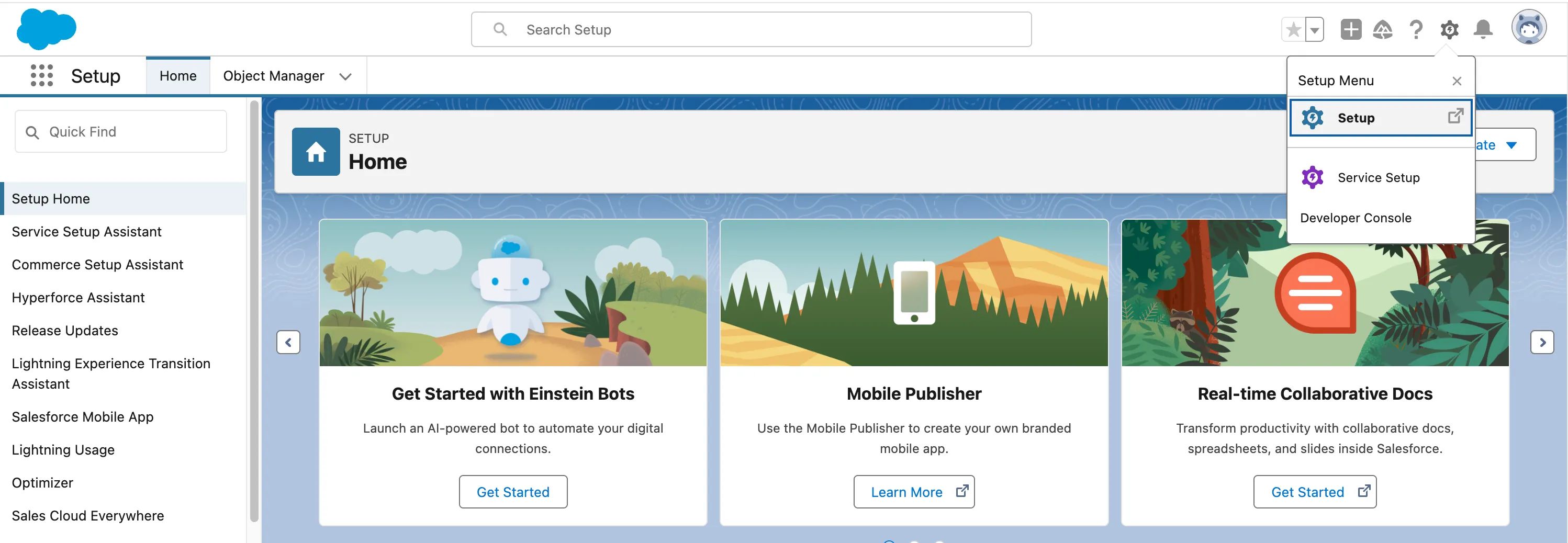
- Click the Setup button in the top-right corner.
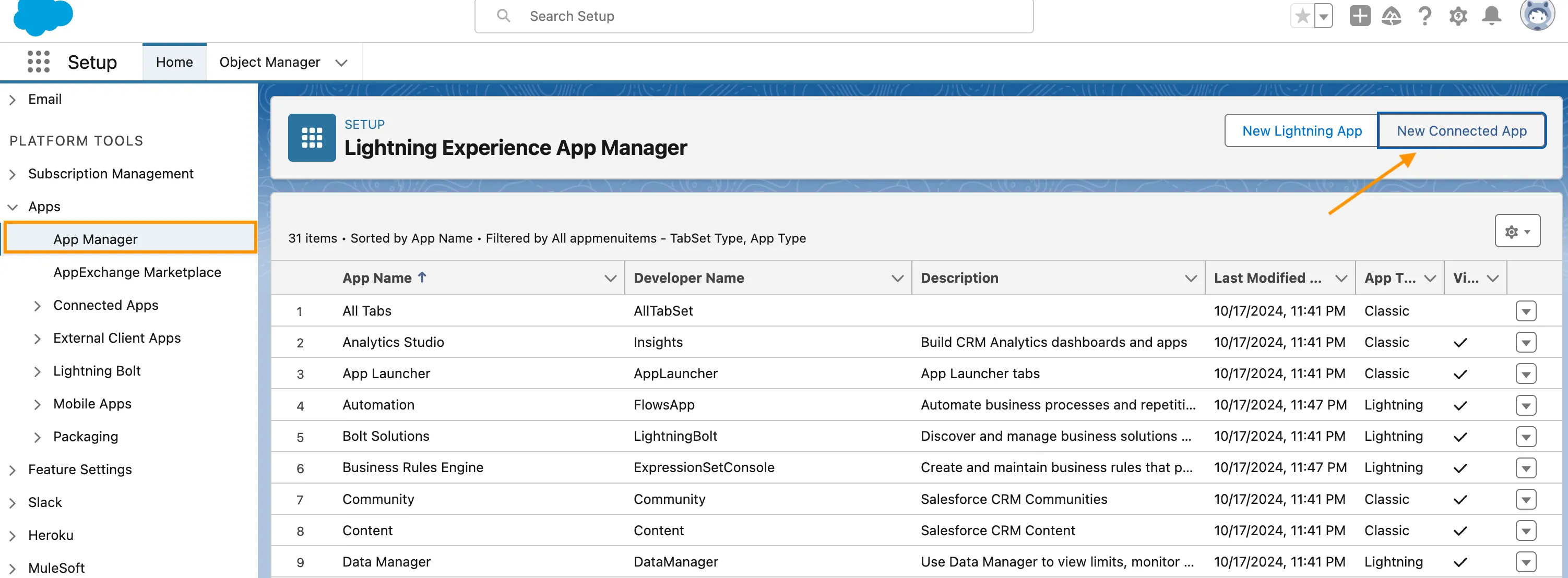
- Under Platform Tools in the sidebar, select Apps.
-
Create a New Connected App:
- Open the App Manager page and click New Connected App.
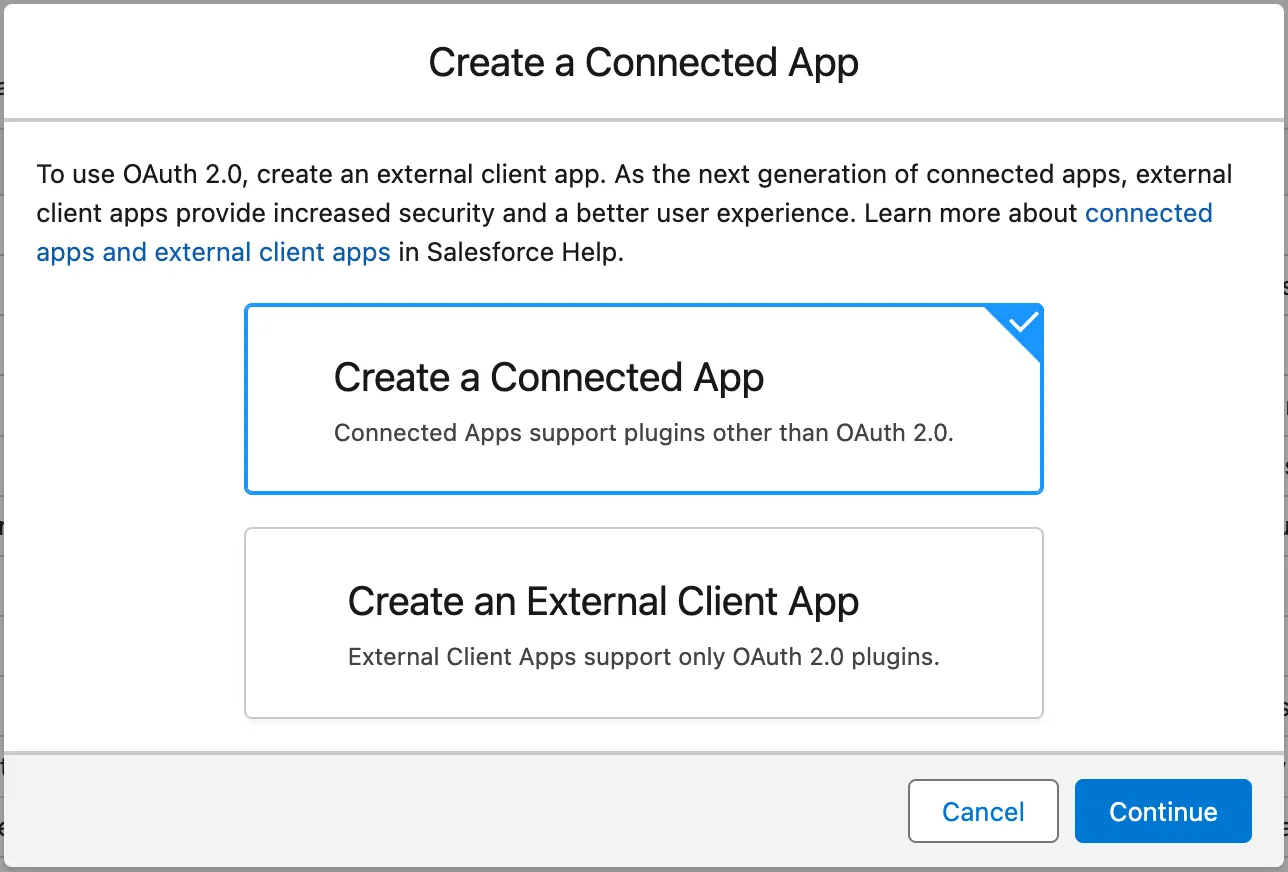
- Select Create a Connected App and click Continue
- Enter the following details:
- Connected App Name: Name for the app (e.g., "LearnWise Integration").
- API Name: A unique identifier for the app.
- Contact Email: Ensure this belongs to someone with admin-level access to both Salesforce and LearnWise.
Enable OAuth Settings:
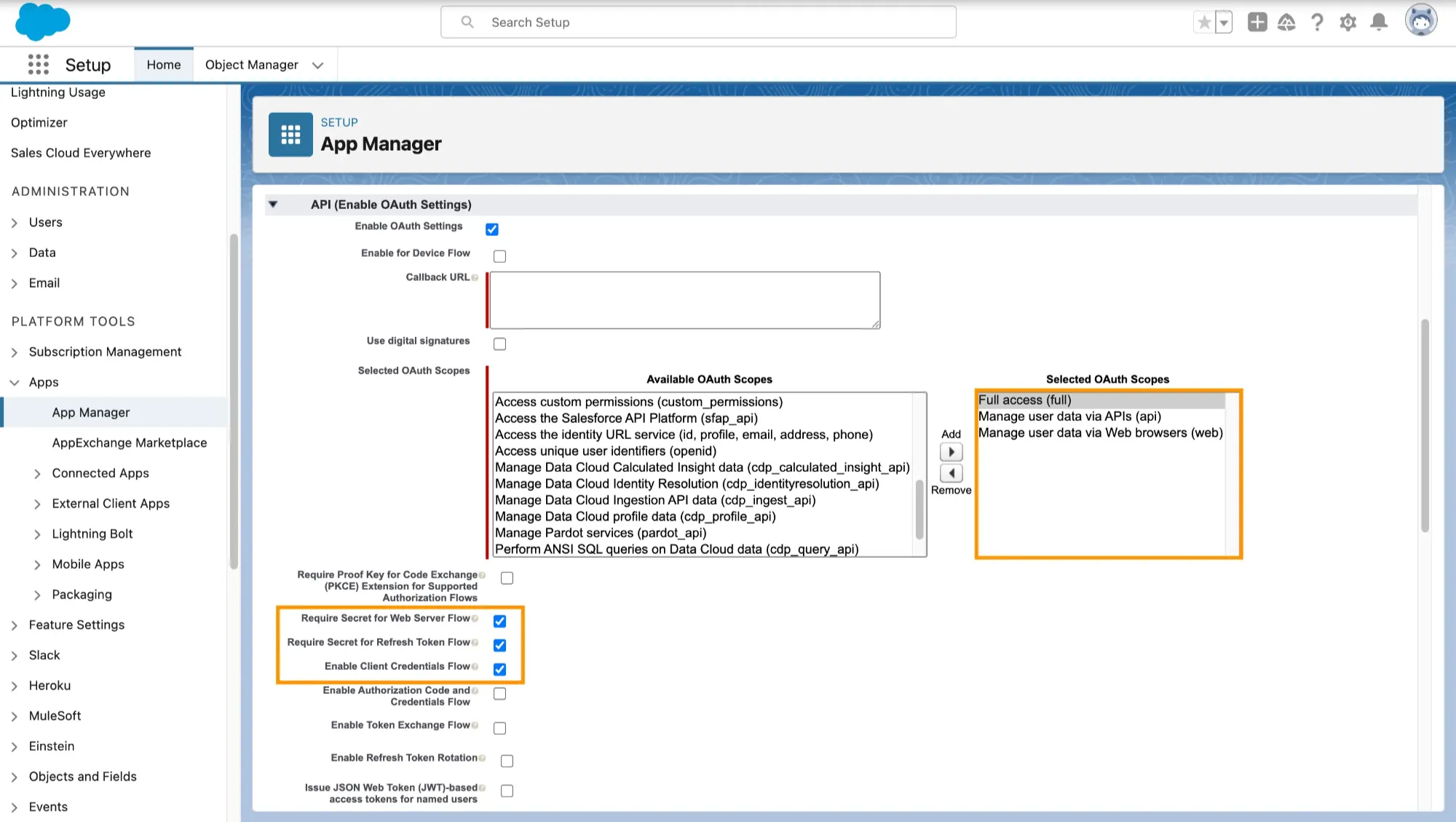
- Check the Enable OAuth Settings box.
- Add the following OAuth scopes to the Selected OAuth Scopes section:
- Manage user data via APIs (api)
- Manage user data via Web browsers (web)
- Full access (full)
Set Required Options:
- Add the following call-back URL into the CallBack URL: https://learnwisesoftwareinternatio-dev-ed.develop.lightning.force.com
- Ensure only the following checkboxes are selected:
- Require Secret for Web Server Flow
- Require Secret for Refresh Token Flow
- Enable Client Credential Flow
Save Settings:
- Click Save to complete the setup.
Finalize Connected App Configuration #
- Return to Setup:
- Navigate back to Apps > Manage Apps from the sidebar.
- Open the Lightning Experience App Manager to view a list of connected apps.
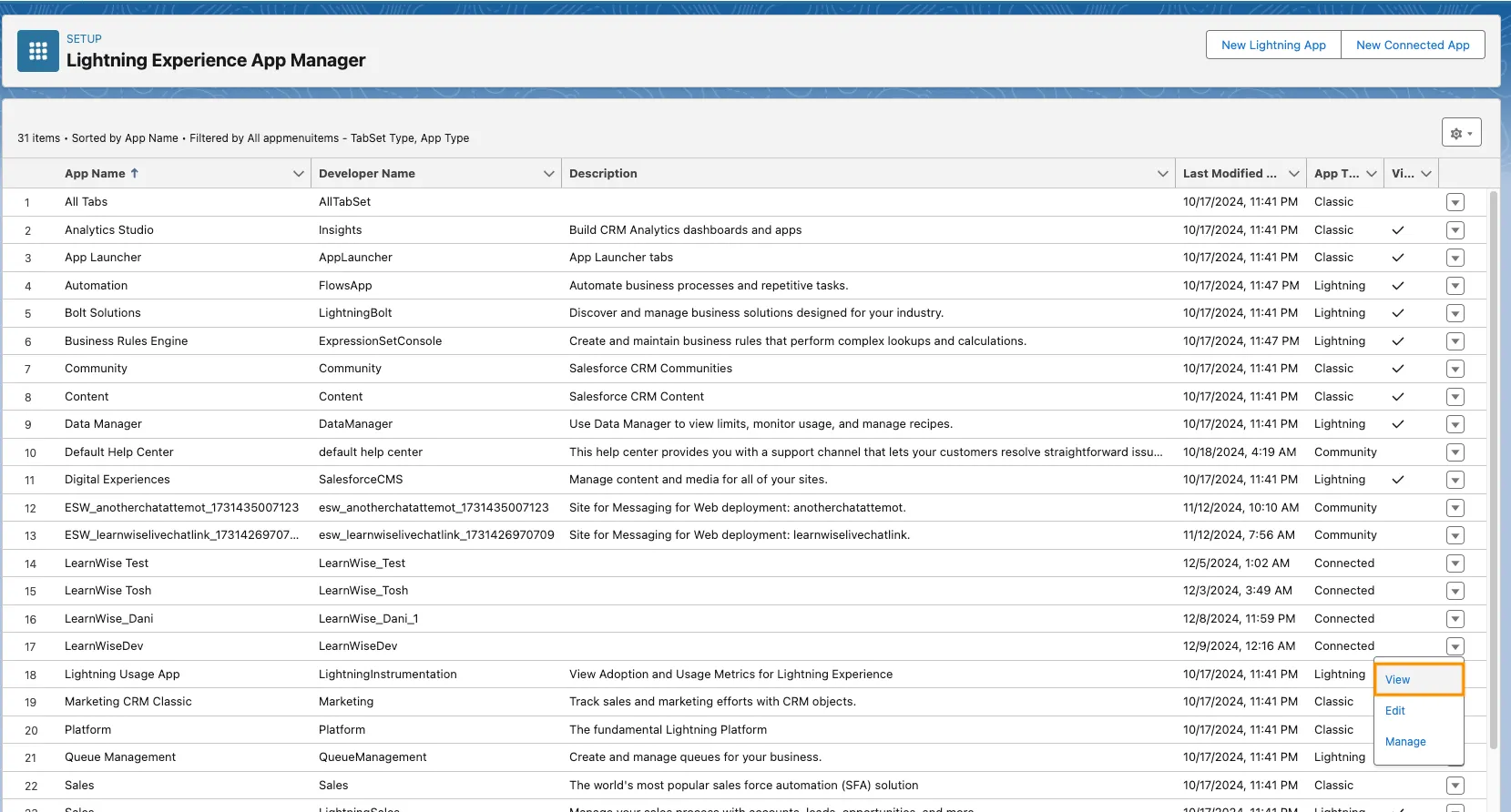
- Manage the LearnWise App:
- Locate the LearnWise app you just created.
- Click the dropdown arrow and select Manage.
- Edit Policies:
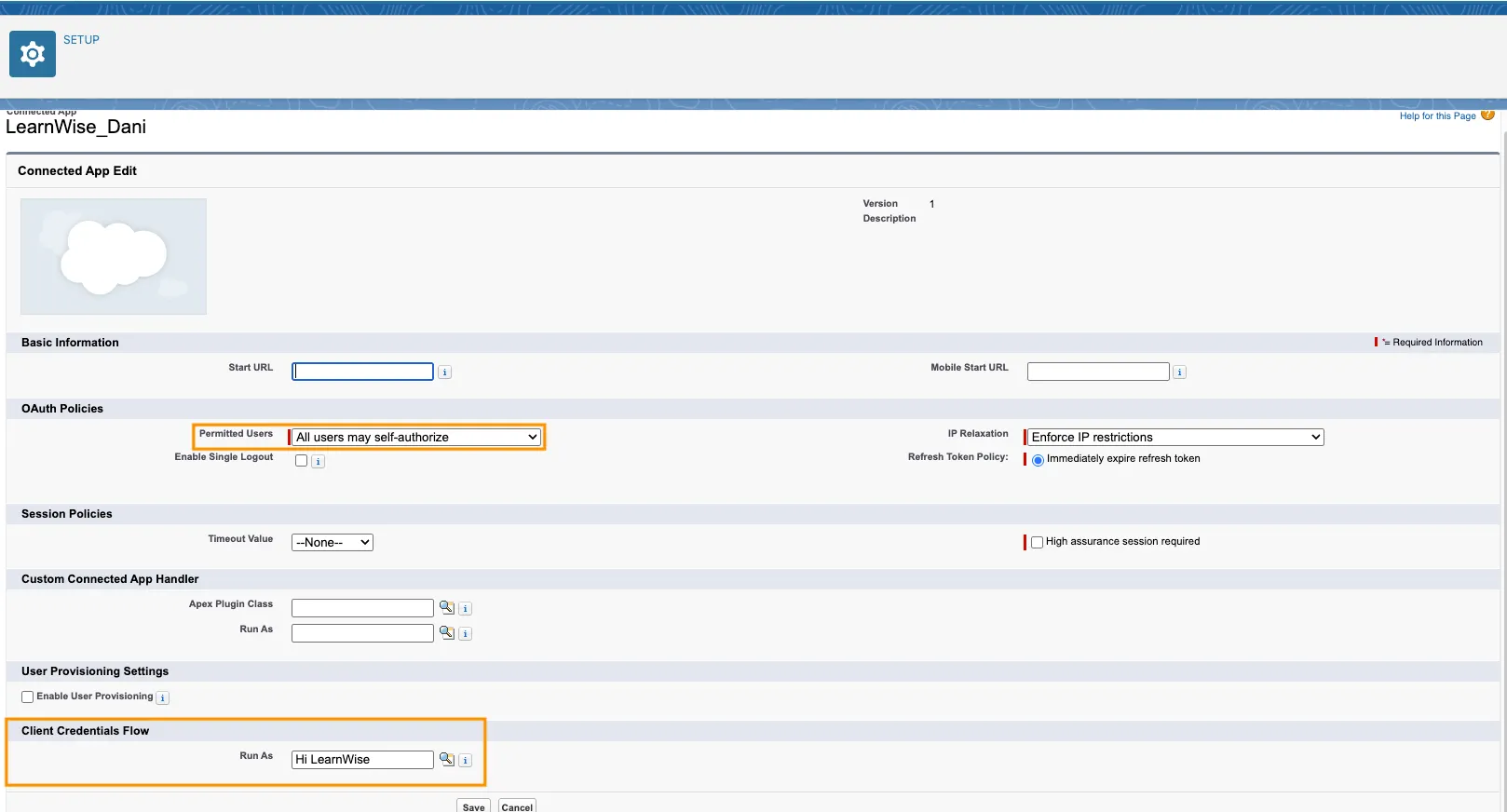
- Click Edit Policies and adjust the following settings:
- OAuth Policies: Set Permitted Users to All users may self-authorize.
- Under Client Credentials Flow, click the magnifying glass icon to select the user(s) the access token will be returned to.
- Save Changes:
Click Save to confirm the settings.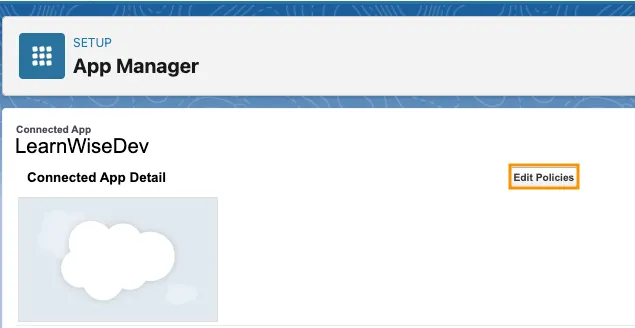
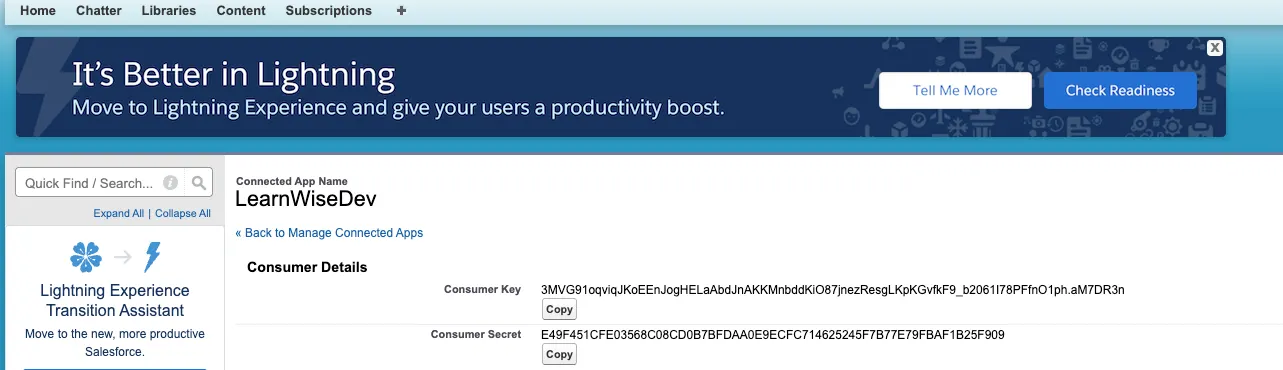
Retrieve Consumer Key and Secret:
- Go back to the Manage Apps page.
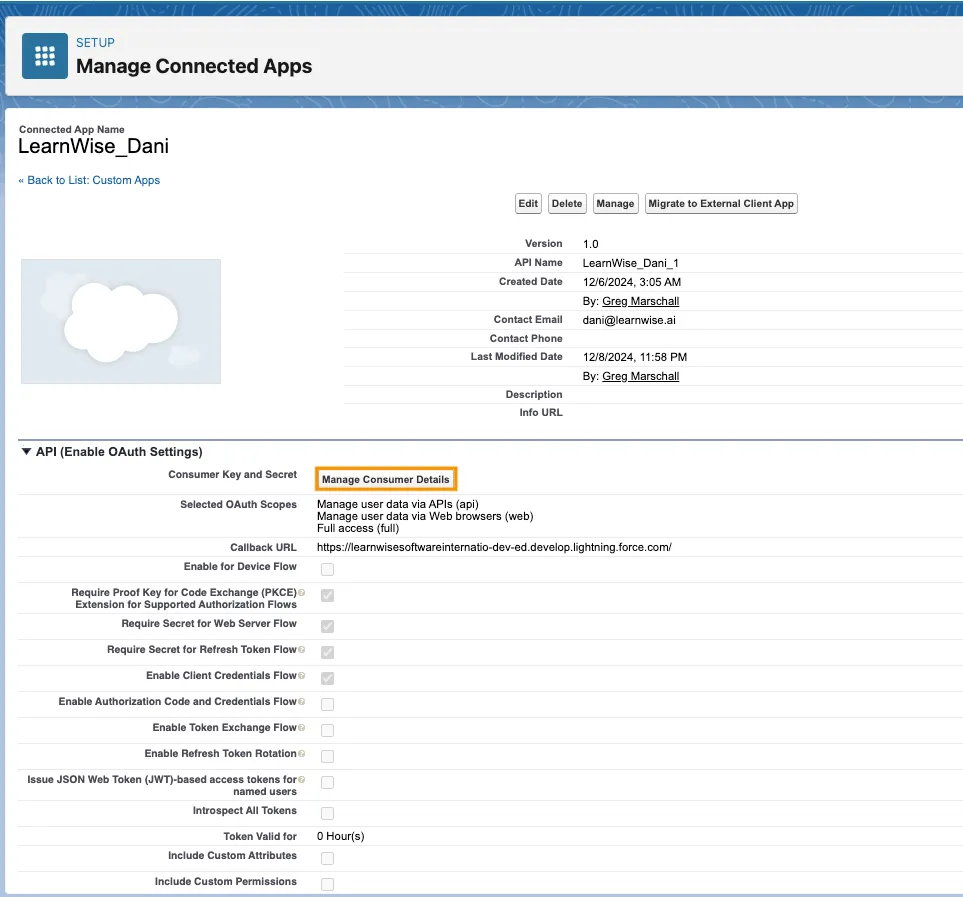
- Click View from the dropdown menu for the LearnWise app.
- Select Manage Consumer Details.
- Enter a verification code if prompted.
- Copy the Consumer Key and Secret provided.
Connect LearnWise with Salesforce #
-
Log in to LearnWise:
- Access the LearnWise Admin Dashboard.
-
Navigate to Help Desks:
- Select the help desk you wish to integrate with Salesforce.
-
Connect to Salesforce:
-
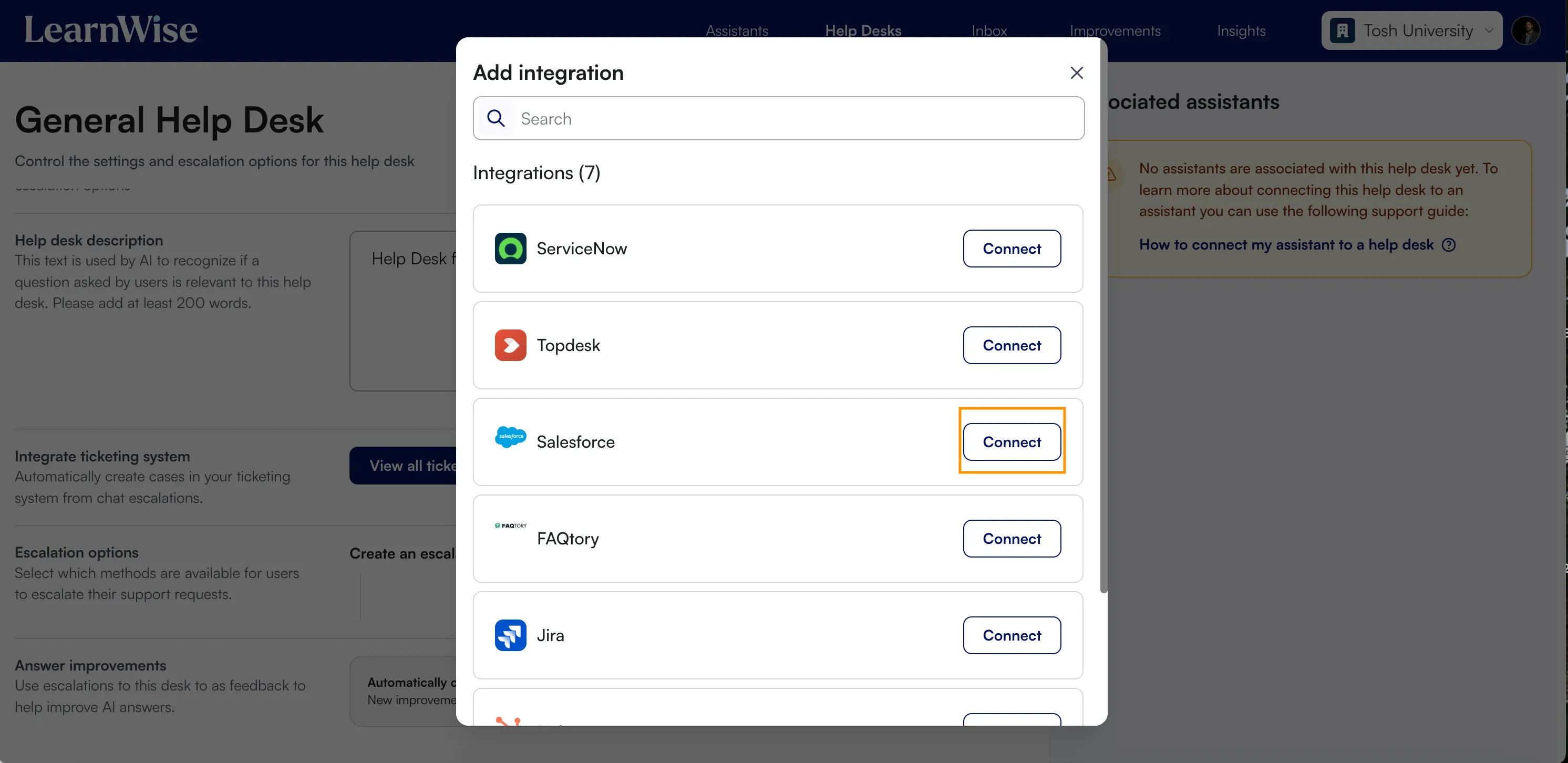
Click View all ticketing integrations in the ‘Integrate ticketing system’ section and click Connect next to the Salesforce option.
-
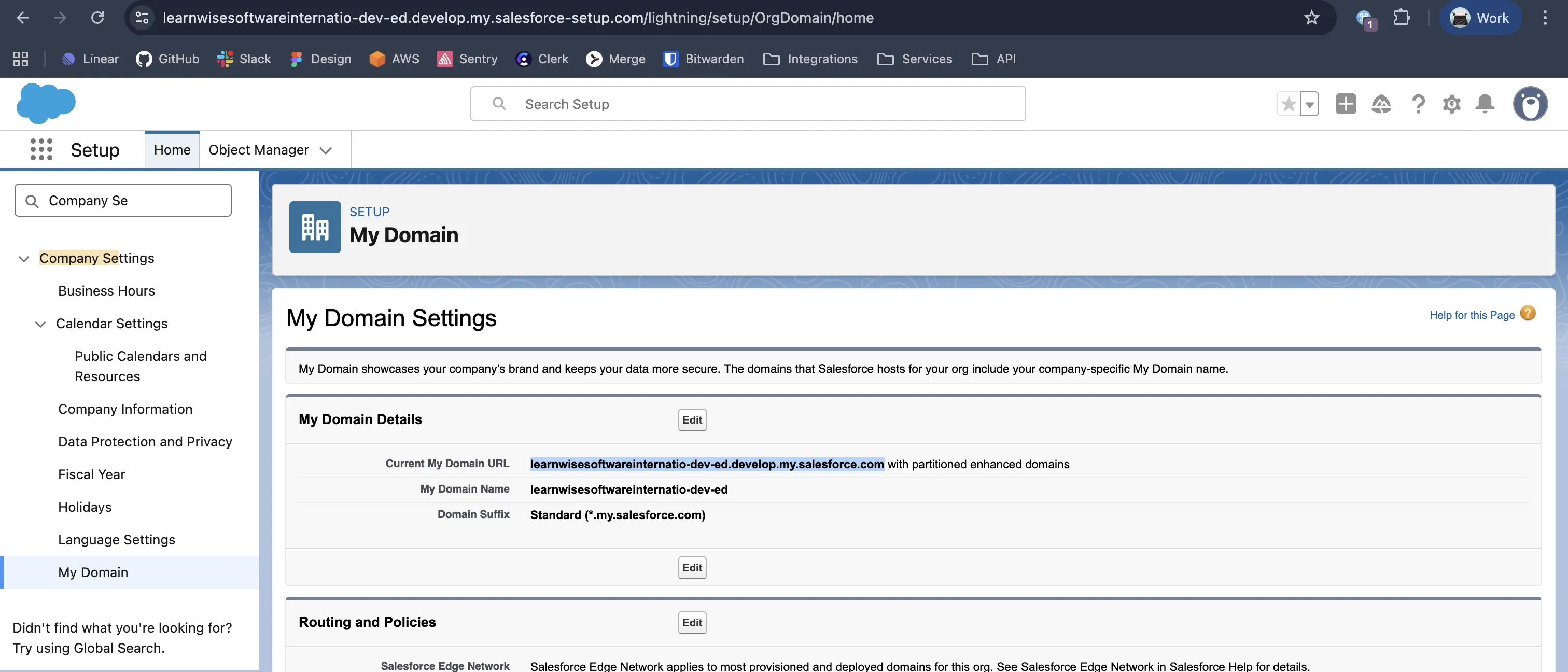
Enter the URL of your Salesforce environment (Settings -> In search "My Domain" -> Current My Domain URL).
-
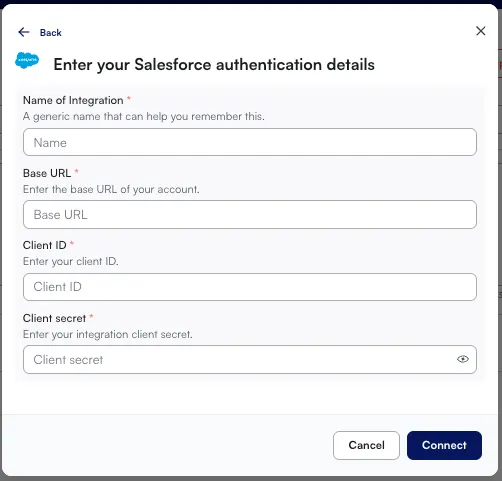
Paste the Consumer Key and Secret copied from Salesforce.
-
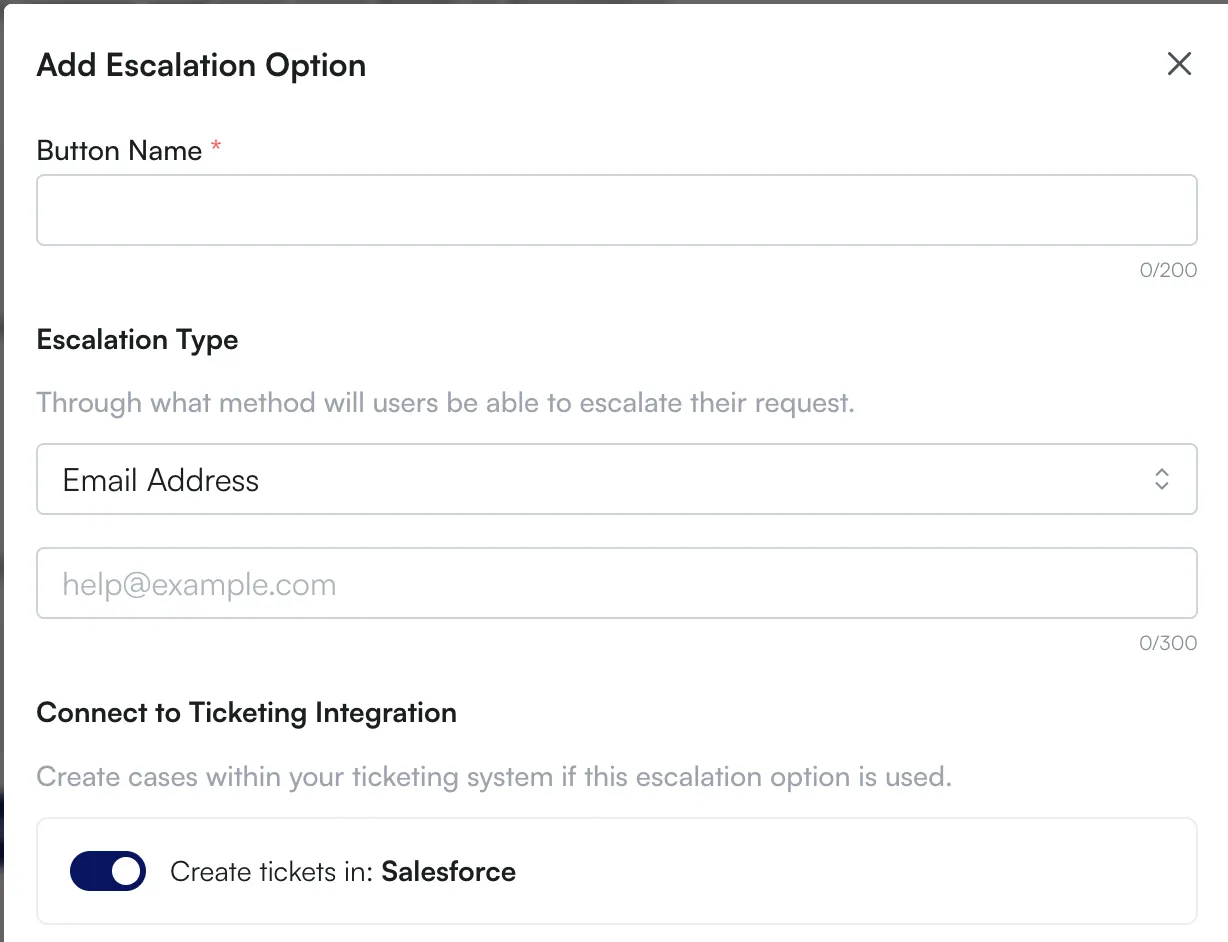
- Create an escalation option
- Select Create a Ticket (Integration) in the Escalation type so it will appear as an option to end-users
- Toggle on Create Tickets in: Salesforce
- Determine availability and add a tailored Post submission message
- Field mapping
- You can determine which data appears in your Salesforce case by mapping the fields in the LearnWise dashboard
- Under ‘Escalation form fields,’ select ‘Add form field’
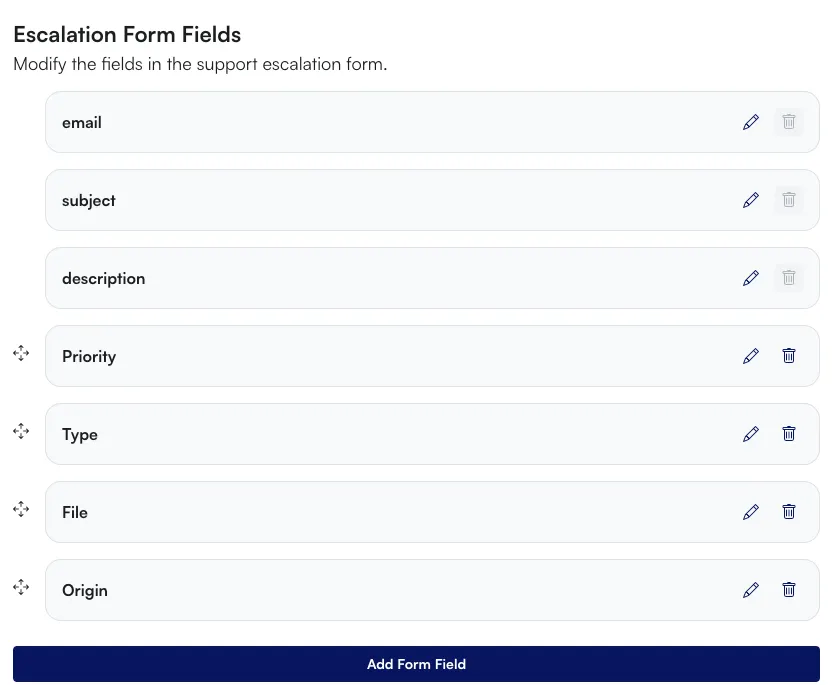
- Choose the field type and name it as it will appear to the end user
- Select the drop down menu under ‘Map this field to a Salesforce Ticketing field Note: The workflow will vary depending on the field selected
- The following Salesforce fields are supported by LearnWise:
| Owner Id |
|---|
| CallObject |
| CallType |
| IsReminderSet |
| FirstName |
| Status |
| TaskSubtype |
| ActivityDate |
| Phone |
| CalDisposition |
| Priority |
| LastName |
- The selected field will now be added to the ticket when an escalation occurs from within the LearnWise assistant
Still stuck?
Ask the LearnWise assistant. It answers from these guides.
Related guides
- How can I integrate a ticketing system?Build your assistant
- How do I integrate ServiceNow ticketing system?Build your assistant
- How do I integrate with HubSpot ticketing system?Build your assistant
- How do I create a new Help Desk?Build your assistant
- How do I customize the form fields for the escalation/help desk?Build your assistant