

How do I integrate with TOPdesk ticketing system?
LearnWise integrates seamlessly with TOPdesk through a plugin, enabling support cases to be created directly from LearnWise and routed to the relevant TOPdesk channels. These cases can pre-populate metadata, enhancing workflow efficiency.
2 min readUpdated
On this page
Create an application password #
- Log in to the your TOPdesk instance as an Operator.
- To create an Application password, go to the user settings via the Operator menu in the top right of TOPdesk -> My Settings Choose 'Add' in the Application passwords block.

- A "Create a new application password" popup should open. In the popup, fill in the application name or purpose this application keyword will be used for. This name is only used to tell application passwords apart. It is recommended to use different passwords for different applications that will use the API
- In addition to a name an expiry date can be set for the password. After this date, the password can no longer be used to access the API and a new one must be generated. The default expiry date is one year into the future.

- Press the "Create" button. The application password will be displayed in the "Copy the application password now" popup. This is the only time the password will be displayed, because it will be hashed before it is stored in the database. Copy this password.

Configure the connection in LearnWise #
In order to complete the integration:
- Navigate to the helpdesk you want to set up the integration for.
- In the integration setup panel, enter the following details:
- Name of Integration (e.g. TOPdesk Production)
- Base URL
- Username
- API key (paste the application password from the previous section)
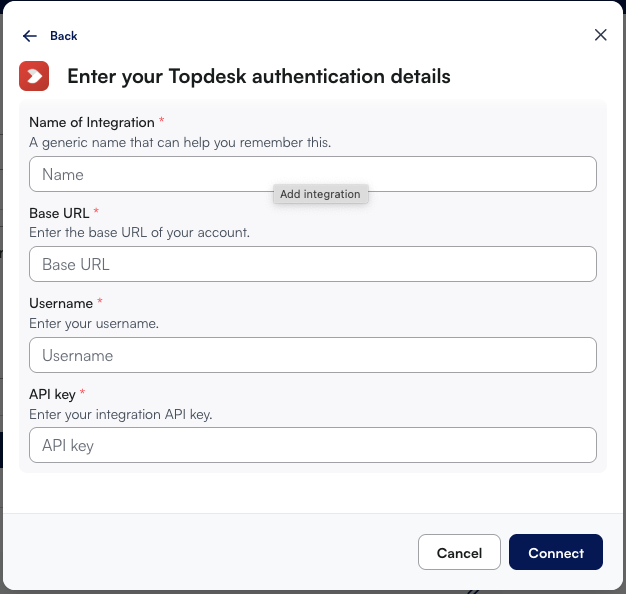
- Click on ‘Connect’
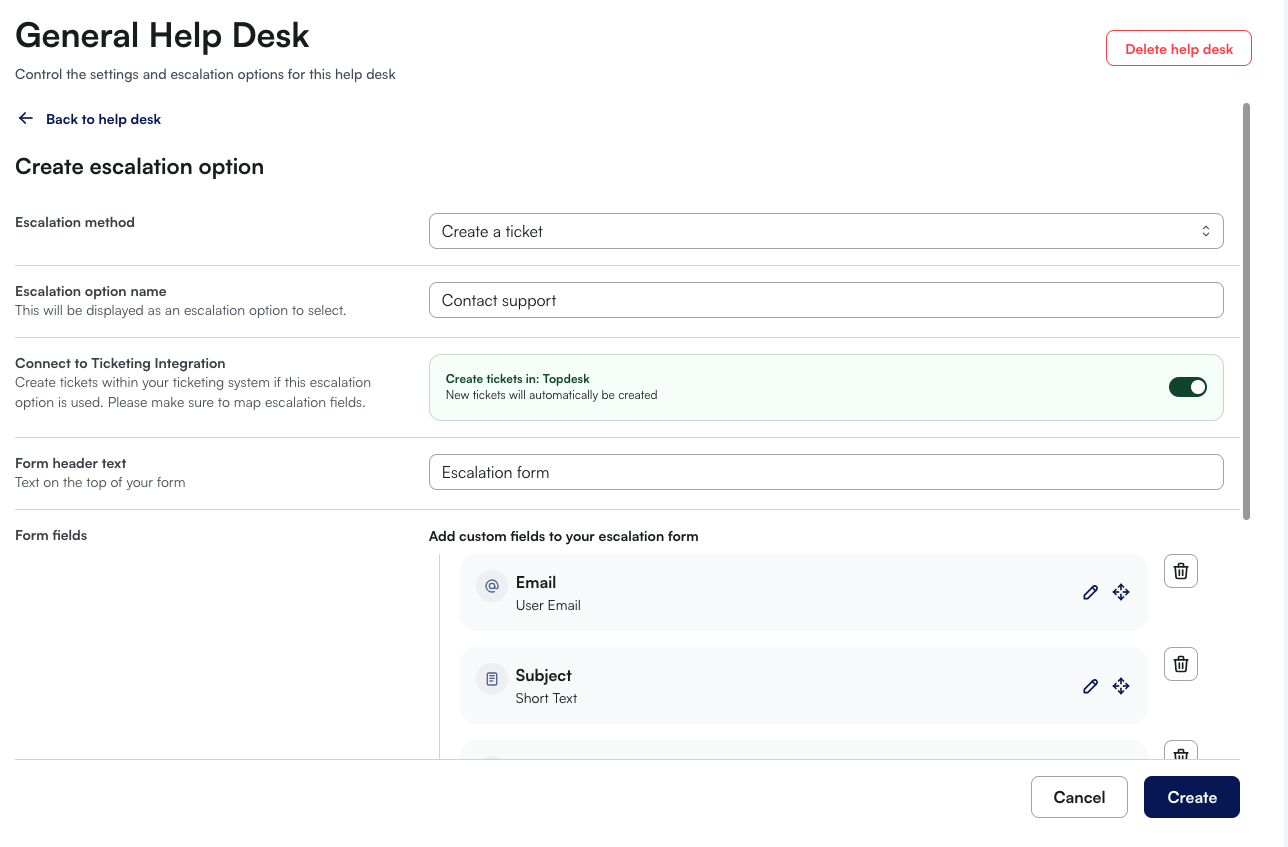
- Add an escalation option with the type “Create a ticket”
-
Locate the option labeled Connect to Ticketing Integration
-
Toggle ON the option for TOPdesk.
-
- Find and click Add Form Field.
- Here, you can map which fields you would like to be included in the ticket (e.g., subject, description, priority).
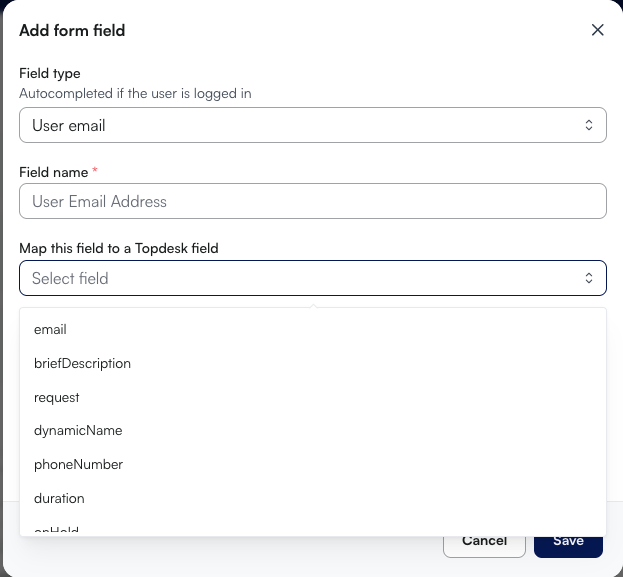
- Here, you can map which fields you would like to be included in the ticket (e.g., subject, description, priority).
Field mapping between TOPdesk & LearnWise #
| Ticketing fields that can be mapped |
| briefDescription |
| request |
| dynamicName |
| phoneNumber |
| duration |
| onHold |
| monitored |
| completed |
| externalNumber |
| operatorGroup |
| operator |
| supplier |
| targetDate |
| object |
| status |
| branch |
| callType |
| entryType |
| impact |
| priority |
| processingStatus |
| category |
| subcategory |
| closureCode |
| urgency |
Was this page helpful?
Still stuck?
Ask the LearnWise assistant. It answers from these guides.
Related guides
- How can I integrate a ticketing system?Build your assistant
- How do I create a new Help Desk?Build your assistant
- How do I customize the form fields for the escalation/help desk?Build your assistant
- How do I integrate Salesforce ticketing system?Build your assistant
- How do I integrate ServiceNow ticketing system?Build your assistant