

How do I publish an AI Assistant in MyDay by ReadyEducation?
The LearnWise AI assistant can be seamlessly integrated into your MyDay environment by Ready Education. This guide will walk you through the steps to install and configure LearnWise AI in your MyDay account, including options to display the assistant as a static tile on your dashboard.
2 min readUpdated
On this page
Injecting Javascript #
Log in to MyDay #
- Log in to your MyDay cloud environment using your credentials.
- Ensure that you have admin permissions to proceed with the installation.
Access the Custom Code Section #
- Navigate to the Advanced tab under Administration.
- In the Advanced tab, locate the Custom Code section. This is where you will insert the integration code for the LearnWise AI assistant.
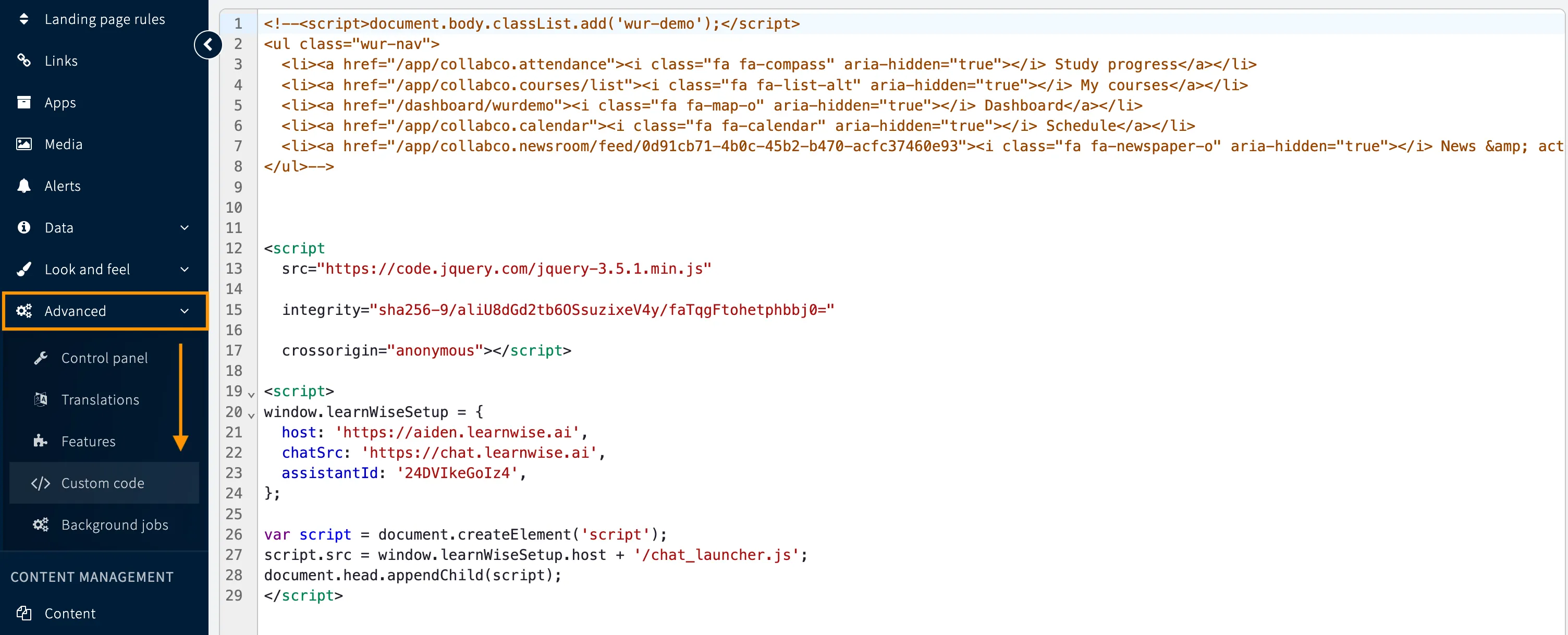
Copy and Paste the Integration Code #
- Navigate to your LearnWise dashboard and navigate to the Publish step for the relevant assistant.
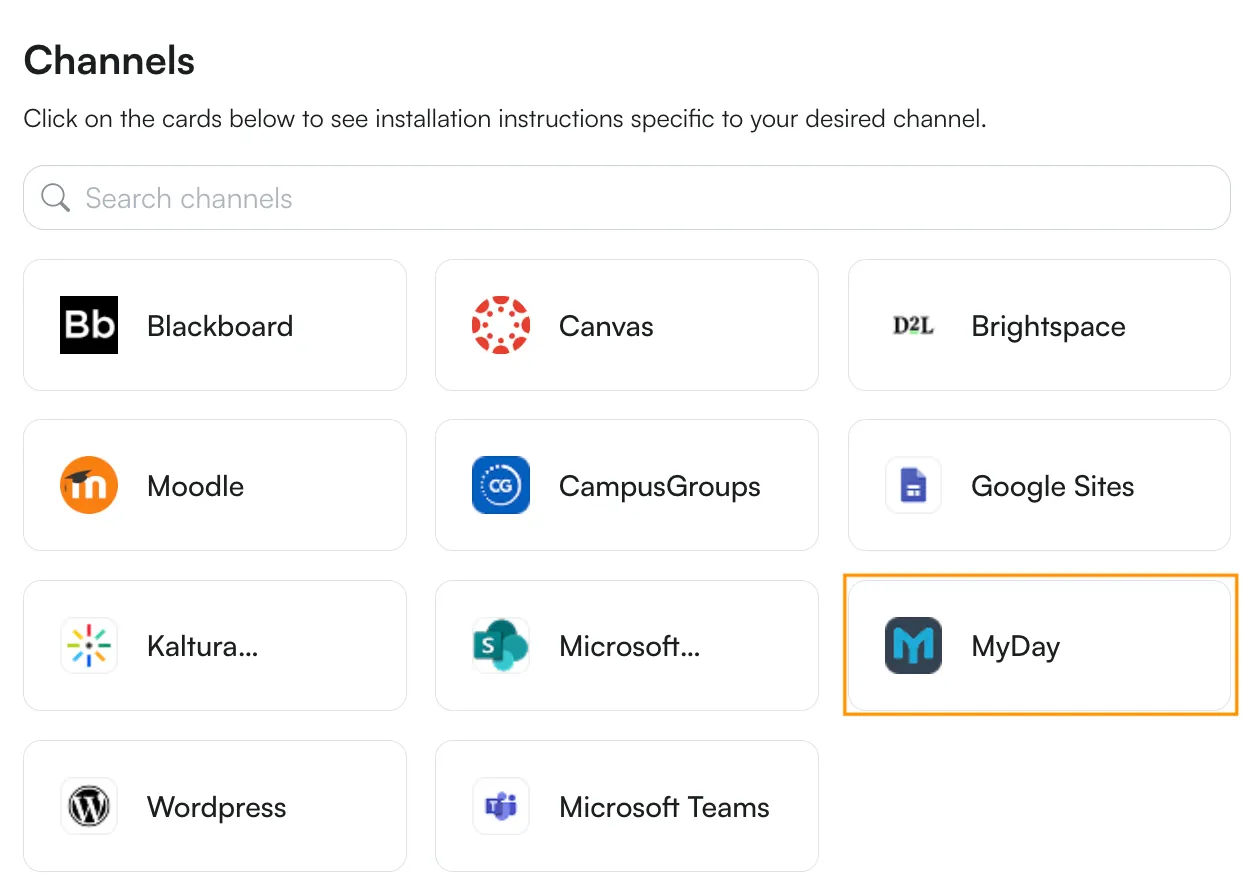
- Select the option for MyDay and copy the provided integration code.
- To display LearnWise as a floating button, click on the false button. It will then switch to ‘true’ and alter the code accordingly.
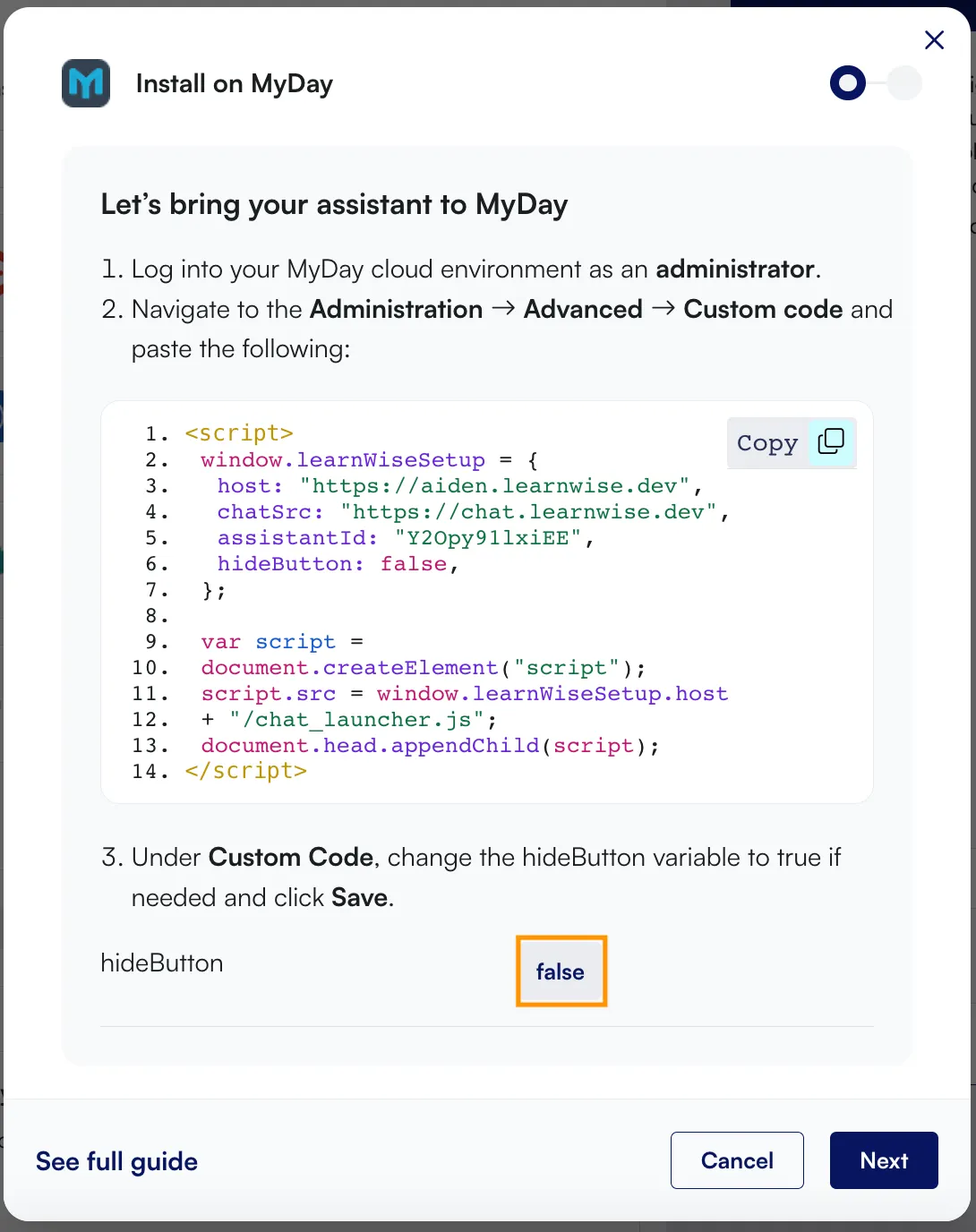
- Paste this code into the Custom Code section of MyDay.
- Save the page to apply the changes.
Set the options for the assistant tile #
- Click on ‘next’ on the Install on MyDay pop-up window in your LearnWise admin dashboard and follow the steps (also outlined below)
- Navigate to dashboard where you want to place the tile and click on Settings → Layout Settings → Add a Tile → Static Tile.
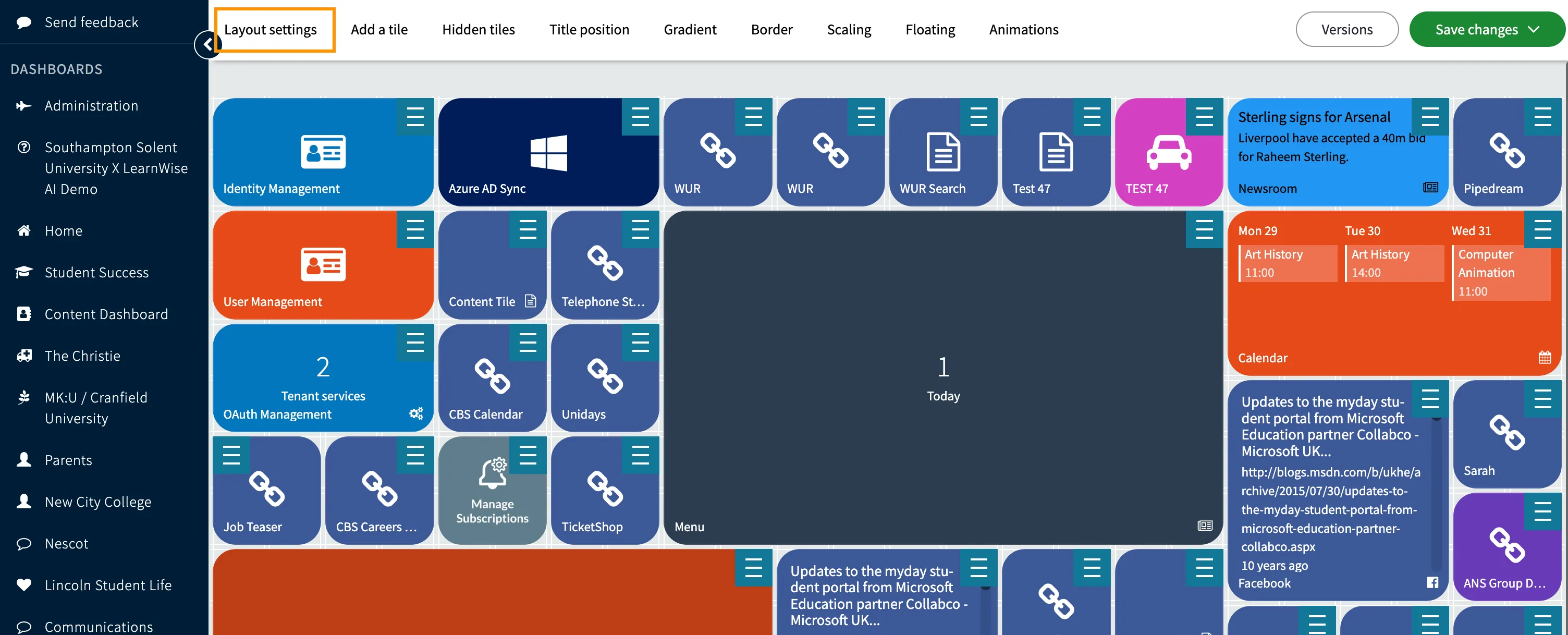

On the Configuration Modal , give your tile a title (e.g., "LearnWise AI Assistant") and select the language you prefer. You can also choose to hide the title and customize other settings as desired.
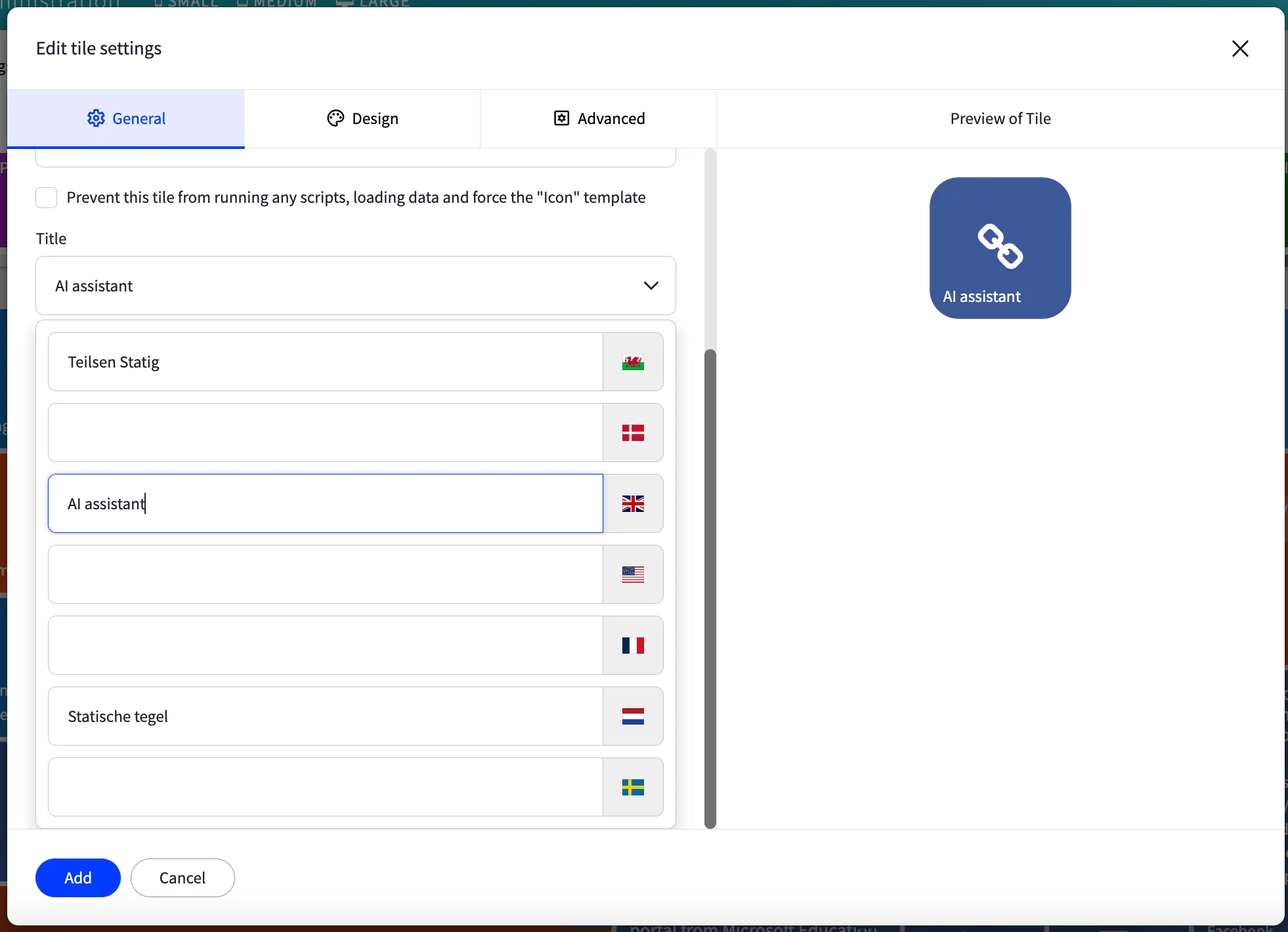
-
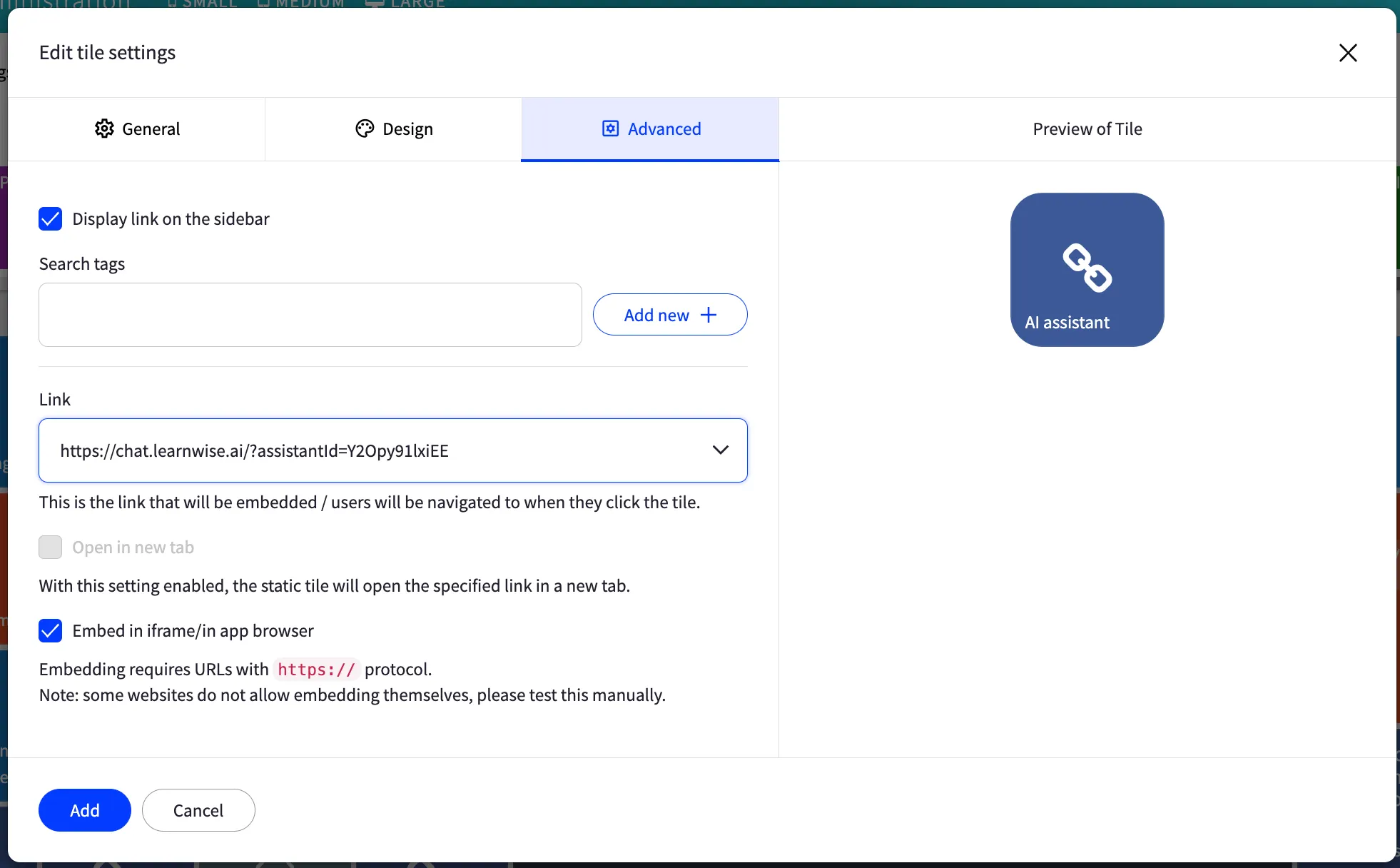
Navigate to the ‘Advanced” tab in the tile configuration window and
- Copy the LearnWise launch link: https://chat.learnwise.ai/?assistantId=xxxxxxxxx (this Id should match the assistant you are adding to MyDay)
- Uncheck any options related to opening in a new window.
- Check the option to embed iframe in browser, and then click Add.
Verify the Installation #
- Navigate to the dashboard tab where you added the LearnWise AI assistant.
- The assistant should load as a full page within the dashboard.
Was this page helpful?
Still stuck?
Ask the LearnWise assistant. It answers from these guides.
Related guides
- How can I add AI Student Tutor within Blackboard?Build your assistant
- How do I install AI Campus Support on the Brightspace Login Page?Build your assistant
- How do I publish an assistant in Blackboard via the Ultra Extension Framework (UEF)?Build your assistant
- How do I publish an assistant into Microsoft Sharepoint?Build your assistant
- How do I publish an assistant into Microsoft Teams?Build your assistant