

How do I connect Nextcloud as a knowledge source?
This guide walks you through connecting Nextcloud as a knowledge source in LearnWise, so your assistant can answer questions using files your institution keeps in Nextcloud.
3 min readUpdated
On this page
Your files stay in Nextcloud. When a file you added changes there, LearnWise picks up the new version on the next sync.
Prerequisites #
Before you start, make sure you have:
- Your Nextcloud server address, for example https://cloud.university.edu.
-
A Nextcloud account the folders are shared with, and access to sign in to it.
- Admin access to LearnWise, to configure knowledge sources for the assistant.
Step 1: Choose the Nextcloud account #
LearnWise only reads files that this account can see in Nextcloud. Anything the account cannot access stays out of reach of your assistant.
- Use a dedicated account.
The safest option is a Nextcloud account created just for LearnWise. - Share only the folders you need.
Give the account access to the folders your assistant should learn from, and nothing else. - Note the account's login name.
You will enter it as the Username in Step 3.
Step 2: Create an app password in Nextcloud #
LearnWise connects with an app password rather than the account's regular password.
- Sign in to Nextcloud with the account you chose in Step 1.
- Open the security settings.
Go to Settings > Security > Devices & sessions. - Create the app password.
Enter a name you will recognize, such as "LearnWise", and create a new app password. - Copy the app password.
Keep it somewhere safe until you have entered it as the Application Password in Step 3.
Note: Nextcloud may only show the app password once. If you lose it, delete it in Devices & sessions and create a new one.
Step 3: Connect Nextcloud in the LearnWise admin panel #
- Open your assistant.
Log into the LearnWise admin panel at admin.learnwise.ai and click Edit next to the assistant you want to add Nextcloud to. - Go to Applications.
Navigate to Knowledge > Applications. - Select Nextcloud.
Click Add Applications and choose Nextcloud from the list.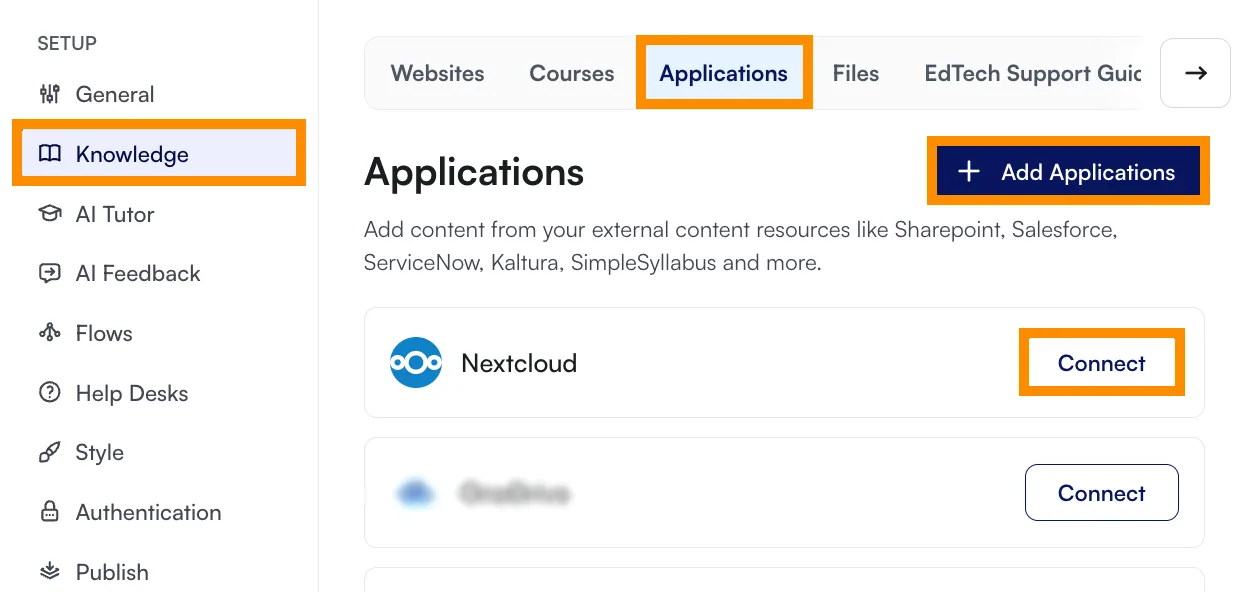
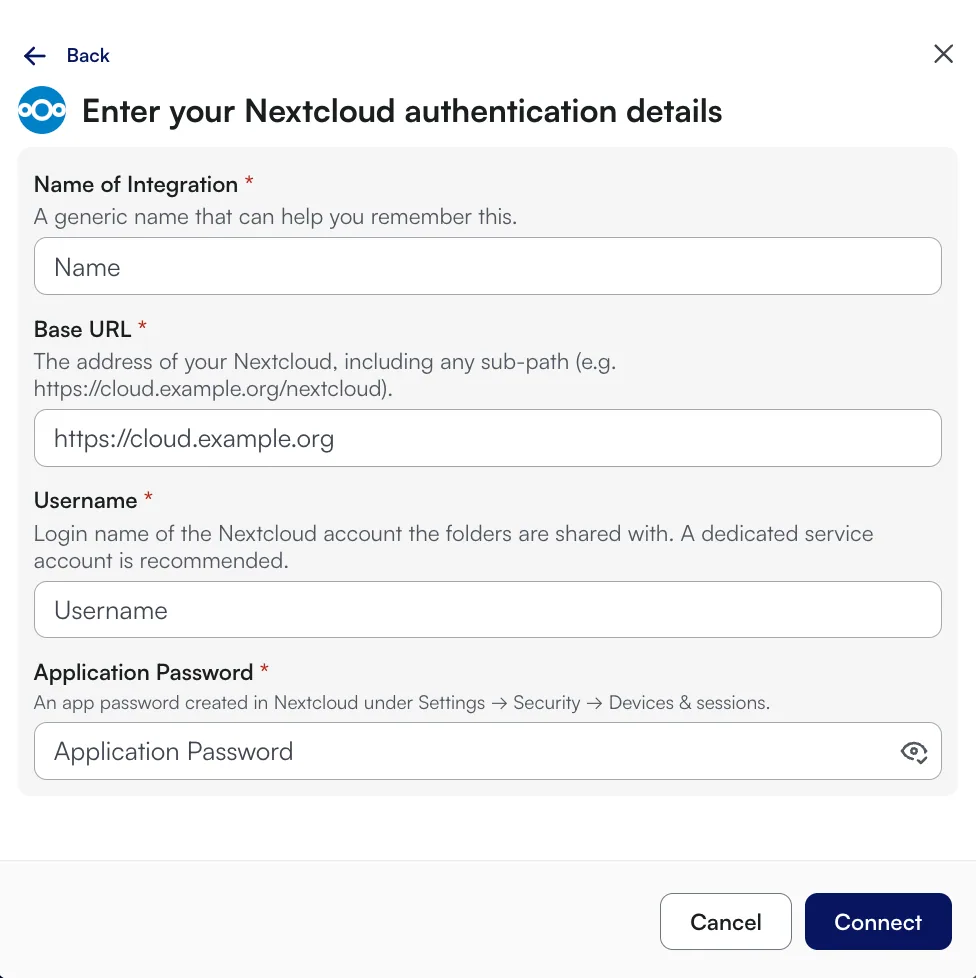
- Enter your details. Fill in all four required fields:
- Name of Integration: a name that helps you recognize this connection, for example "University Nextcloud"
- Base URL: the address of your Nextcloud, including any sub-path, for example https://cloud.example.org/nextcloud
- Username: the login name of the account from Step 1
- Application Password: the app password from Step 2.
- Connect.
Click Connect to link Nextcloud to your assistant.
Step 4: Add files as knowledge #
- Click + Add content.
Once Nextcloud is connected, it appears in your list of applications. Click the + Add content button. The Manage Nextcloud content window opens.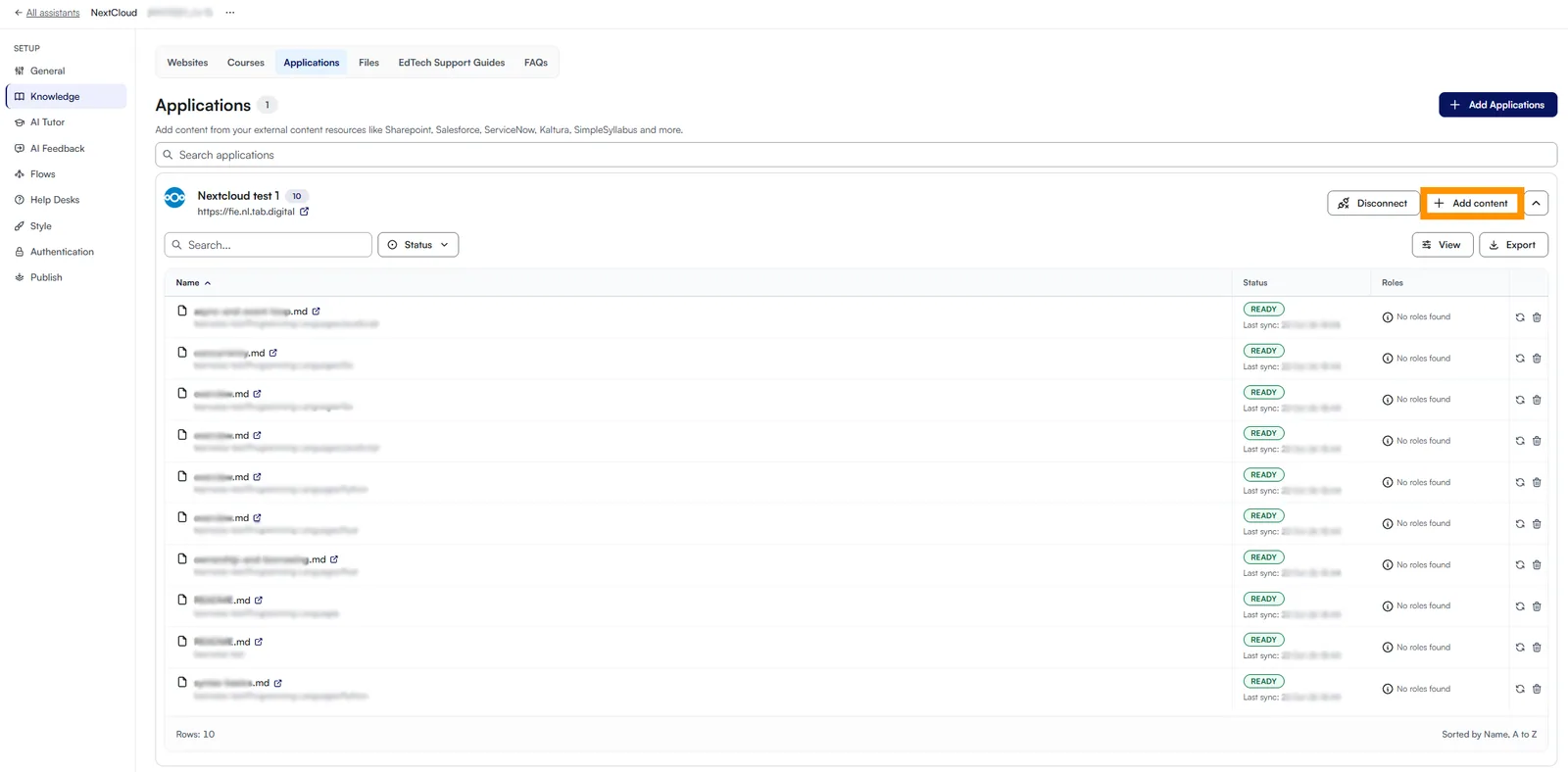
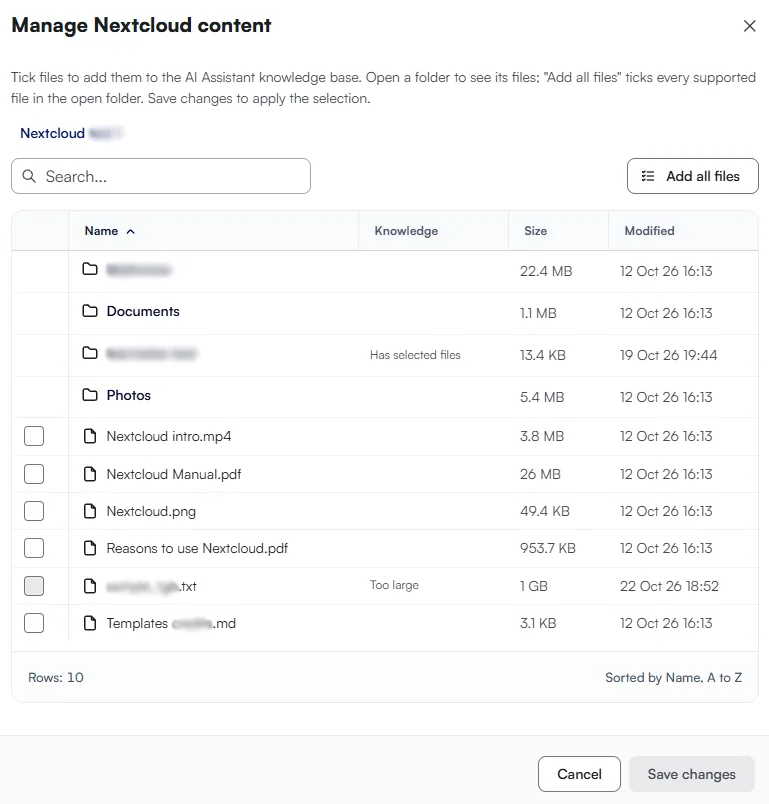
- Open a folder.
Click a folder to see its files. - Tick the files you want.
Tick each file you want to add to the AI Assistant knowledge base. To tick every supported file in the open folder, click Add all files. Files added to the folder later are not included. - Save your changes.
Click Save changes to apply your selection.
The files you added appear under your Nextcloud connection on the Applications tab, with their status and last sync time.
Congratulations! Your assistant can now answer questions using your Nextcloud files.
How does syncing work? #
Your Nextcloud files sync weekly. To sync straight away, for example after updating an important document, click Sync now on the knowledge source.
LearnWise only re-processes a file when it has changed in Nextcloud. Unchanged files are left as they are.
Only the files you ticked are synced. If new files are added to a folder later, they are not picked up automatically. To add them, click + Add content next to your Nextcloud connection and tick them in Manage Nextcloud content.
Things to know #
- Access follows the Nextcloud account. LearnWise only reads files the connected account can see. To remove a folder from reach, remove the account's access to it in Nextcloud.
- Deleting the app password removes access. If you delete the app password in Devices & sessions, LearnWise can no longer read your Nextcloud files. Create a new app password and update the connection to restore access.
Still stuck?
Ask the LearnWise assistant. It answers from these guides.
Related guides
- Can I be selective around which website content I add to LearnWise?Build your assistant
- How are the multiple different knowledge sources prioritized?Build your assistant
- How can I add AI Student Tutor within Blackboard?Build your assistant
- How can I add an FAQ to my knowledge?Build your assistant
- How can I integrate a ticketing system?Build your assistant