

What are Flows and how can I create & manage them?
A guide to creating, prioritizing, and managing Flows in LearnWise so your assistant can use triggers and custom logic to control how it responds in specific situations.
3 min readUpdated
On this page
What Are Flows? #
Flows in LearnWise give you granular control over how your AI assistant responds across every interaction. The Flows tab contains three types:
- Default behavior — always active, no trigger required. Handles every query that doesn't match a custom flow. Includes the Search knowledge action and can be edited directly to configure search behavior, answer guidelines, escalation, and follow-up actions.
- AI Tutor — controls how the assistant handles course-related interactions such as Study Mode and H5P Interactives. Can be positioned in the flow list to determine when it takes priority over custom flows.
- Custom flows — flows you define. These can be triggered by a user's message or by a page event (such as the chat opening or the user loading a page). When a trigger condition is met, the assistant follows that flow's response sequence instead of the default behavior. Custom flows support both conversational responses and proactive notifications.
Creating a New Flow #
Log in at admin.learnwise.ai and navigate to the assistant you wish to update. Click the Flows tab to get started.
Start a New Flow #
- Click + New Flow
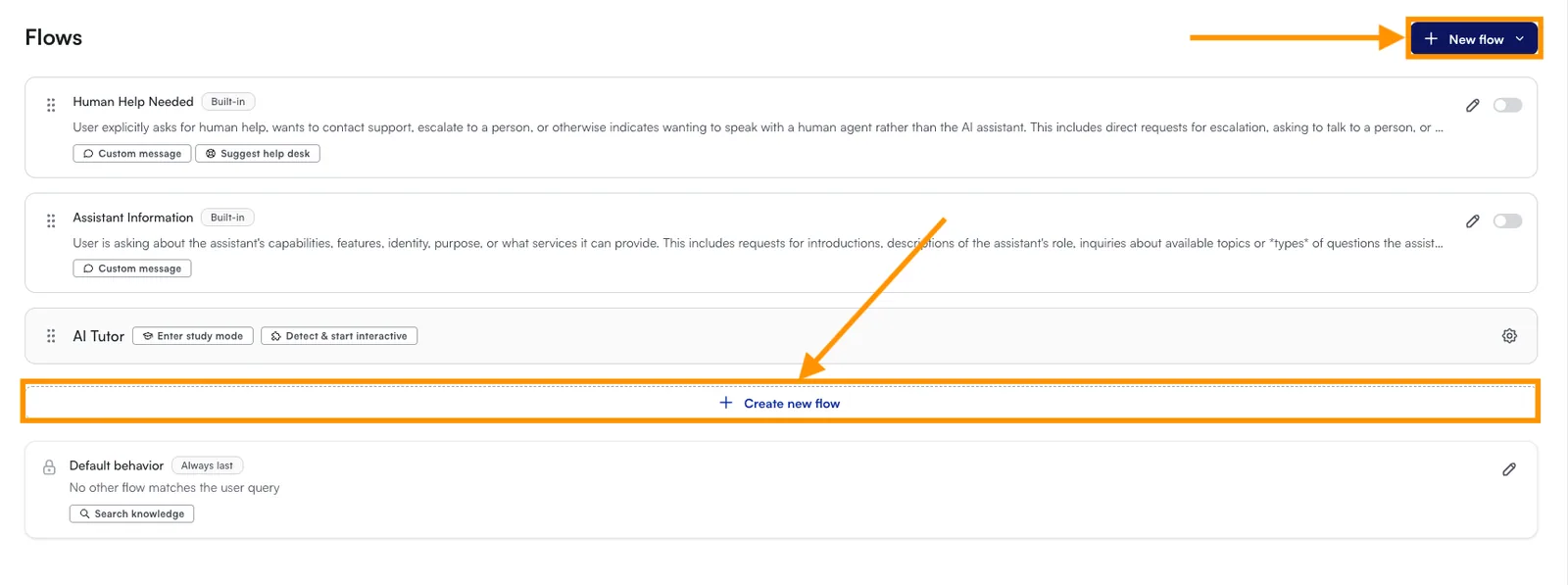
- Name the flow using a title that clearly reflects its intent
Define Triggers & Responses #
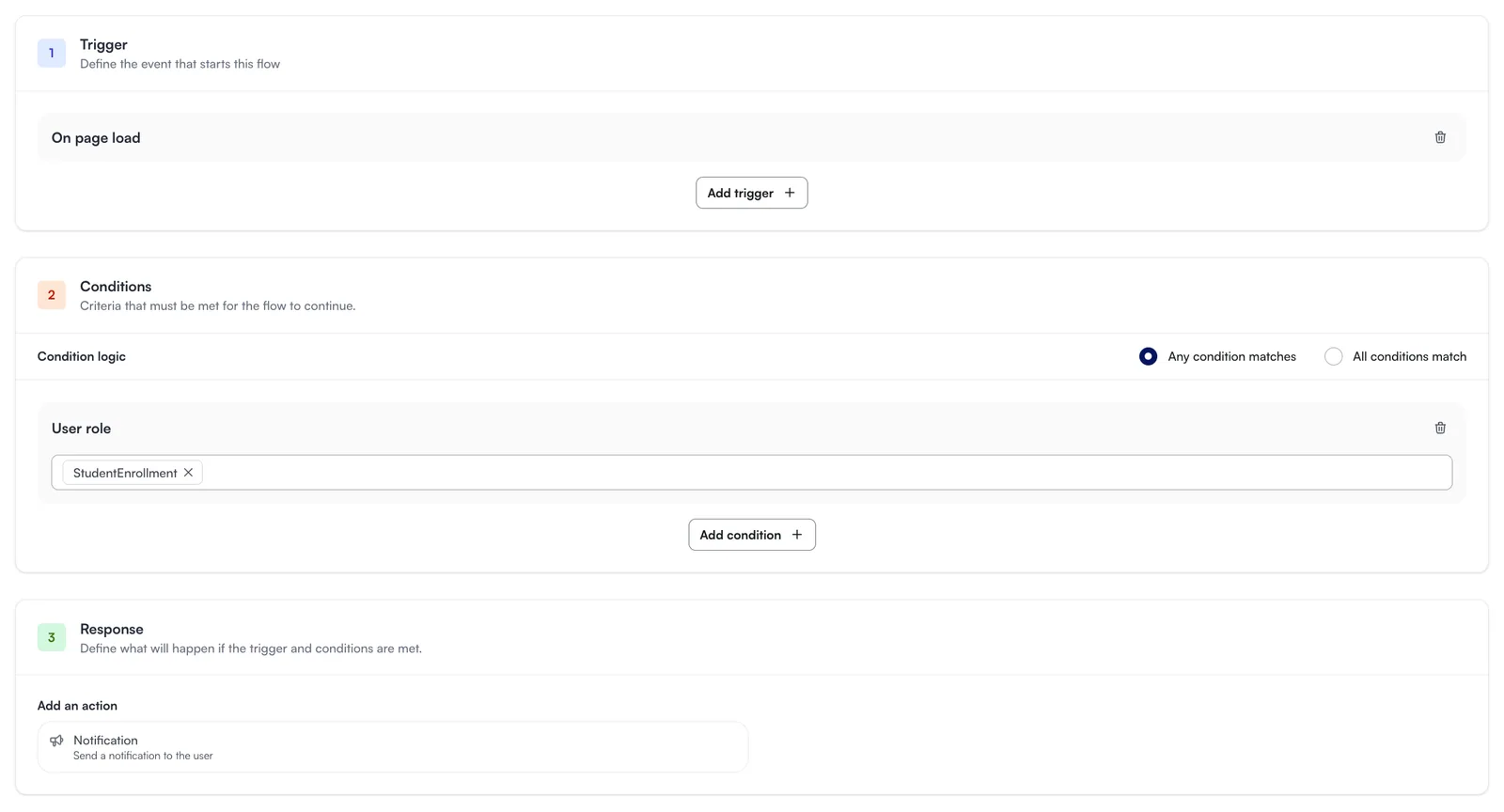
- Choose a trigger — either a user sending a message, the chat window opening, or a page load/time-on-page event
- Add optional conditions to control who sees the flow and where (by URL, user role, or scheduled date range)
Each condition type supports both a positive and a negative form, so you can say "match everyone except…" instead of listing every value you want to include. For example, User Role offers Includes / Excludes, and Course offers Equals / Doesn't equal / Contains / Doesn't contain. URL and External Data conditions have similar negative options (does not match, does not contain, is not one of, does not exist).
- Define the response — what the assistant does when the flow fires. This can be a message, a search, a notification, or another action
Reorder Flows #
All flows appear in a single flat list. Drag and drop rows directly within the list to set the order in which they are evaluated. The flow highest in the list takes precedence when multiple flows could match the same trigger. AI Tutor can be positioned anywhere in this list relative to your custom flows.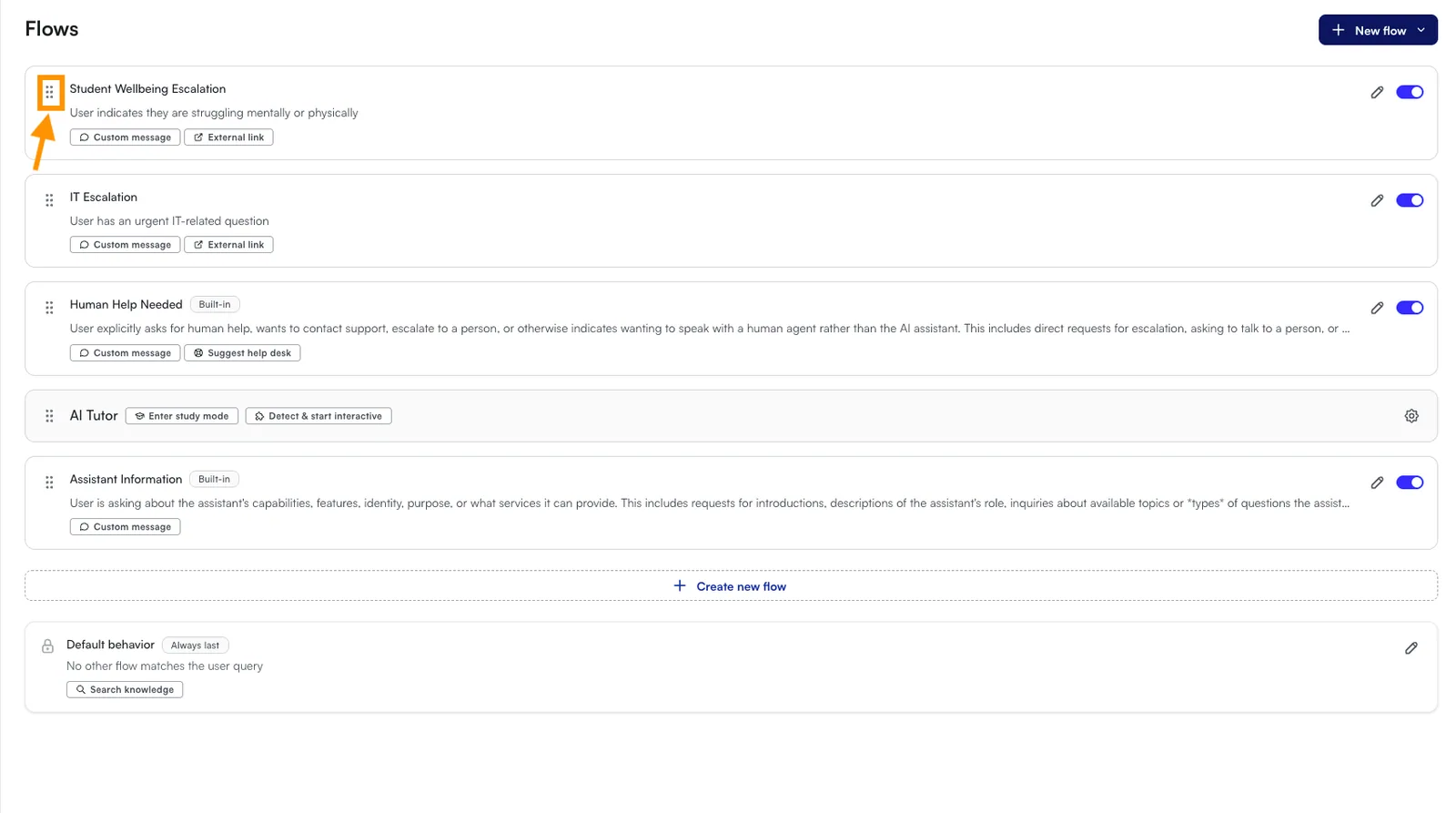
Save changes #
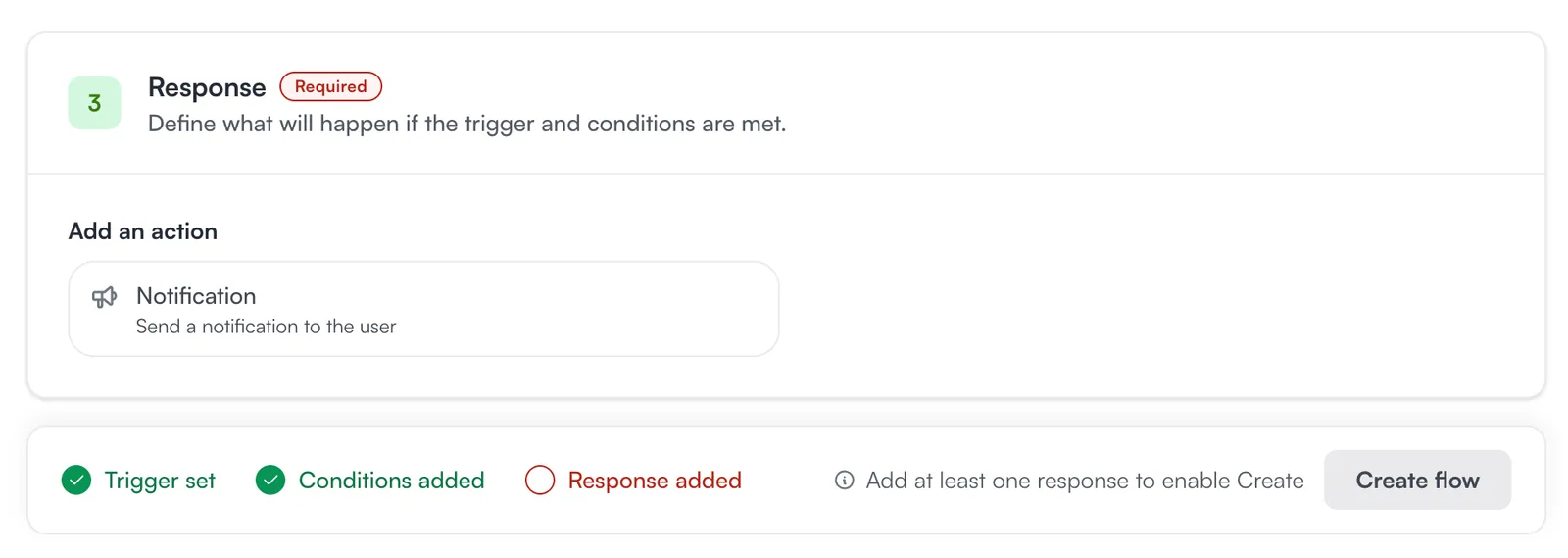
Once you've configured your flow, click "Create Flow" to save the changes to retain and activate it. The flow editor now includes a persistent save bar at the bottom of the screen with a live validation indicator: if anything required is missing — a trigger, or at least one response or action — the validation panel will surface this clearly before you attempt to create, so you'll know exactly what's blocking the save. If you try to navigate away or close the dashboard without saving, you will receive a warning modal to save your changes.
Activating Flows #
When you create a new flow, it is activated by default, meaning it will immediately begin responding to the defined trigger conditions. If you prefer to disable the flow temporarily, simply toggle it off using the switch in the dashboard. You can reactivate it at any time with a single click.
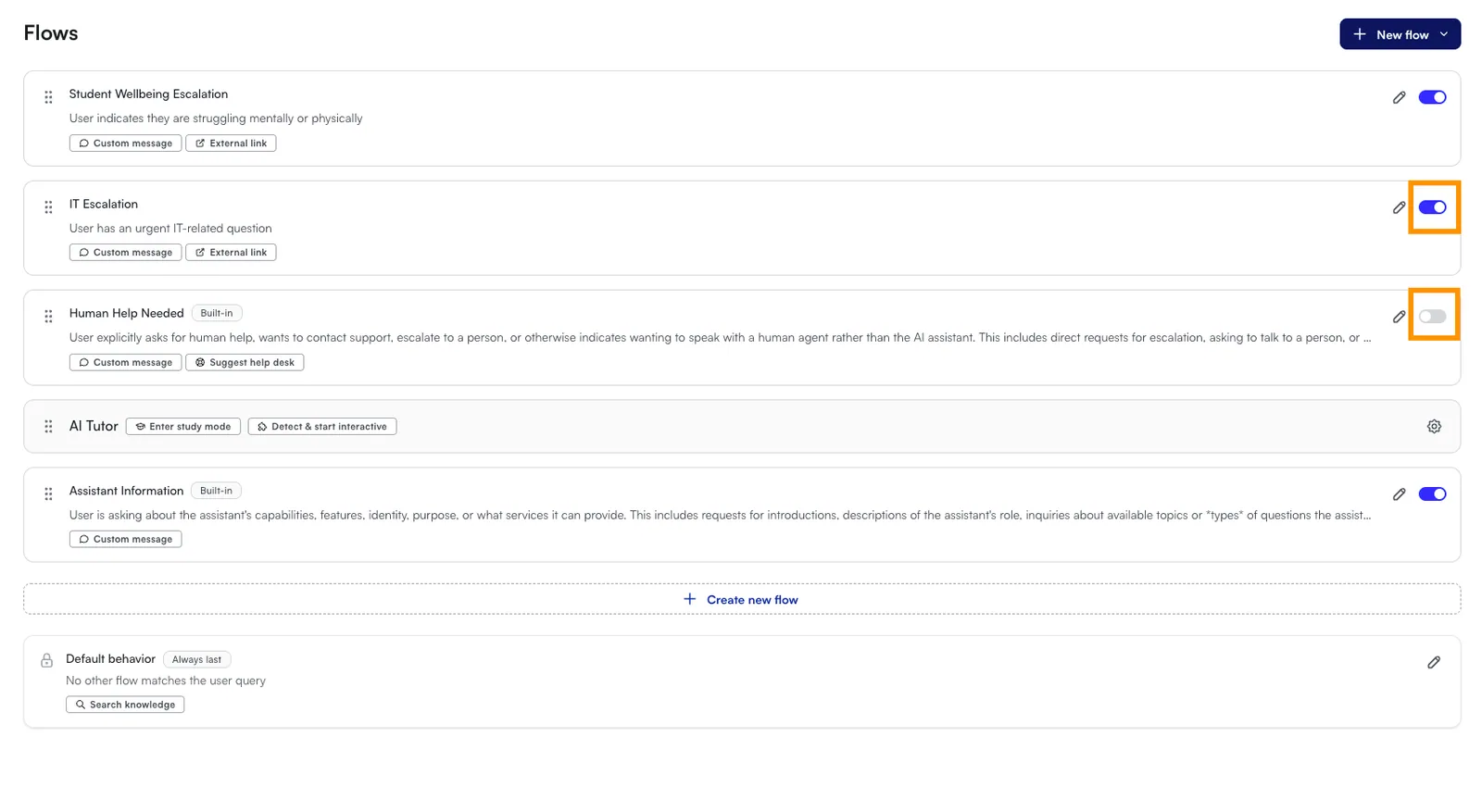
You have the flexibility to edit or permanently delete a flow too.
Still stuck?
Ask the LearnWise assistant. It answers from these guides.
Related guides
- What are triggers and their corresponding responses in Flows?Build your assistant
- Can I be selective around which website content I add to LearnWise?Build your assistant
- How are the multiple different knowledge sources prioritized?Build your assistant
- How can I add AI Student Tutor within Blackboard?Build your assistant
- How can I add an FAQ to my knowledge?Build your assistant