

How do I publish an assistant in an LMS using the LTI 1.3 framework?
A guide to publishing a LearnWise assistant directly inside your LMS via LTI 1.3, including setup steps, common error troubleshooting, and post-integration benefits like role-aware, context-aware support.
4 min readUpdated
On this page
A secure & flexible approach to integration #
Integrating the LearnWise Assistant into your Learning Management System (LMS) using the LTI 1.3 framework ensures a secure, seamless, and flexible connection. This integration empowers your LMS users with context-aware, role-specific AI assistance directly within their learning environment.
Prerequisites required for this process:
- Admin Access to both the LMS and the LearnWise Admin Dashboard.
- Knowledge of the LMS-specific setup instructions.
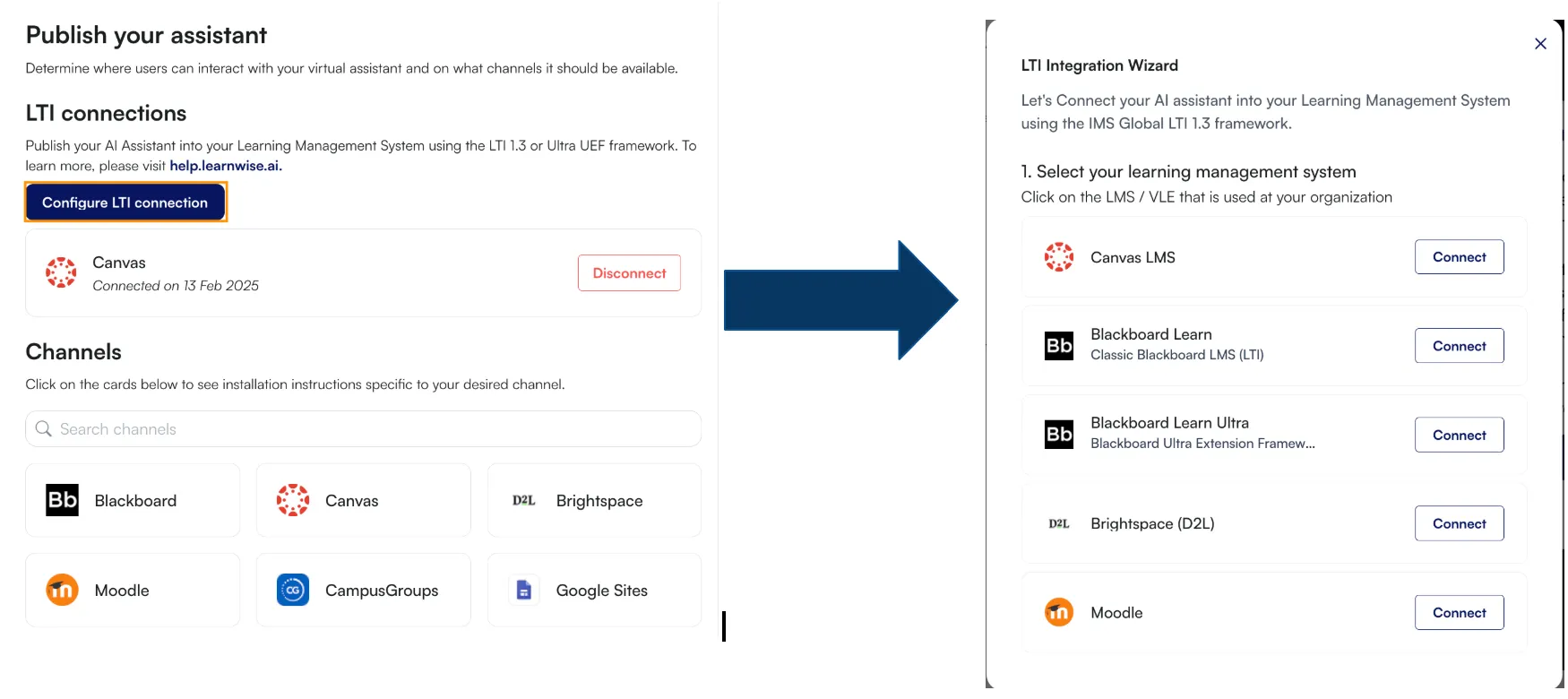
1. Access the LearnWise Admin Dashboard #
- Log in to the LearnWise admin panel at admin.learnwise.ai.
- Navigate to the Assistants tab and select the assistant you want to integrate.
- Go to the Publish section.
2. Configure a New LTI Integration #
- Click on Configure New LTI Integration.
- Select the LMS platform you wish to integrate LearnWise with (e.g., Canvas, Moodle, Blackboard).
- Click Next.
3. Retrieve LMS Configuration Details #
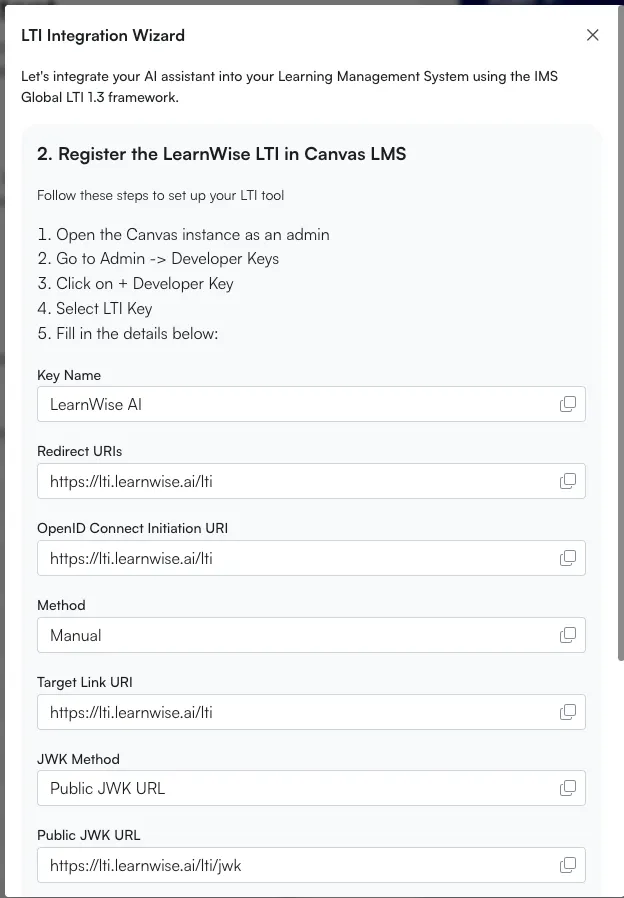
- LearnWise will generate and display the necessary details for your LMS
- Copy each field and paste them into the relevant fields within your LMS, this will generate and Client ID and a deployment ID (where relevant)
5. Register the Integration in LearnWise #
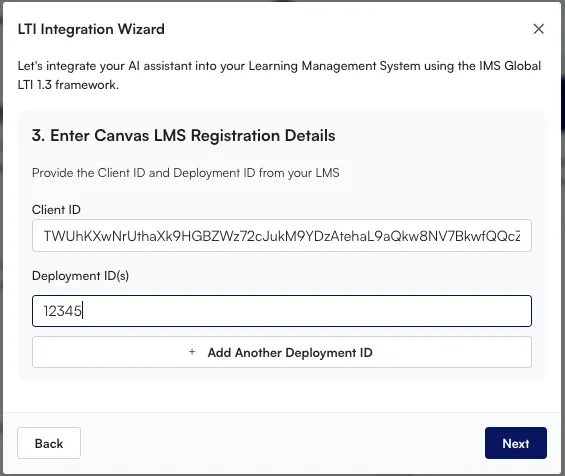
- Return to the LearnWise Admin Dashboard.
- Input the Client ID and Deployment ID into the registration fields under the integration setup.
- Save your changes.
6. Verify the Setup #
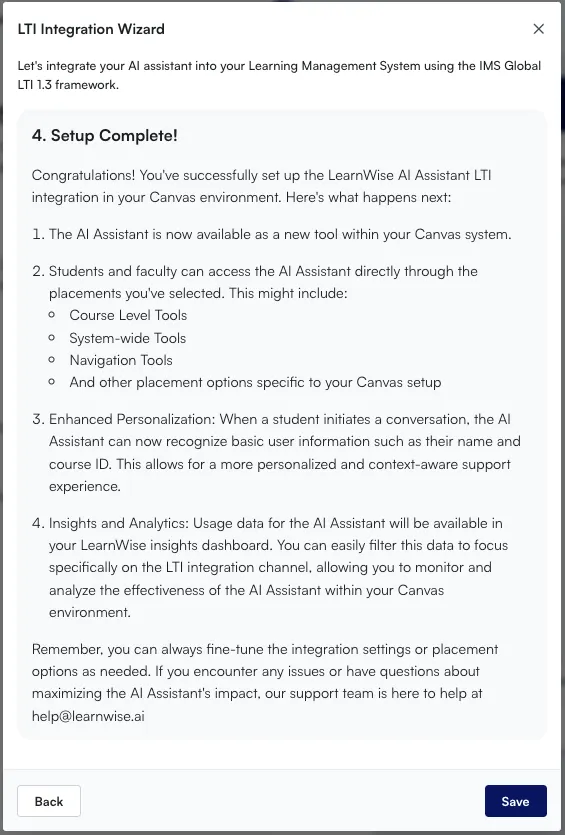
Once successfully registered, the LearnWise dashboard will confirm the integration. The assistant is now active and available as an LTI tool within your LMS.
Features Enabled Post-Integration #
- Role-Based Assistance: The assistant dynamically adjusts responses based on whether the user is a student, instructor, or admin.
- Context-Aware Support: Answers are tailored to the course, module, or specific content being accessed.
- Usage Analytics: Access comprehensive data about how the AI assistant is used within the LMS through the LearnWise Insights dashboard.
Common Issues and Troubleshooting #
Domain Already Registered Error #
Error: "Domain already registered" or "Connection already exists"
Causes & Solutions:
- Previous registration exists: Another LearnWise assistant may already be registered with your LMS domain
- Incomplete cleanup: A previous integration attempt wasn't fully removed
How to resolve:
- Check if you have existing LearnWise integrations in your LMS admin panel
- Remove any previous LearnWise LTI tools or external apps
- In LearnWise admin, disconnect any existing LTI connections under the Publish tab
- Clear your browser cache and try the registration process again
- If the error persists, contact LearnWise support at help@learnwise.ai for manual cleanup
Redirect URI Mismatch Errors #
Error: "invalid_request" or "redirect_uri does not match client settings"
Solution:
- Ensure you're using the correct redirect URIs provided by LearnWise for your region:
- Use the URIs shown in the LearnWise integration popup
- Copy the redirect URI exactly as displayed - avoid manual typing
- Remove any trailing slashes from URLs when entering them in your LMS
LTI Tool Launch Errors (500 Error) #
Error: "500 Internal Server Error" when launching the assistant
Common causes:
- Missing base URL: Ensure all required URLs are properly configured in your LMS
- Trailing slash in domain: Remove any trailing "/" from domain URLs
- Incorrect Client ID or Deployment ID: Double-check these match exactly. Don’t mix up LTI and API keys
Solution steps:
- Verify all URLs are entered correctly without trailing slashes
- Confirm Client ID and Deployment ID match exactly between LMS and LearnWise
- Test with a simple launch to isolate the issue
- Contact support if the 500 error persists
Connection Timeout Issues #
Error: Connection timeouts during setup or authentication
Solutions:
- Check your institution's firewall settings allow connections to:
- Ensure your LMS can access external HTTPS connections
- Try the setup process during off-peak hours
Authentication Flow Problems #
Error: Users redirected incorrectly or authentication fails
Solutions:
- Verify SSO/authentication settings in your LMS allow external tool access
- Check that user roles have appropriate permissions for LTI tool usage
- Test with different user role types (student, instructor, admin)
Missing or Incorrect LTI Configuration #
Error: Assistant doesn't appear or launches incorrectly
Checklist:
- ✅ Domain registered correctly (no trailing slashes)
- ✅ Client ID matches between LMS and LearnWise
- ✅ Deployment ID entered correctly (where applicable)
- ✅ Privacy settings set to "Anonymous" or "Name Only" (recommended)
- ✅ Course navigation or appropriate placement configured
- ✅ Tool is published/active in your LMS
When to Contact Support #
Reach out to LearnWise support at help@learnwise.ai if you encounter:
- Persistent "domain already registered" errors after cleanup
- 500 errors that continue after following troubleshooting steps
- Issues specific to your LMS configuration
- Need for manual connection cleanup or region-specific settings
Include in your support request:
- Your LMS platform and version
- Screenshot of the error message
- Client ID and Deployment ID (if generated)
- Institution domain name
Benefits of LTI 1.3 Integration #
- Enhanced Security: Leverages the latest LTI framework standards for secure data exchange.
- Scalable Setup: Easily adaptable to various LMS environments.
- Streamlined Experience: Provides users with instant AI support directly within the LMS interface.
By following these steps and troubleshooting guidelines, your institution can maximize the capabilities of LearnWise, ensuring a robust support system for all LMS users.
Still stuck?
Ask the LearnWise assistant. It answers from these guides.
Related guides
- How can I add AI Student Tutor within Blackboard?Build your assistant
- How do I publish AI Campus Support into Brightspace?Build your assistant
- How do I install AI Campus Support on the Brightspace Login Page?Build your assistant
- How do I publish an assistant in Blackboard via the Ultra Extension Framework (UEF)?Build your assistant
- How do I publish an assistant into Microsoft Sharepoint?Build your assistant