

How do I create shortcut buttons for an assistant?
Learn how to design and configure shortcut buttons that guide users to high-impact actions and FAQs directly from your LearnWise AI assistant.
3 min readUpdated
On this page
Streamlining Support with Shortcut Buttons #
Shortcut buttons offer users a way to get faster answers to frequently asked questions, navigate to common tasks, or initiate specific actions without typing detailed queries. By integrating shortcut buttons into your AI assistant, you can significantly reduce the time users spend seeking help and improve their overall experience.
Types of Shortcut Buttons #
| Button Type | Description |
|---|---|
| Send Text Into Chat | Automatically sends a preset text into the chat. |
| Open External Link | Redirects the user to an external webpage. |
| Escalation Buttons | Provides a “Contact Support” button that will display help desk and escalation methods. |
| Frequently Asked Questions (FAQs) | Pulls input text verbatim from a pre-filled question and answer. Note: these need to be set up before becoming available as a shortcut option |
Each button type serves a specific purpose and can be used to direct the conversation or provide quick solutions to the user's needs.
Step By Step #
-
Accessing Assistant Settings
- Sign in at admin.learnwise.ai.
- Select the 'Assistants' tab and click 'Edit' on the assistant you wish to configure.
-
Setting Up Shortcut Buttons
- In the assistant's 'General' settings, find the 'Shortcut Buttons' area.
- To add a new button, click on 'Add Shortcut Button'.
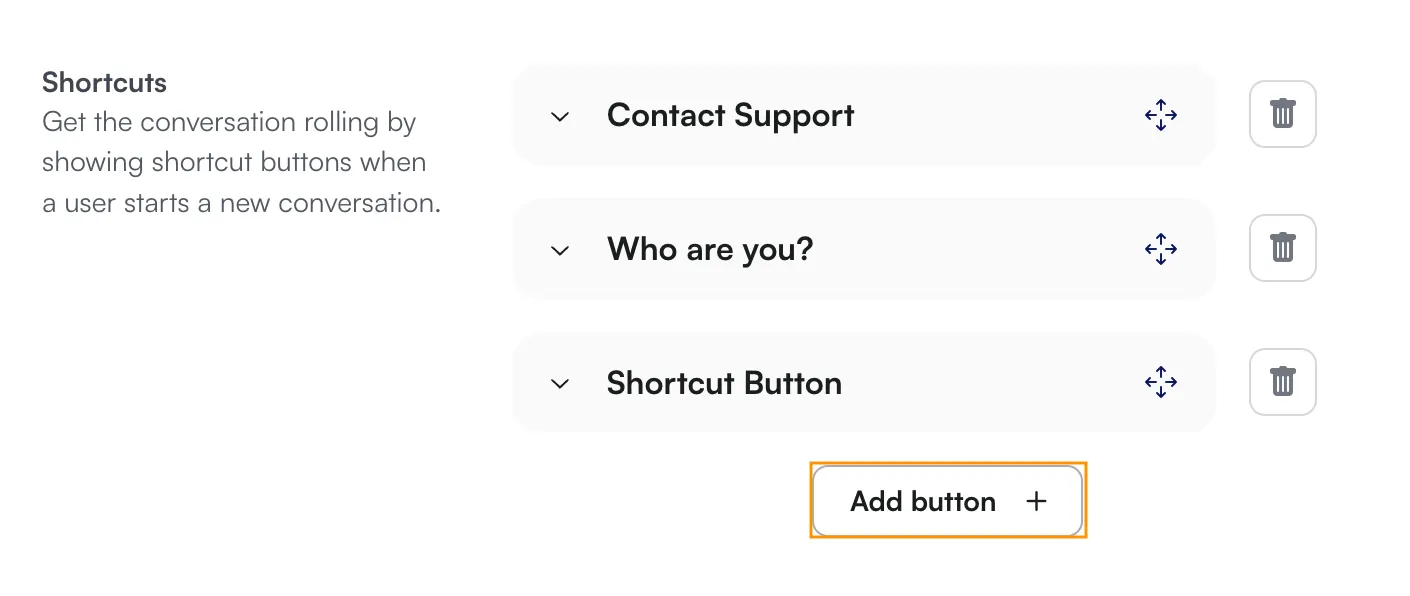
- You can add up to 50 shortcut buttons. When more than 5 are configured, they are automatically grouped under a "More" option in the chat interface.
-
Defining Shortcut Button Actions
-
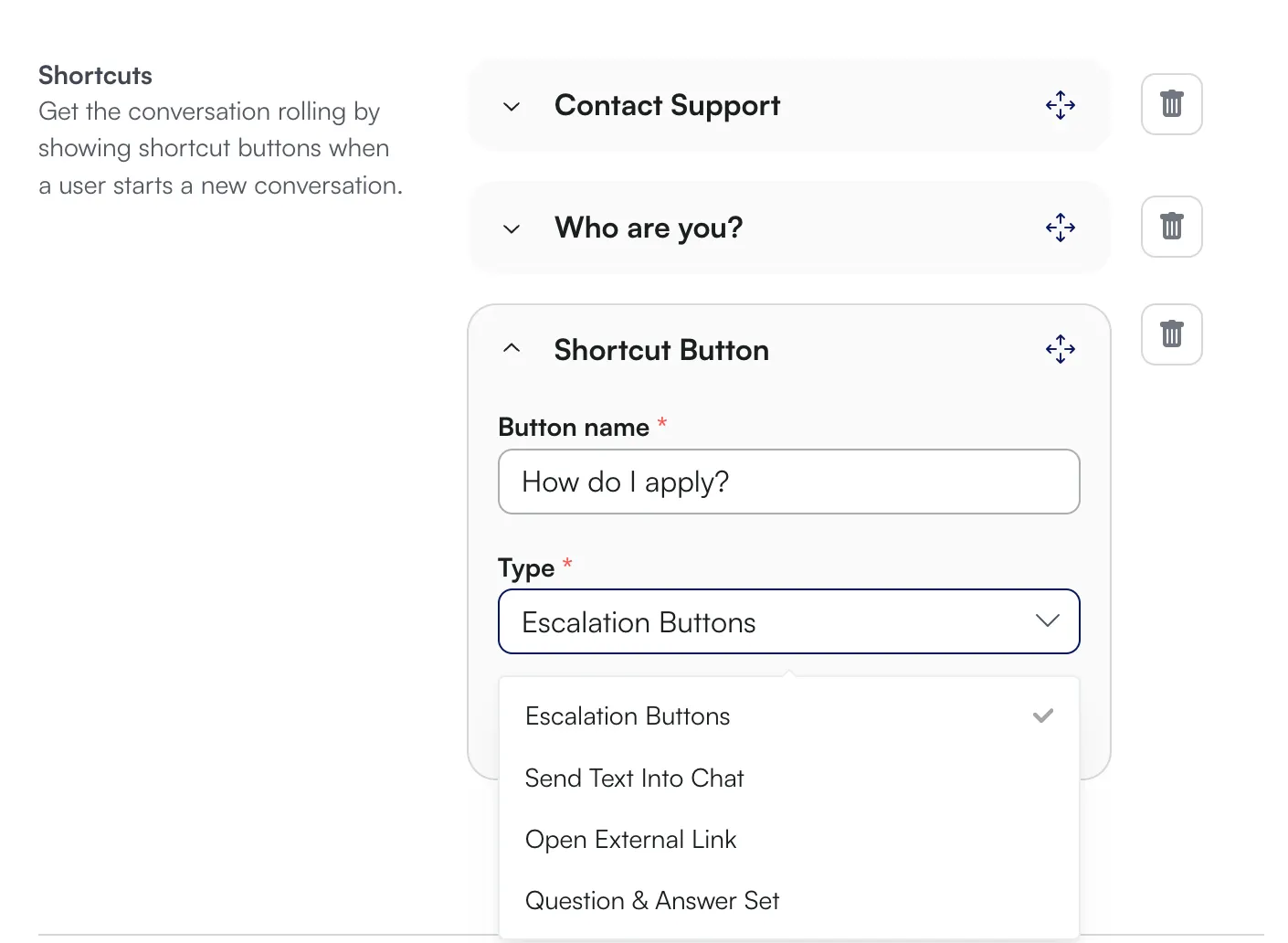
Assign a name to your button that users will see in the chat interface.
-
Select the button type and fill in the necessary information based on your choice:
- For 'Send Text Into Chat', input the message that will appear in the chat.
- For 'Open External Link', provide the URL to which users will be directed.
- For 'Escalation Buttons', choose the action that will connect users to additional support options.
-
-
Saving and Applying Changes
- After configuring your buttons, click 'Save' to implement the new shortcuts.
- You can reorder the shortcut buttons by dragging and dropping; these changes will be reflected in the chat interface
-
Testing Functionality
- Preview the AI assistant to ensure each button performs its intended action correctly.
Shortcut buttons are more than just a convenience; they represent a commitment to efficient, user-friendly support. By carefully selecting and configuring these buttons, you enable users to find solutions quickly, making their interactions with the AI assistant more productive and satisfying.
Recommended Shortcut Buttons for Higher Education Usecases #
| Button Name | Button Type | Action Example | Description |
|---|---|---|---|
| "Course Registration Info" | Send Text Into Chat | "Here's how you can register for courses." | Directs users to information about registration procedures. |
| "IT Helpdesk" | Escalation Buttons | Directs to IT support contact options. | Offers options for contacting IT support for technical issues. |
| "Library Resources" | Open External Link | URL to the library's resource page. | Links to the university library's digital resources. |
| "Academic Calendar" | Send Text Into Chat | "Check out the academic calendar here." | Provides information on important academic dates and deadlines. |
| "Financial Aid Assistance" | Open External Link | URL to financial aid information. | Guides to detailed information on scholarships, loans, and grants. |
| "Campus Events" | Send Text Into Chat | "Here are the upcoming campus events." | Informs about current and upcoming campus activities. |
| “IT system status down” | Q & A | Where should you troubleshoot IT issues before escalating? | Directs users to the IT System status page to identify if there are network or system issues |
Still stuck?
Ask the LearnWise assistant. It answers from these guides.
Related guides
- How do AI suggested questions work?Build your assistant
- How do I activate and use voice mode in the assistant?Build your assistant
- How do I change the brand color of your assistant?Build your assistant
- How do I change the nickname of the assistant?Build your assistant
- How do I set the global answering style for my assistant?Build your assistant