

How do I publish an assistant on a website
A short guide to embedding your LearnWise assistant on a website using either a floating button snippet or an iframe, by pasting the provided JavaScript into your site’s code.
1 min readUpdated
On this page
How to publish your assistant on your website #
Once you have created your assistant, you may want to display it on your website so that visitors can chat with the assistant. This guide will show you step by step how to show your assistant on your website.
Please note that you will need permission or access to your website to complete these steps.
There are two main methods to add your assistant to a website:
- Floating Button
- Iframe
Floating Button - Step By Step Instructions #
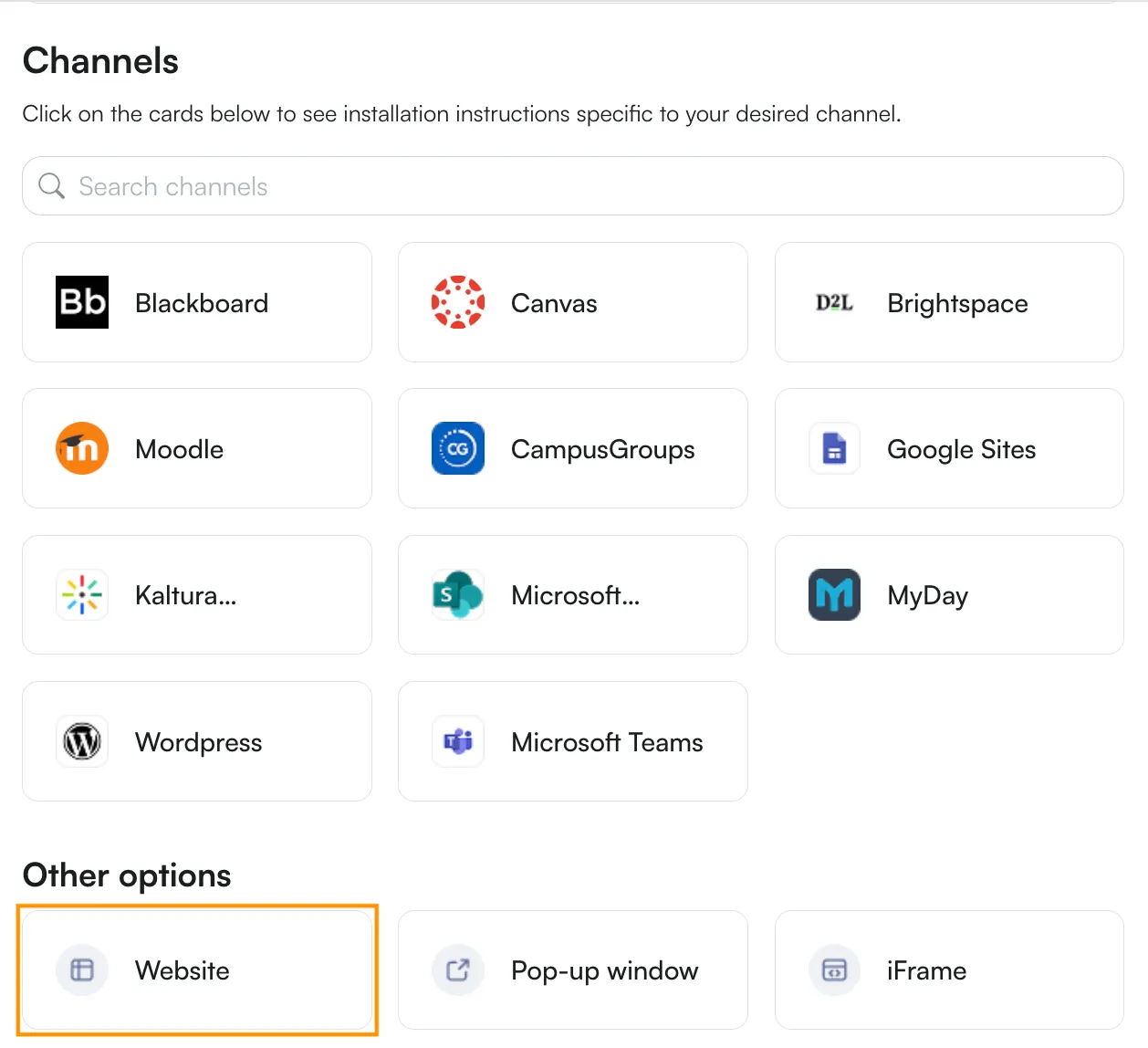
- Navigate to the publish step in your admin dashboard. Under Channels > Other options, click on ‘Website.’
- Copy the JavaScript Code in the LearnWise admin dashboard
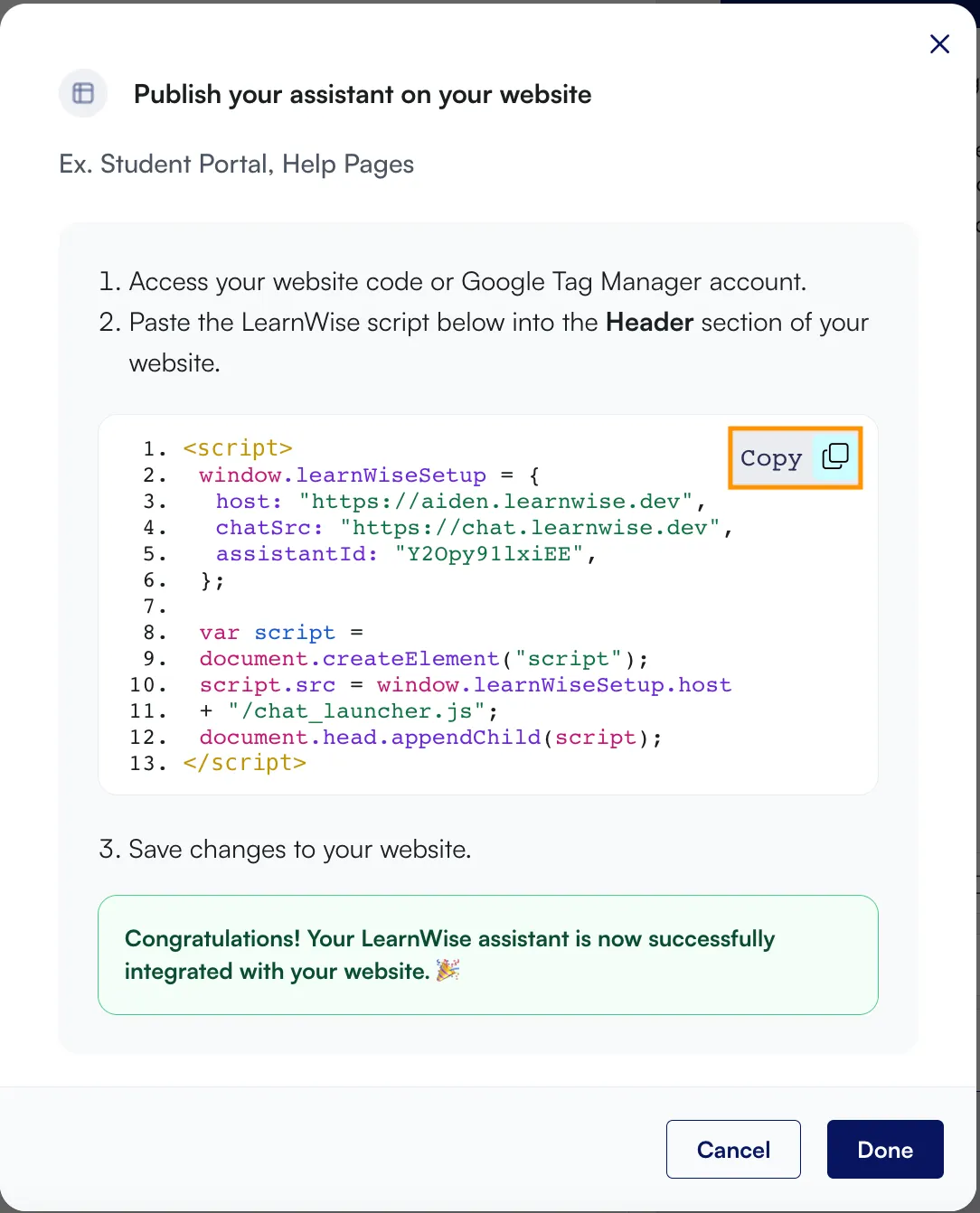
- Access your website code or Google Tag Manager account
- Paste the code you copied previously into the Header section of your website.
- Save changes to your website
Now you have successfully embedded your assistant onto your website!
Iframe - Step By Step Instructions #
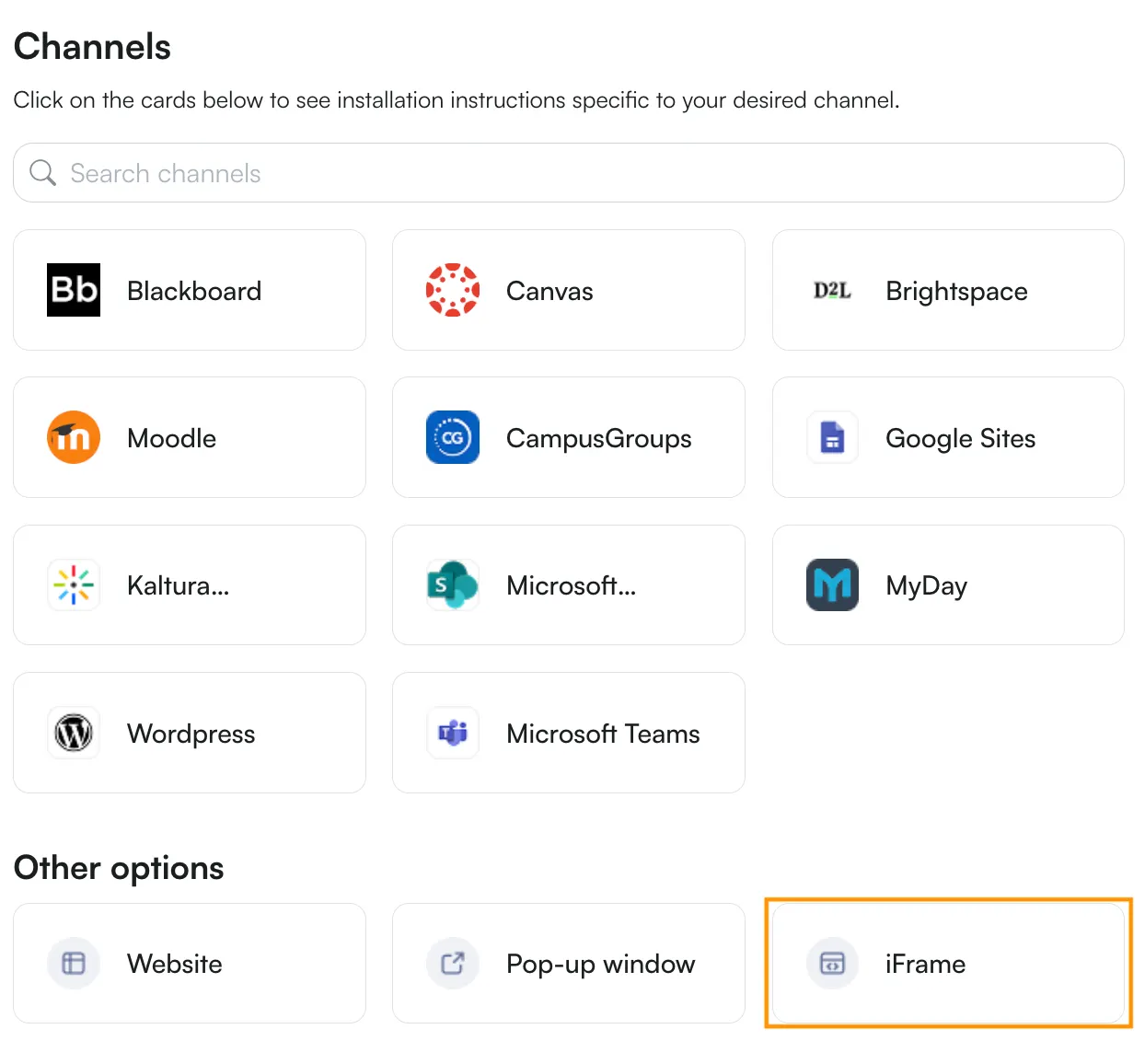
- Navigate to the publish step in your admin dashboard. Under Channels > Other options, click on ‘Website.’
- Copy the Javascript code from your LearnWise admin dashboard
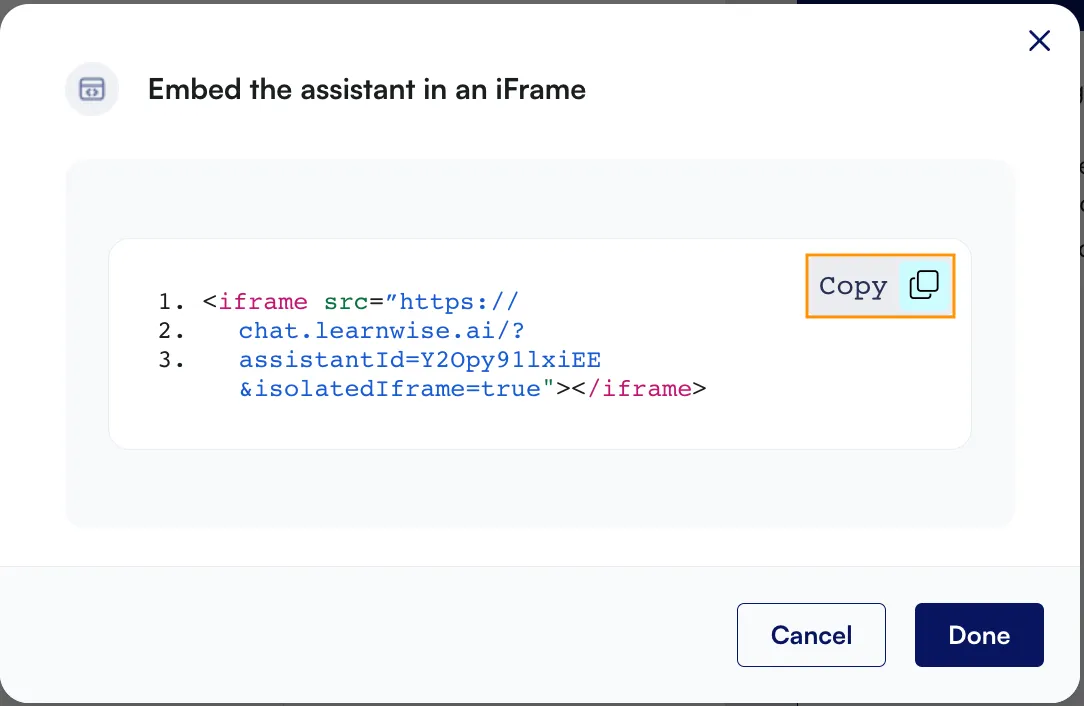
- Edit the HTML of your website
- Insert a new iframe onto the page and paste the Javascript
Was this page helpful?
Still stuck?
Ask the LearnWise assistant. It answers from these guides.
Related guides
- How can I add AI Student Tutor within Blackboard?Build your assistant
- How do I install AI Campus Support on the Brightspace Login Page?Build your assistant
- How do I publish an assistant in Blackboard via the Ultra Extension Framework (UEF)?Build your assistant
- How do I publish an assistant into Microsoft Sharepoint?Build your assistant
- How do I publish an assistant into Microsoft Teams?Build your assistant