

How do I integrate Jira ticketing system?
A guide to integrating Jira with LearnWise help desks so chat escalations can create Jira issues using API tokens, project keys, and mapped ticket fields.
2 min readUpdated
On this page
LearnWise integrates seamlessly with Jira, enabling support cases to be created directly from LearnWise and routed to the relevant Jira channel. These cases can pre-populate metadata, enhancing workflow efficiency.
1. Set Up an API Access Token #
Before integrating your helpdesk with Jira, you need an API token for authentication.
Steps to generate an API token: #
- Open your browser and navigate to the Atlassian API token management page: https://id.atlassian.com/manage-profile/security
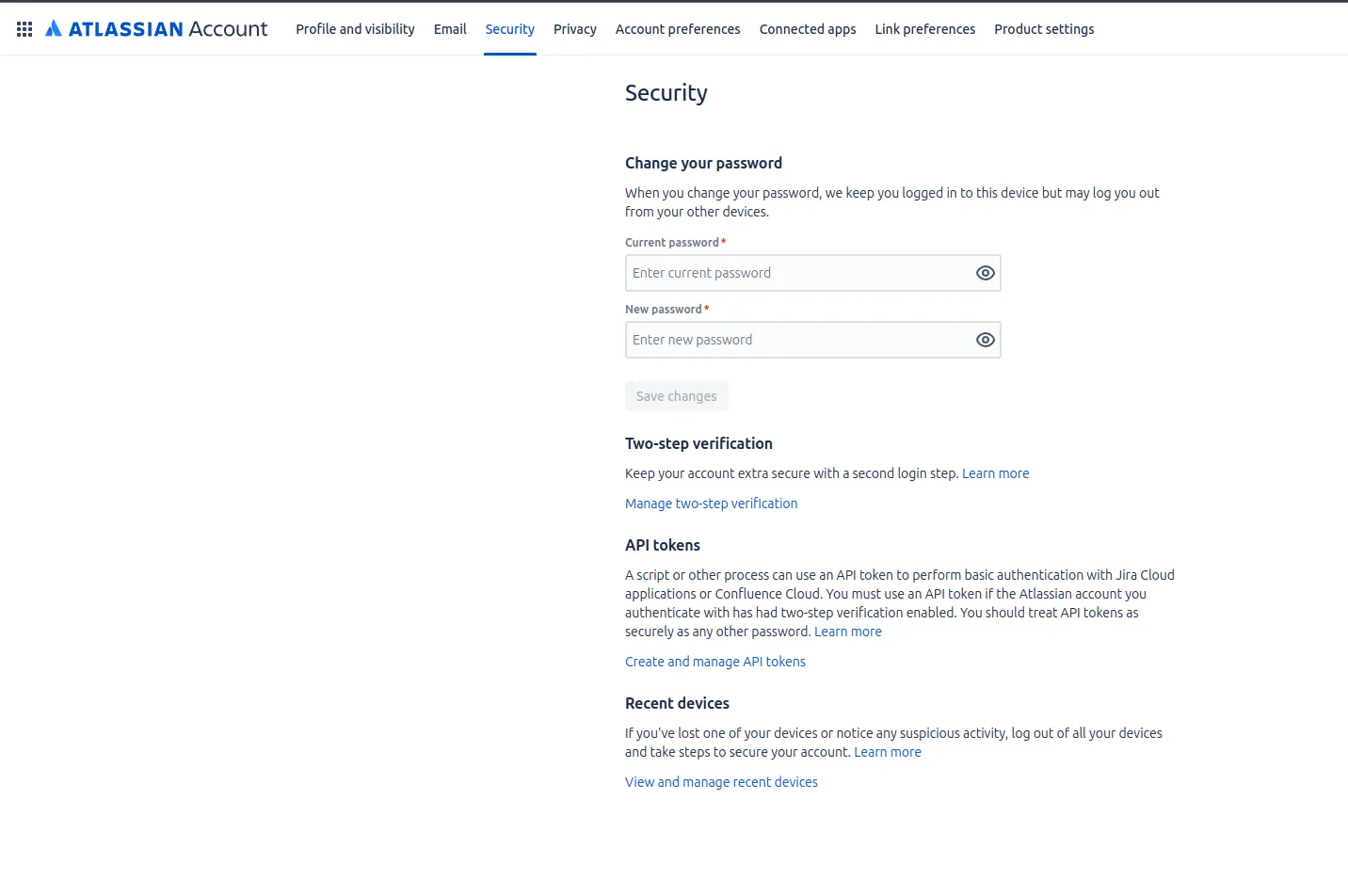
- Under the Security section, click Create and manage API tokens.
- Click Create API token and provide a name for the token (e.g., "LearnWise Integration").
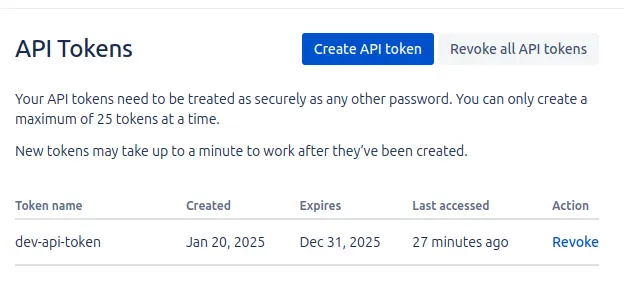
- Click Create, then Copy the generated API token.
- Important: Store the token securely, as it will not be visible again.
2. Select the Jira Project #
To link your helpdesk system to Jira, you need to select the appropriate project.
Steps to get your Jira project key: #
- Navigate to your Jira projects page
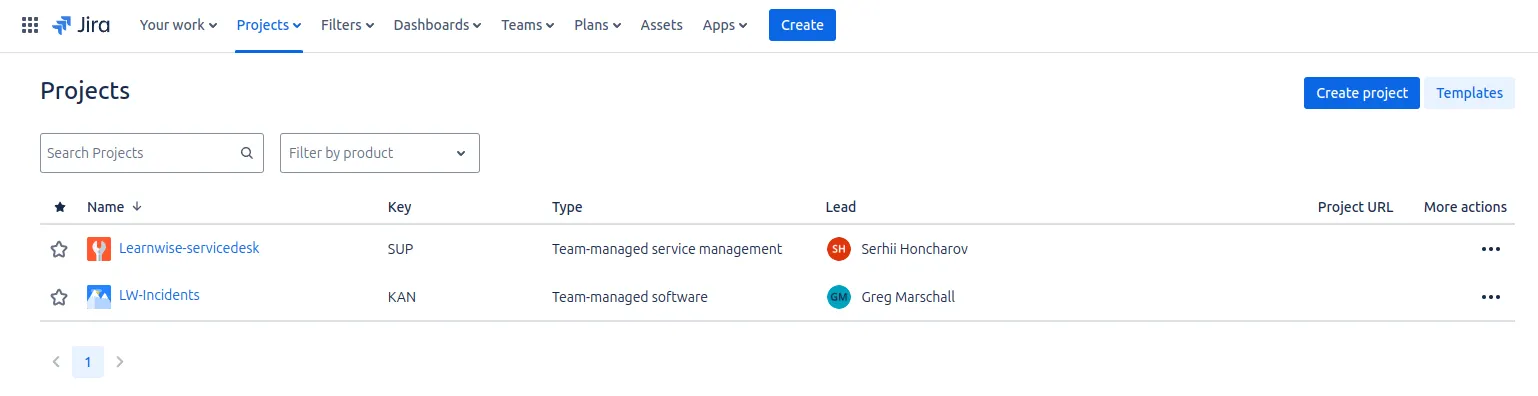
- Identify the project you want to connect.
- Copy the Project Key (e.g., "SUP", "KAN").
3. Connect the Helpdesk to Jira #
Once you have the API token and project key, you can configure your helpdesk system.
Required Information: #
When setting up the connection, you will be asked to provide:
✔ Jira instance URL (e.g., https://yourcompany.atlassian.net/)
✔ Email of the user who has access to the selected project
✔ Generated API token (from Step 1)
✔ Jira project key (from Step 2)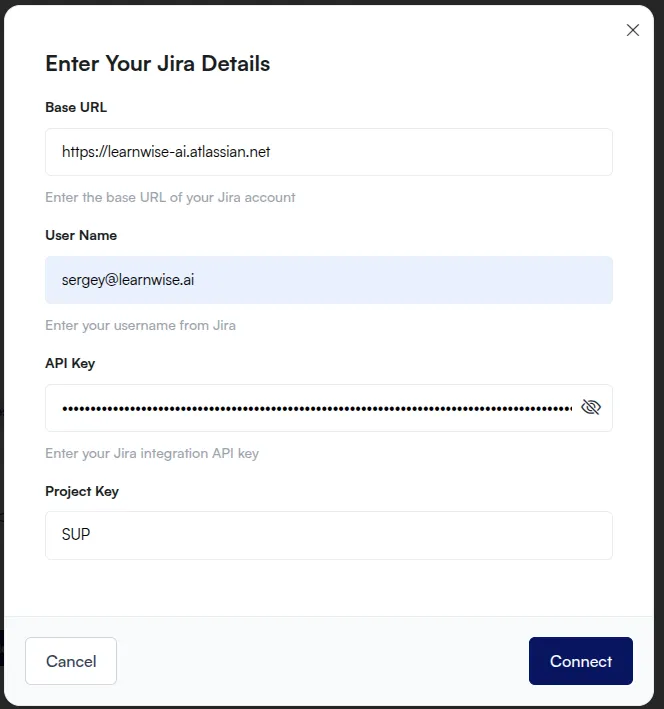
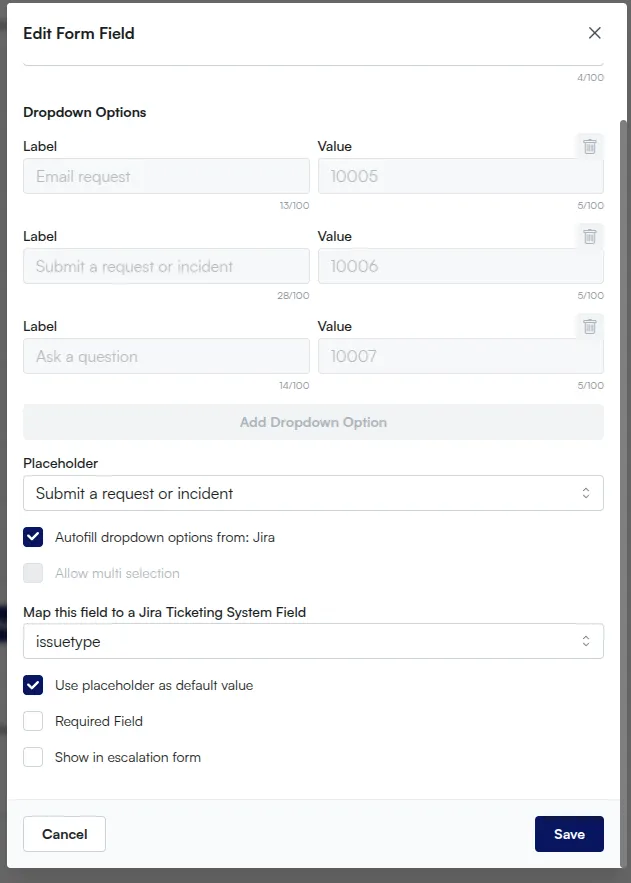
4. Configure Helpdesk Fields & Mapping #
To ensure proper ticket creation in Jira, you need to map fields correctly.
Field Mapping: #
- Issue Type: Define the type of issues your helpdesk will create (e.g., "Bug," "Task," "Incident").
- Priority: Ensure priority levels in your helpdesk match those in Jira.
- Custom Fields: Map additional fields based on your organization's workflow.
📌 Tip: Always test ticket creation after mapping fields to verify correct configurations.
Final Check & Testing #
✅ Confirm that your helpdesk system successfully connects to Jira.
✅ Create a test ticket to verify correct field mappings.
✅ Ensure users have the correct permissions to create and update tickets.
Still stuck?
Ask the LearnWise assistant. It answers from these guides.
Related guides
- How can I integrate a ticketing system?Build your assistant
- How do I integrate Salesforce ticketing system?Build your assistant
- How do I integrate ServiceNow ticketing system?Build your assistant
- How do I integrate with HubSpot ticketing system?Build your assistant
- How do I create a new Help Desk?Build your assistant