

How to adjust the availability of different escalation options?
A guide to setting custom opening hours for each escalation option in a LearnWise help desk so live support methods like phone and chat only appear when staff are available.
3 min readUpdated
On this page
Adjusting the Availability of Escalation Options in LearnWise #
When managing escalation options in LearnWise, setting the availability for live interactions such as Live Chat or Phone Calls is critical. These options typically need to align with the working hours of your support team. This guide will walk you through customizing the availability settings to ensure users can reach out through these methods during the times when staff is available.
Tailoring Availability to Support Hours
Setting precise availability for Live Chat and Phone Call options helps manage user expectations and support team workload. For instance, if your support team is available from 9 AM to 5 PM, you would configure these options to be active only during these hours.
Steps to Adjust Availability #
-
Login to Your Dashboard: Access your LearnWise admin account via admin.learnwise.ai and proceed to the dashboard.
-
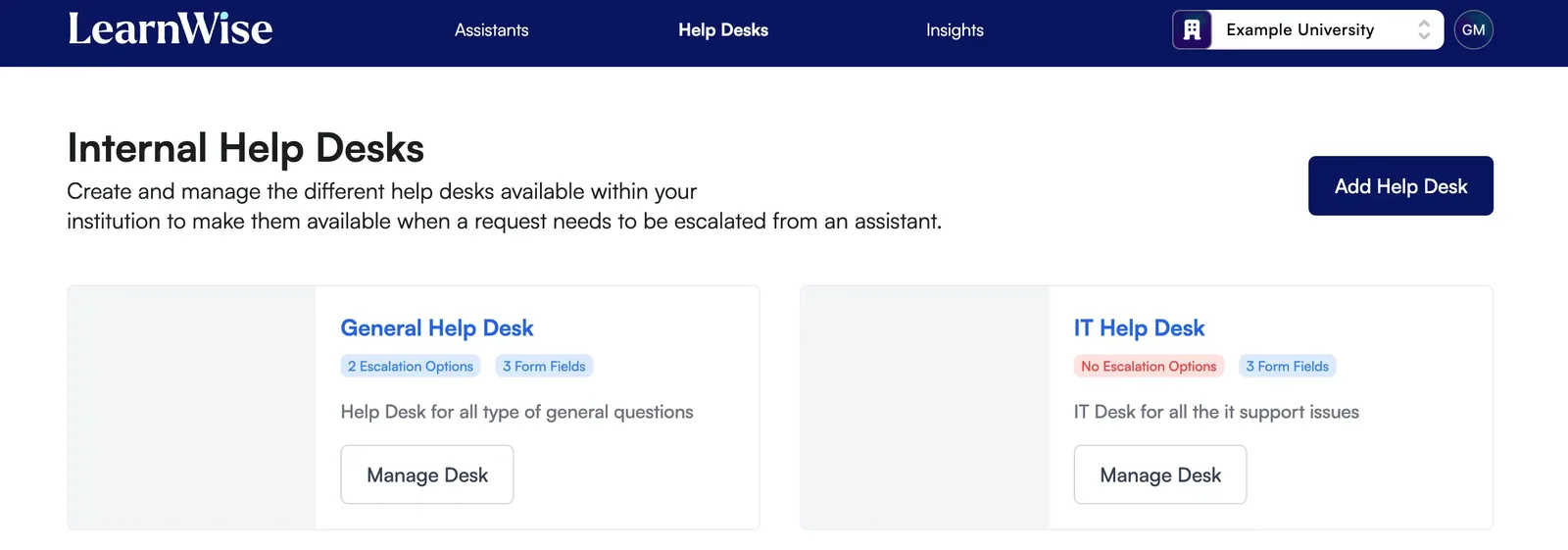
Go to ‘Manage Help Desks’: Find the ‘Manage Help Desks’ section where you can oversee all your support channels.
-
Click “Manage Desk” To Edit Choose the relevant help desk and click ‘Manage Desk’ to modify its settings.
-
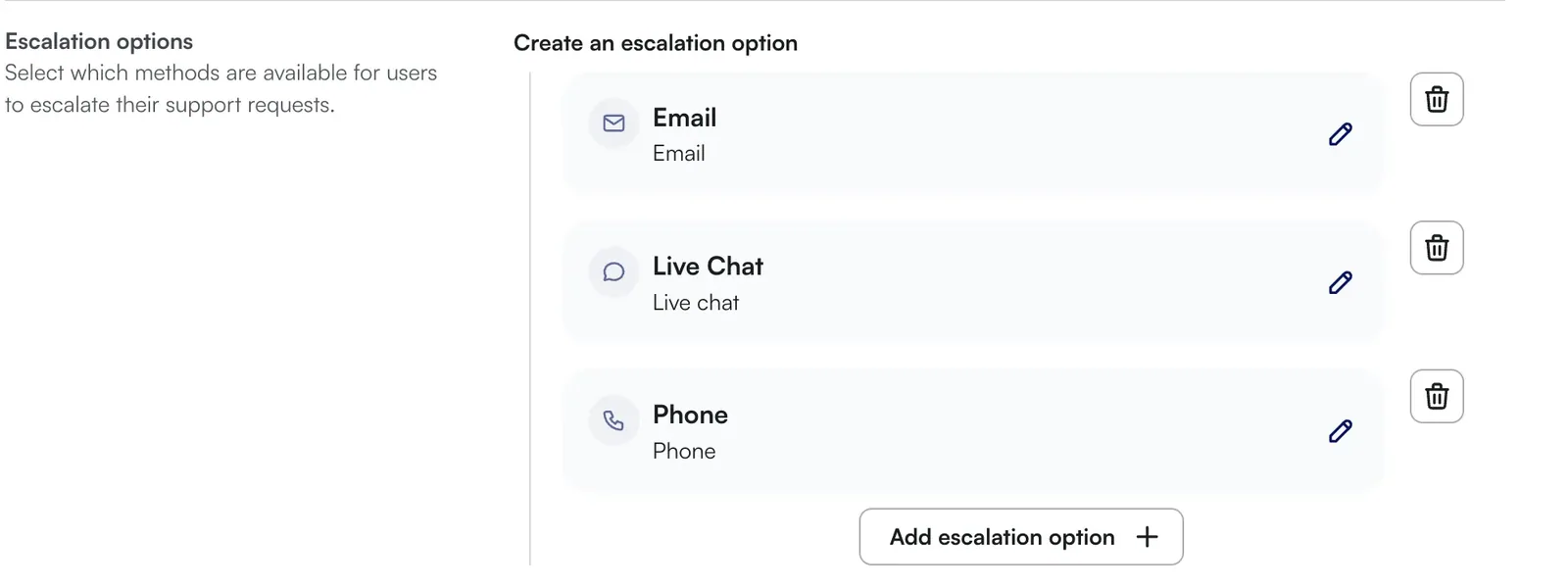
Scroll to Escalation Options: In the help desk settings, find the escalation options. Here you can create new contact methods or modify existing escalation options.
-
Click on the escalation method you want to modify
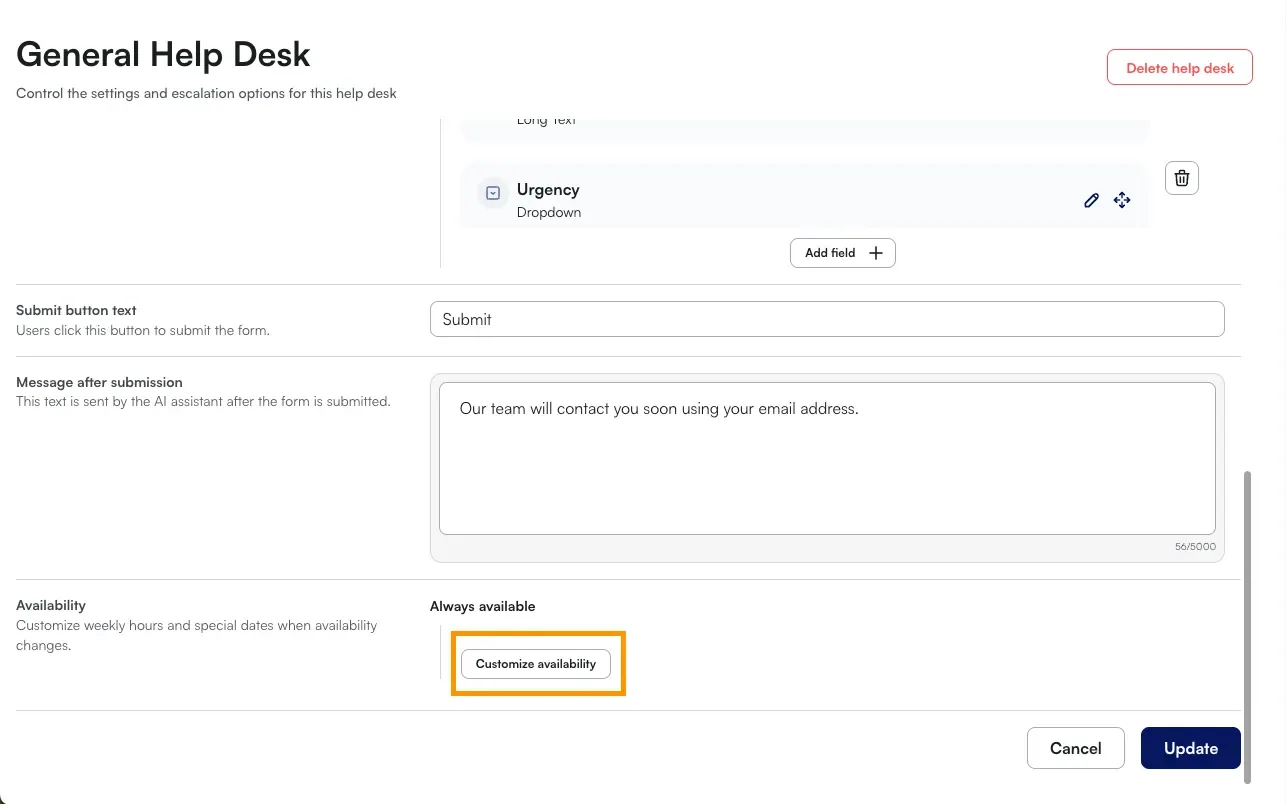
- Click 'Customize availability' In the ‘Availability” section of the Escalation Option, click ‘Customize availability’ to set a custom opening and closing time for each day of the week.
- Select your team's timezone from the dropdown, then set the opening and closing times for each day. For instance, 9 AM to 5 PM on weekdays. End users will always see the availability times converted to their own local timezone, so you only need to set the hours once in your local time.
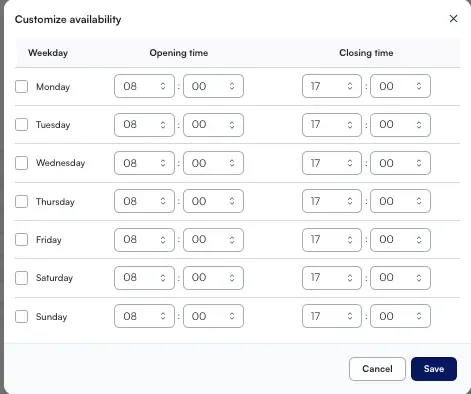
- After setting the hours, save your changes to ensure the updated availability is reflected on the associated assistant chat interfaces.
Planning closures in advance #
You can close a support channel for a set period, such as a holiday, without changing its weekly hours. Support channels are the escalation options users see in the chat, listed under Active channels in your help desk's Support Channels section.
-
Open the support channel.
In your help desk, under Active channels, click the channel you want to close, for example Email. -
Open its availability settings.
Click Availability. -
Add a closure.
Go to Unavailable periods and click + Add period. -
Set the dates.
Add a start date and time, an end date and time, and optionally a label such as "Christmas closure". -
Save.
Click Save & close.
While a channel is closed, users don't see it in the chat, even if it is set to always available. The next available time shown to users includes the date. Periods cannot overlap, and the end must be after the start.
Impact of Availability Settings on AI Chat Experience #
When an escalation option like a Phone Call or Live Chat is not available, it’s crucial to inform students and faculty about availability directly within the LearnWise chat experience.
If an option is unavailable, a notice will appear during the escalation process. This transparency helps manage expectations and directs them to alternative support methods if immediate assistance is needed outside of the designated hours.
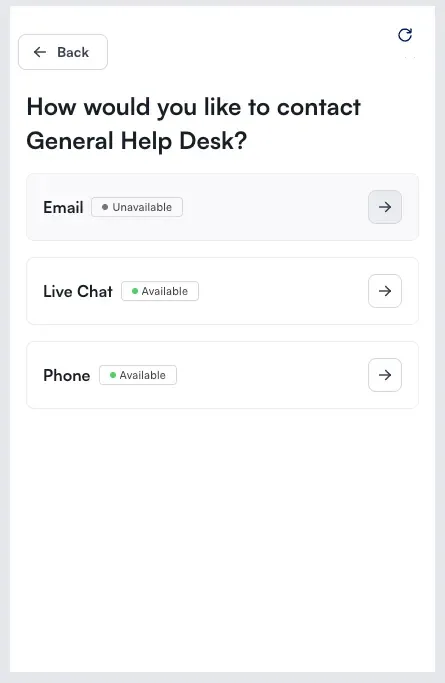
By carefully setting the availability for these real-time support options, you help balance the demand for support with your team's capacity to provide assistance, leading to a more efficient and user-friendly support experience. If you need help configuring these settings or have any questions, the LearnWise support team is ready to assist you.
Still stuck?
Ask the LearnWise assistant. It answers from these guides.
Related guides
- How can I integrate a ticketing system?Build your assistant
- How do I create a new Help Desk?Build your assistant
- How do I customize the form fields for the escalation/help desk?Build your assistant
- How do I integrate Salesforce ticketing system?Build your assistant
- How do I integrate ServiceNow ticketing system?Build your assistant