

How do I publish AI Campus Support into Brightspace?
A short guide to publishing LearnWise AI Campus Support into Brightspace as a floating button using the LearnWise app (listed in the Brightspace Apps Library as “Lumi Chat”) and your assistant ID.
1 min readUpdated
💡 Please note that you will need Admin permissions within Brightspace
Once you have created your support assistant, you will need to publish it in order for it to show up in your Brightspace environment as a floating button.
Follow these steps to successfully integrate your support assistant as a floating button:
Add LearnWise App #
- Navigate to Site Administration > Manage Extensibility in your BrightSpace environment
- Click on the Apps tab (note: if this tab is not available, reach out to your LearnWise Implementation Lead)
- Click on Find Apps
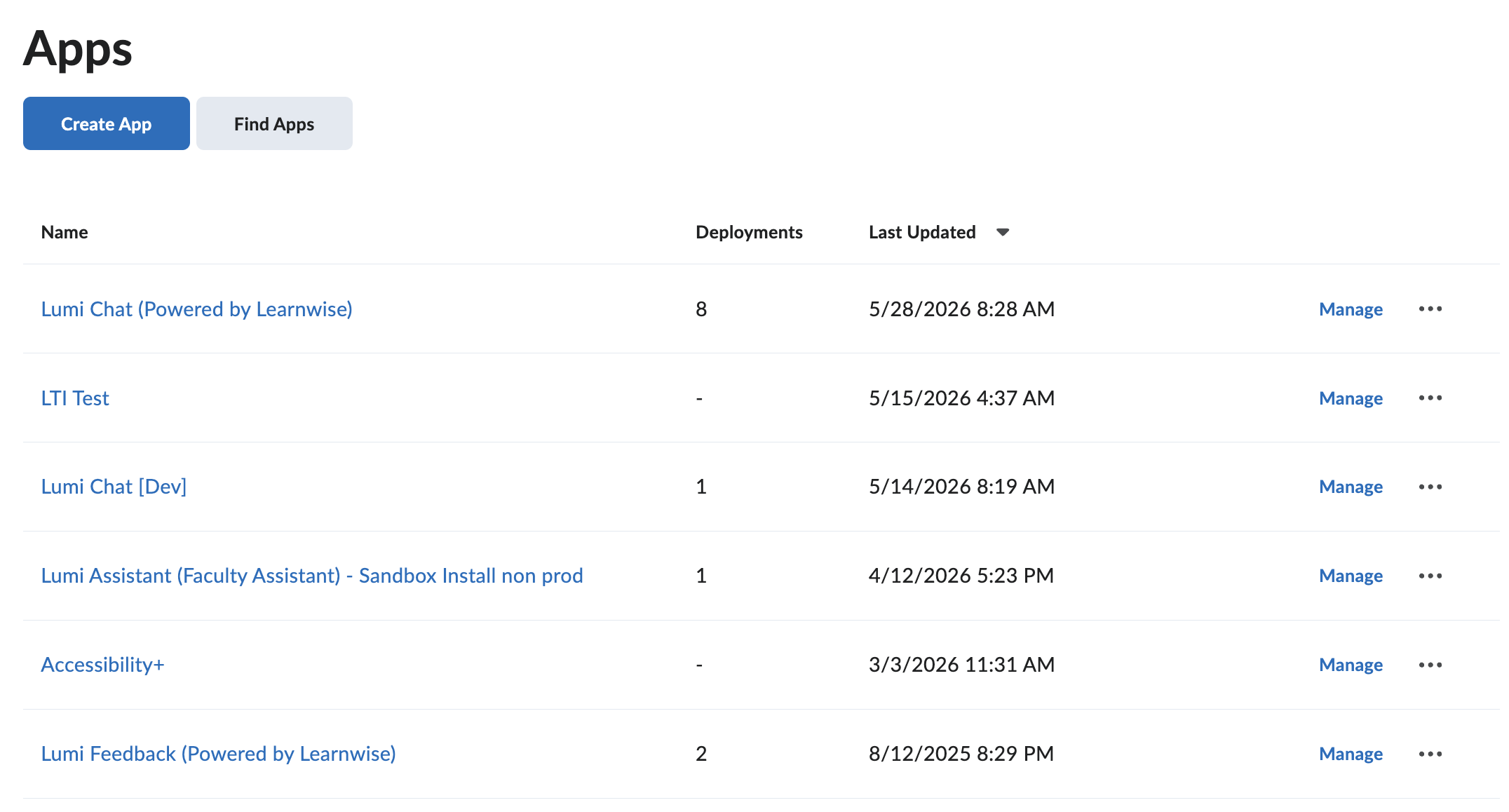
- Click on the LearnWise app (listed in the Brightspace Apps Library as “Lumi Chat”) from the apps library & install the app
- The LearnWise app is now listed under Apps. Click on it to open the app
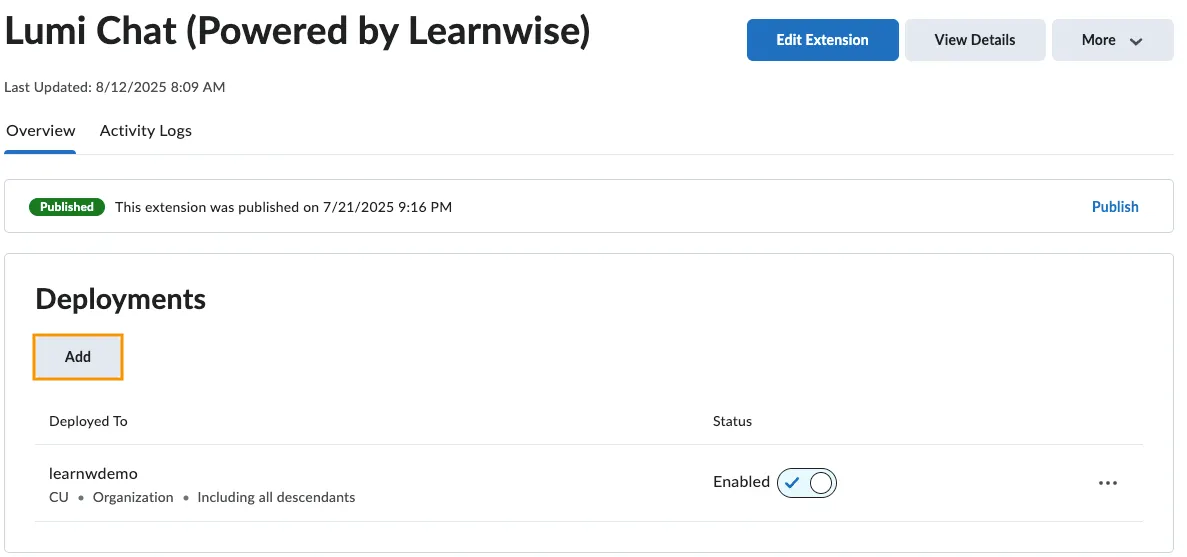
- Click on Add under Deployments
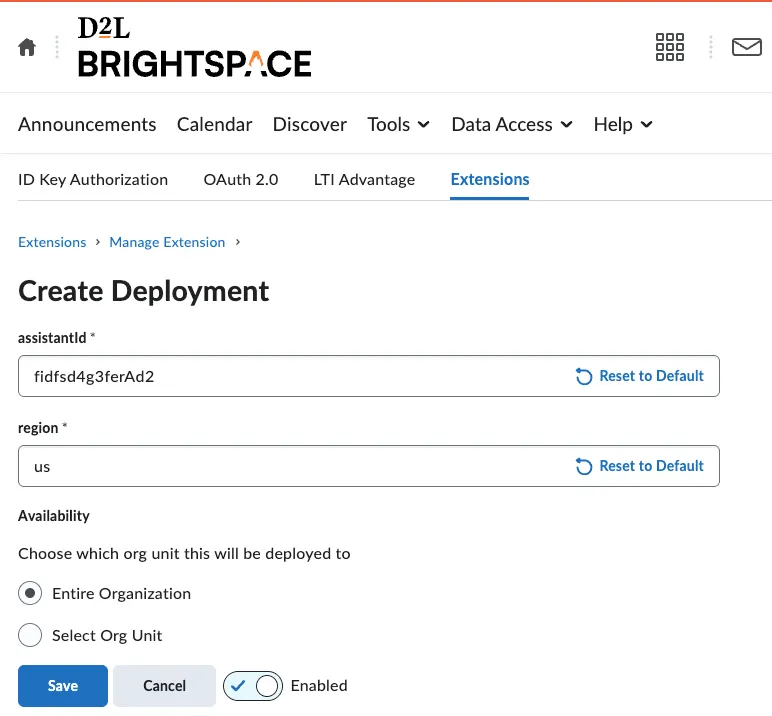
- Paste your assistant id (available from your LearnWise admin dashboard)
- Select your region
- Select Entire Organization from availability or select your Org unit if applicable
- Be sure that the toggle is set to Enabled and click Save
Your AI Campus Support is now available inside your Brightspace environment and is available by default via a floating button on the right hand side of the screen.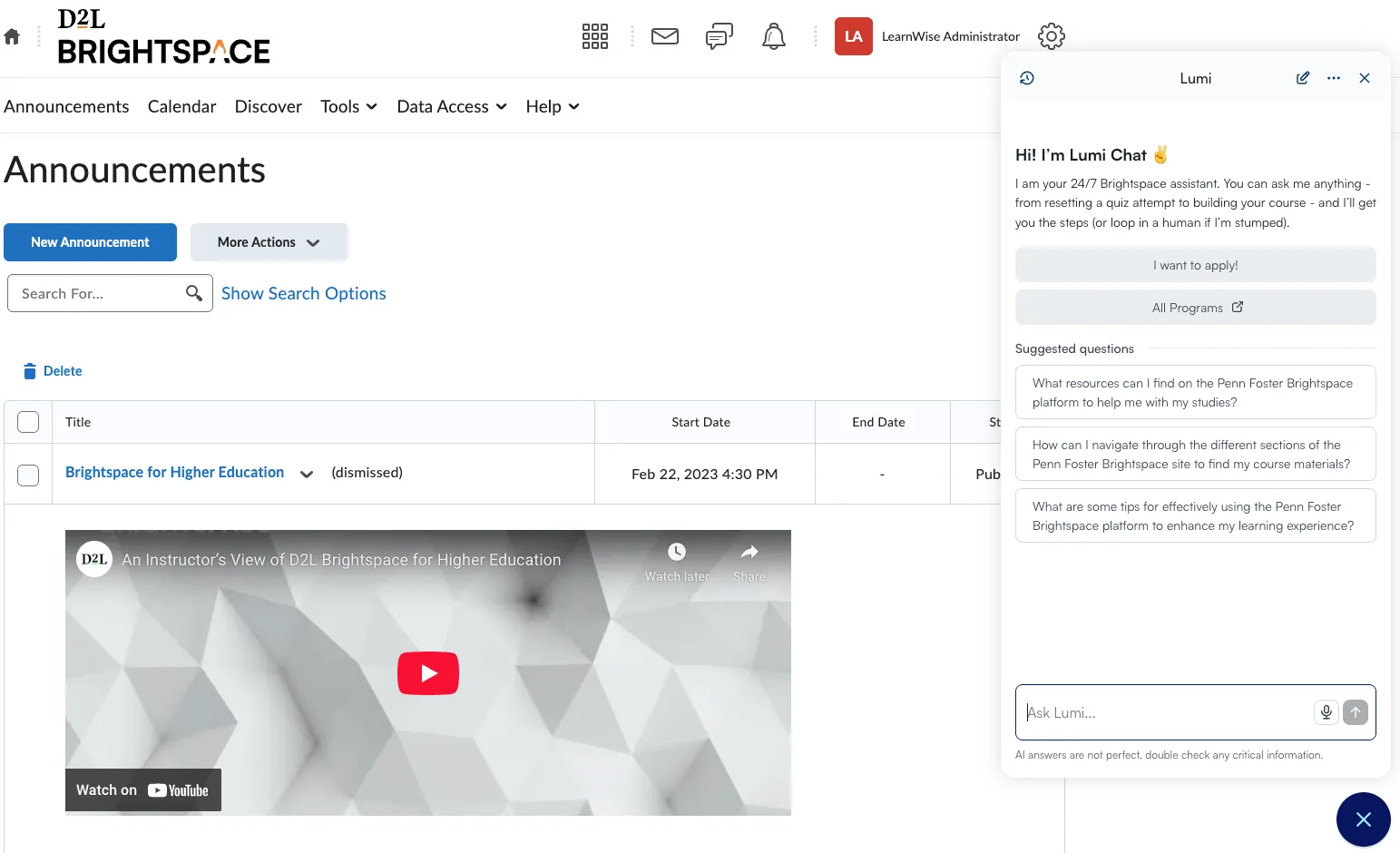
Was this page helpful?
Still stuck?
Ask the LearnWise assistant. It answers from these guides.
Related guides
- How do I install AI Campus Support on the Brightspace Login Page?Build your assistant
- How can I add AI Student Tutor within Blackboard?Build your assistant
- How do I publish an assistant in Blackboard via the Ultra Extension Framework (UEF)?Build your assistant
- How do I publish an assistant into Microsoft Sharepoint?Build your assistant
- How do I publish an assistant into Microsoft Teams?Build your assistant