

How does Agentic Search work?
LearnWise uses Agentic Search to reason through questions before responding. Rather than retrieving the closest-matching content, the assistant breaks each query into steps, evaluates context, runs multiple search passes, and builds a response step by step.
1 min readUpdated
On this page
What users see #
Reasoning steps The assistant shows its search steps and logic directly in the chat as it works through a query, so users can follow how the answer was reached.
By default, the full step-by-step reasoning is visible to users. If you would prefer users to see a shorter, plain-language summary instead, you can enable Simplified Thinking under General > Configuration > Simplified Thinking in your assistant settings. Full reasoning logs remain accessible to admins at all times for auditing purposes.
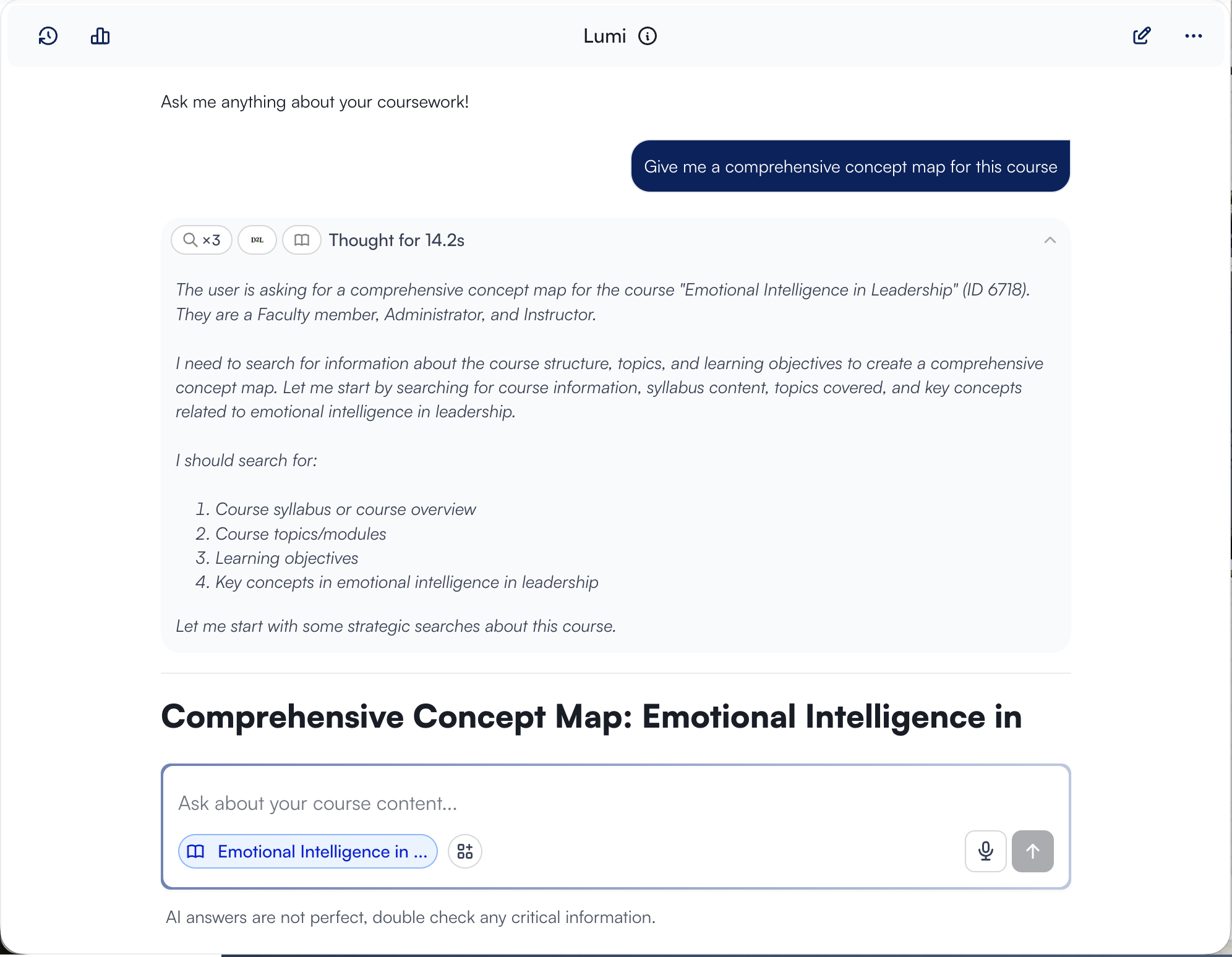
Shorter, more direct answers Agentic Search produces more focused responses by reasoning upfront rather than including excessive context. Average response length has decreased significantly.
Better handling of vague or layered questions The assistant uses conversation context — including the current course, prior messages, and likely intent — to work through ambiguous queries before responding, reducing generic answers.
Graceful handling of knowledge gaps When the assistant cannot find a complete answer, it explains what it found, what is missing, and asks a clarifying question where relevant. Users will no longer see a bare "No sources found" message.
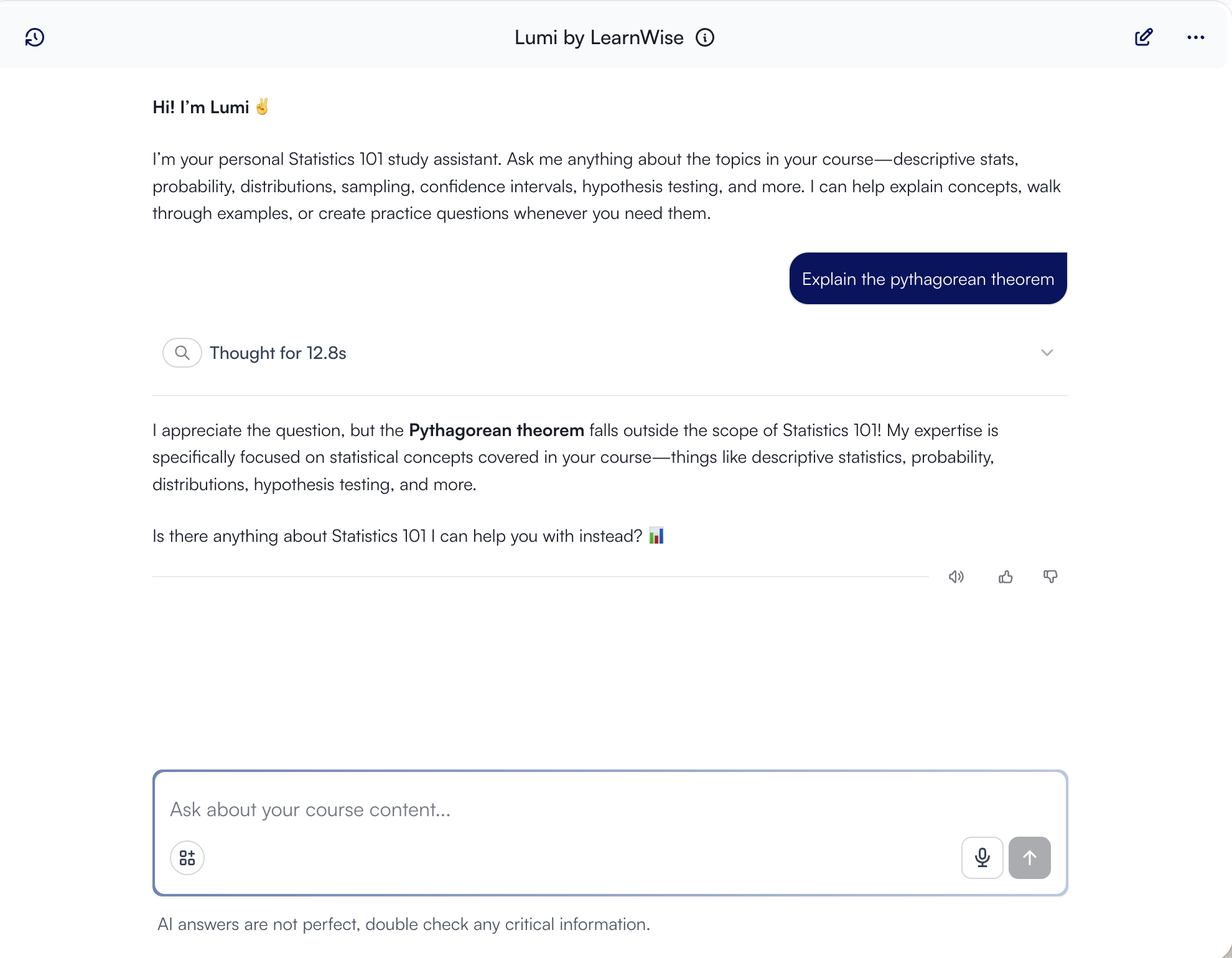
Guardrails remain fully active Out-of-scope deflection, enrollment workflows, and academic integrity boundaries are upheld throughout the reasoning process.
Availability #
Agentic Search is enabled by default for all new organisations. Existing organisations are migrated to Agentic Search as the default on April 9th, 2026, no action is required.
Customising search behaviour #
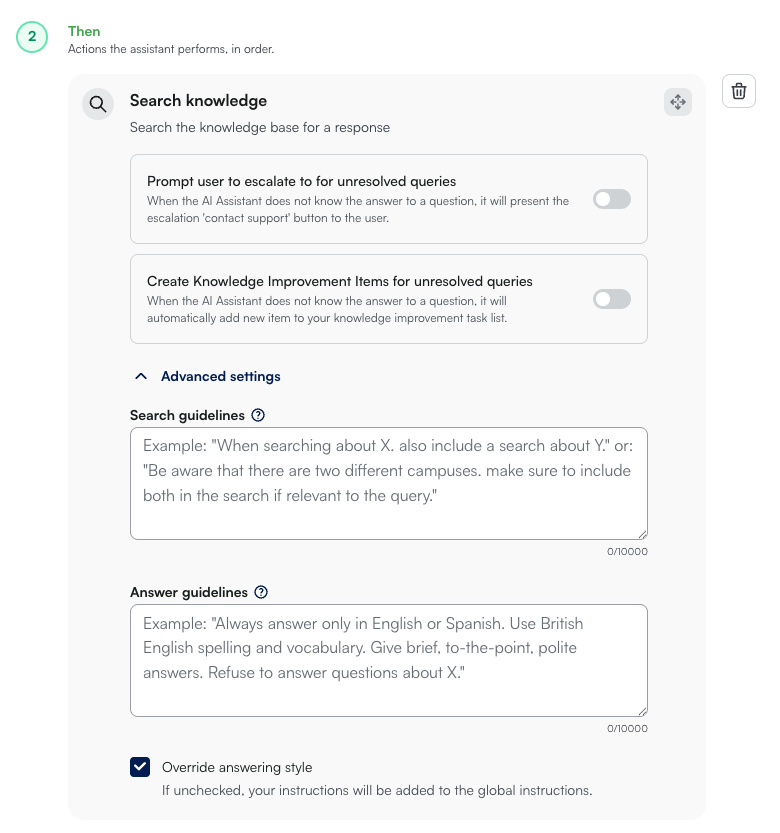
The number of search iterations, which sources are prioritised, and how retrieved content is interpreted can all be influenced via Search guidelines in the Search knowledge action's Advanced settings. This is available in both the Default behavior flow and individual custom flows.
Still stuck?
Ask the LearnWise assistant. It answers from these guides.
Related guides
- How do I activate and use voice mode in the assistant?Build your assistant
- Can I be selective around which website content I add to LearnWise?Build your assistant
- How are the multiple different knowledge sources prioritized?Build your assistant
- How can I add an FAQ to my knowledge?Build your assistant
- How can I use regex and URL filters to control web scraping in LearnWise?Build your assistant