

How do I publish an assistant into a Google site?
Integrating your LearnWise AI Assistant into Google Sites enhances your institution’s digital support capabilities by providing seamless, 24/7 access to personalized assistance. Whether guiding students through complex processes, offering instant answers to FAQs, or providing tailored support for faculty, embedding LearnWise ensures a more engaging and efficient user experience. LearnWise can be i
1 min readUpdated
On this page
All of the steps outlined below can also be found by navigating to the ‘Publish’ tab inside your LearnWise administration panel, then clicking on the Google Sites option
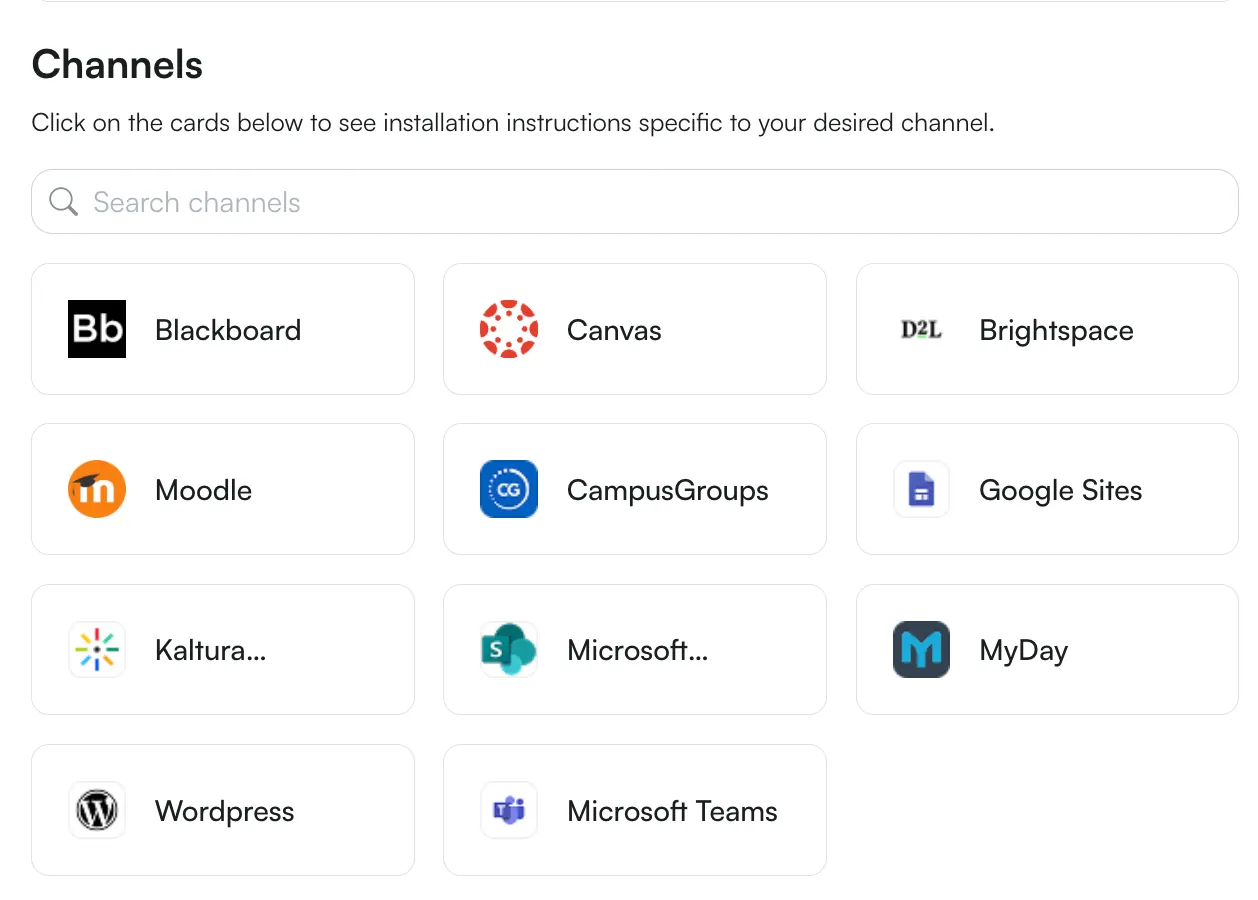
Log in to Google Sites #
- Navigate to Google Sites.
- Log in with your Google account credentials.
- Navigate to the Google Site where you want to add the LearnWise Assistant.
Access the Pages Tab #
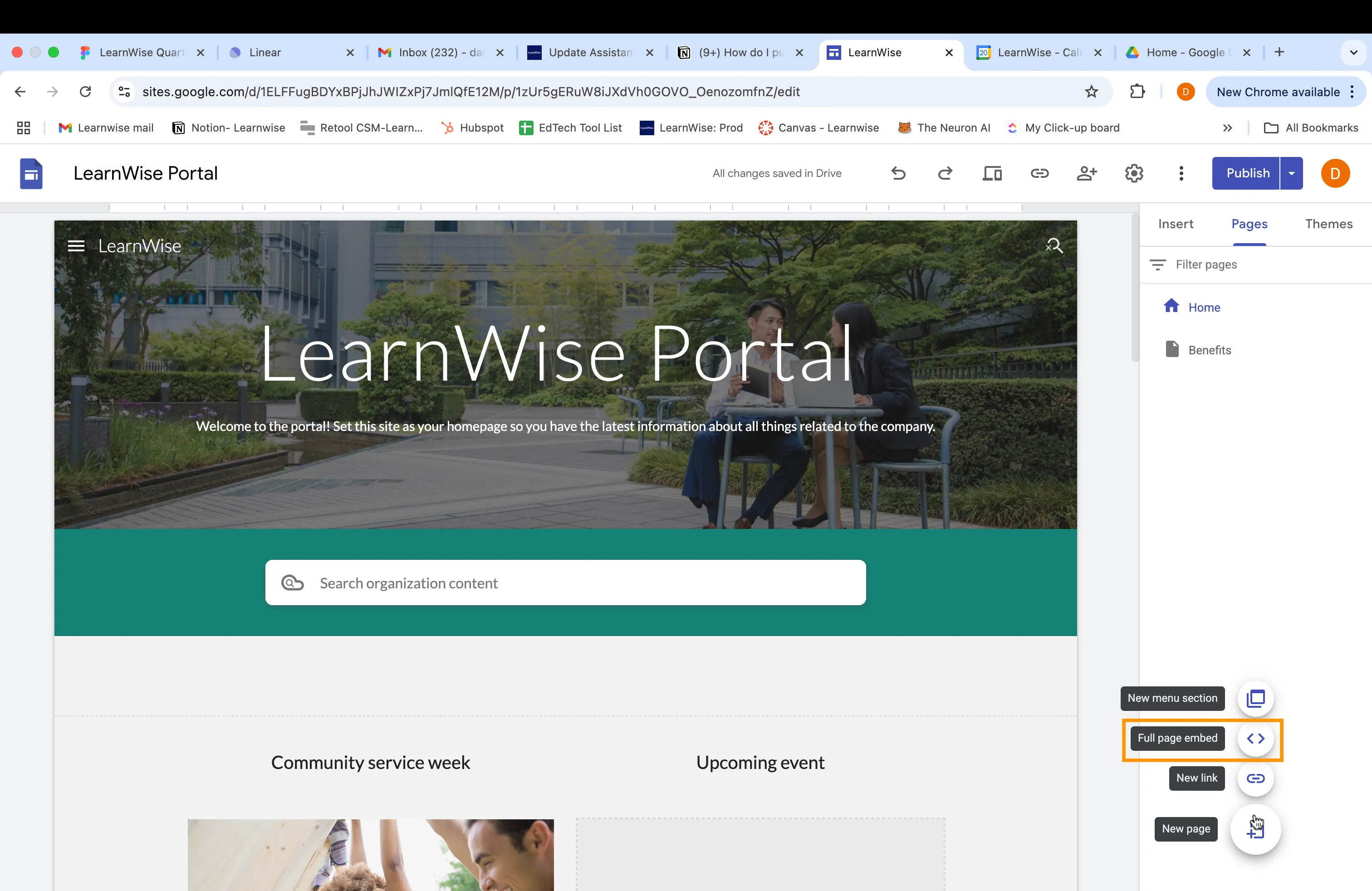
- Click the Pages tab on the right panel of the Google Sites editor.
- Hover over the + button and click on Full page embed.
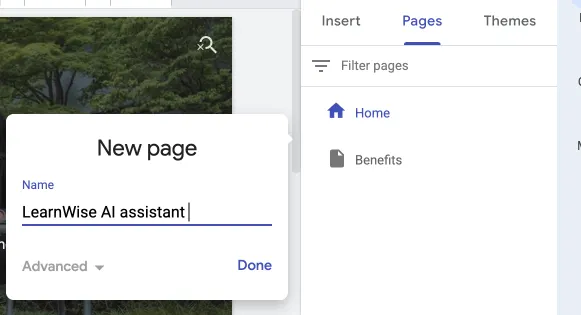
- Enter a relevant name that matches the purpose of the assistant for your insitute
Embed your LearnWise Assistant #
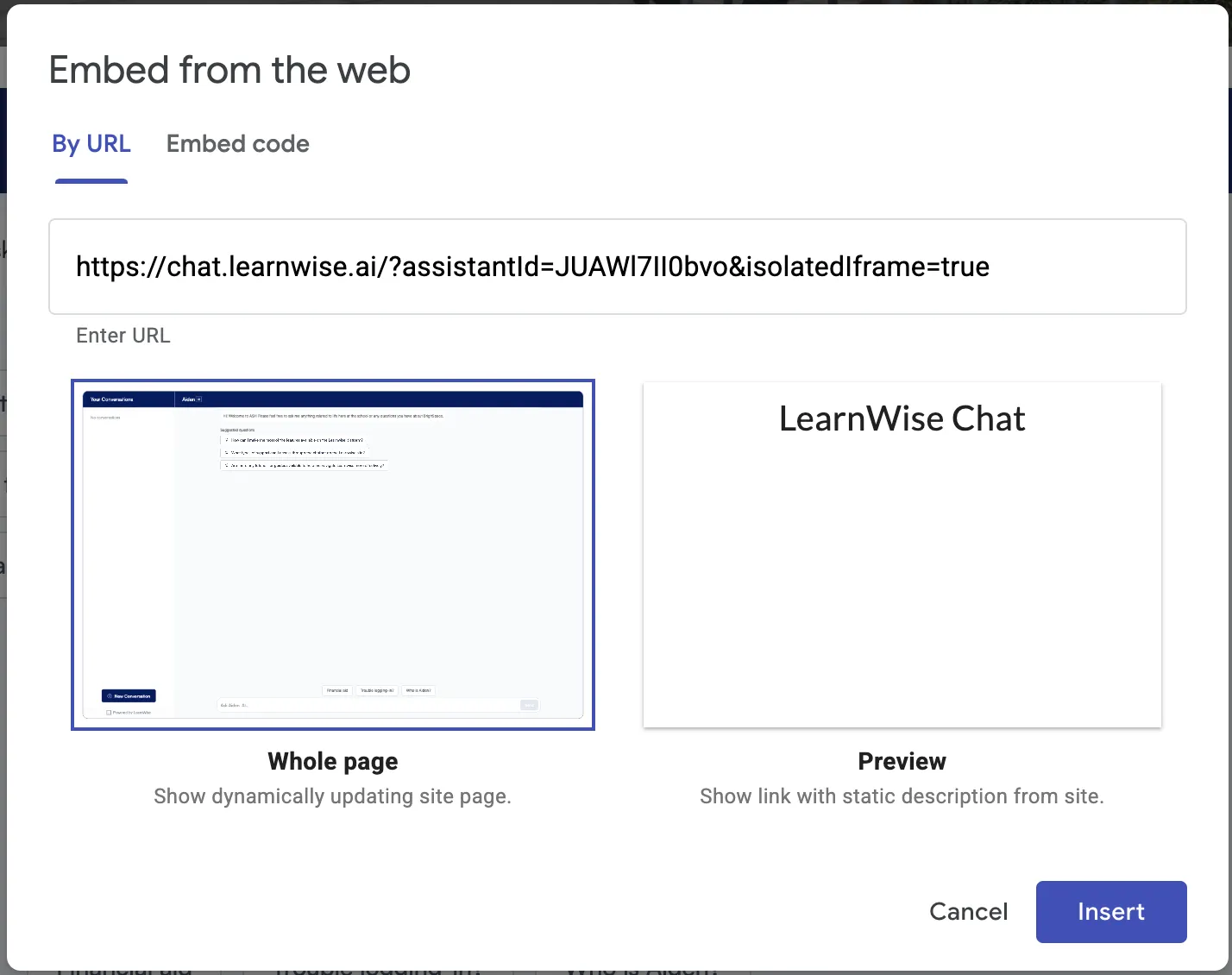
- Navigate to ‘’Insert’’ and click on ‘’embed’’
- Select ‘’Embed by URL’’
- Paste the following code block
<https://chat.learnwise.ai/?assistantId=assistantIdHere&isolatedIframe=true>
- Click on ‘’Whole Page’’ then ‘’Insert’’
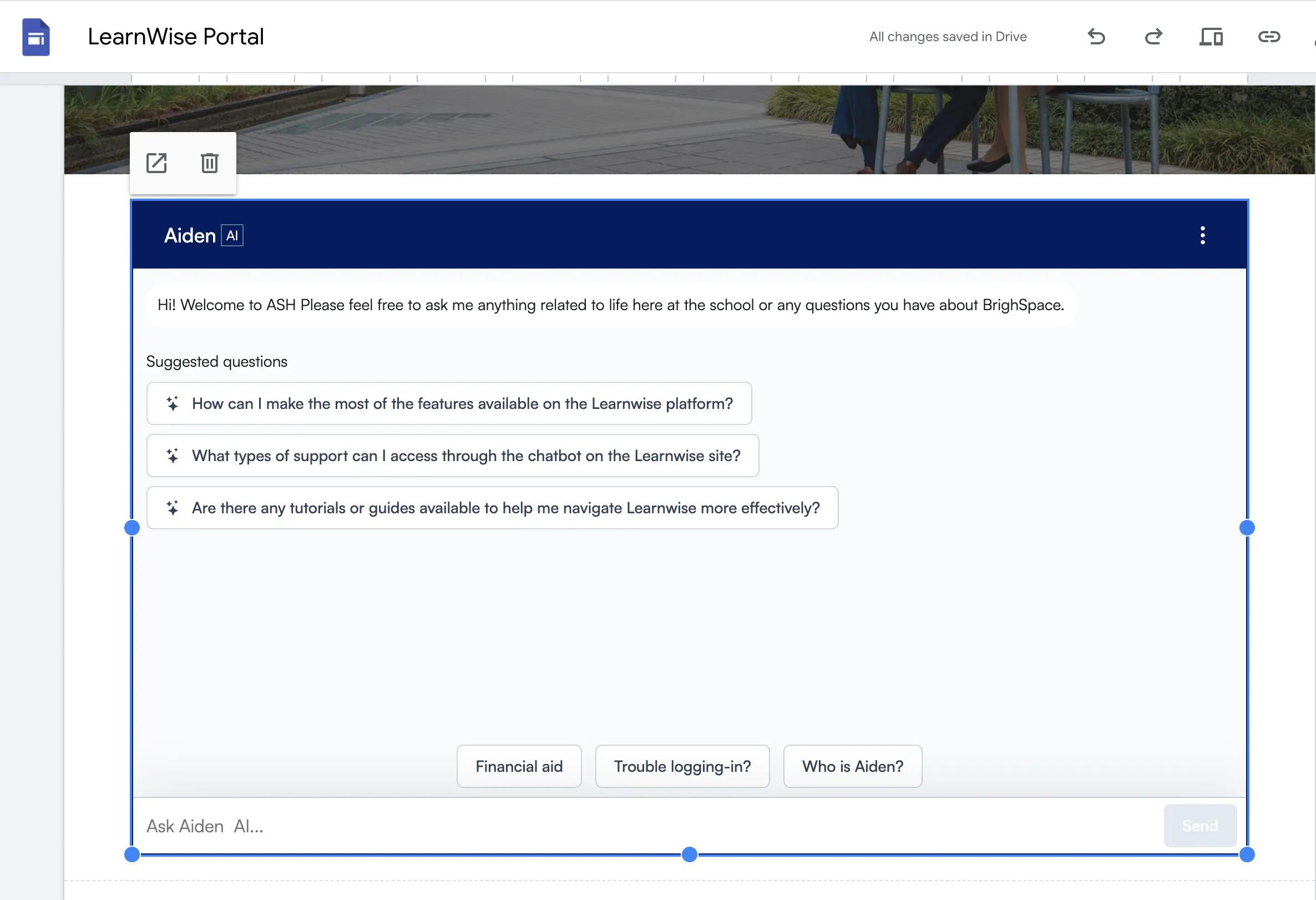
- Your LearnWise assistant is now available as an iframe inside your Google site
Was this page helpful?
Still stuck?
Ask the LearnWise assistant. It answers from these guides.
Related guides
- How can I add AI Student Tutor within Blackboard?Build your assistant
- How do I install AI Campus Support on the Brightspace Login Page?Build your assistant
- How do I publish an assistant in Blackboard via the Ultra Extension Framework (UEF)?Build your assistant
- How do I publish an assistant into Microsoft Sharepoint?Build your assistant
- How do I publish an assistant into Microsoft Teams?Build your assistant