

How do I limit AI Campus Support to specific courses in Canvas?
A guide to restricting your LearnWise AI Campus Support floating button to appear only in selected courses rather than across your entire Canvas instance.
3 min readUpdated
On this page
💡 Please note that you will need Admin permissions within Canvas
By default, the AI Campus Support floating button appears everywhere in Canvas when deployed via Theme Editor. This guide shows you how to limit it to specific courses only.
Looking to deploy AI Campus Support everywhere in Canvas? See this article for standard deployment instructions.
When to use this:
- Piloting AI Campus Support in select courses before full rollout
- Limiting access to courses that also have AI Student Tutor
- Testing in production without affecting all users
Prerequisites:
- Admin permissions within Canvas
- Sub-account theming enabled in Canvas
- A LearnWise AI Campus Support assistant already created in your dashboard
Step 1: Find relevant course IDs #
For each course where you want the floating button to appear:
- Navigate to the course in Canvas
- Look at the URL in your browser address bar
- The URL will look like:
https://canvas.university.edu/courses/12345 - Copy the number after
/courses/- this is your course ID - Create a list of all course IDs
Step 2: Get your assistant ID #
- Log into your LearnWise dashboard
- Click Assistants in the top navigation bar
- Find your AI Campus Support assistant in the list
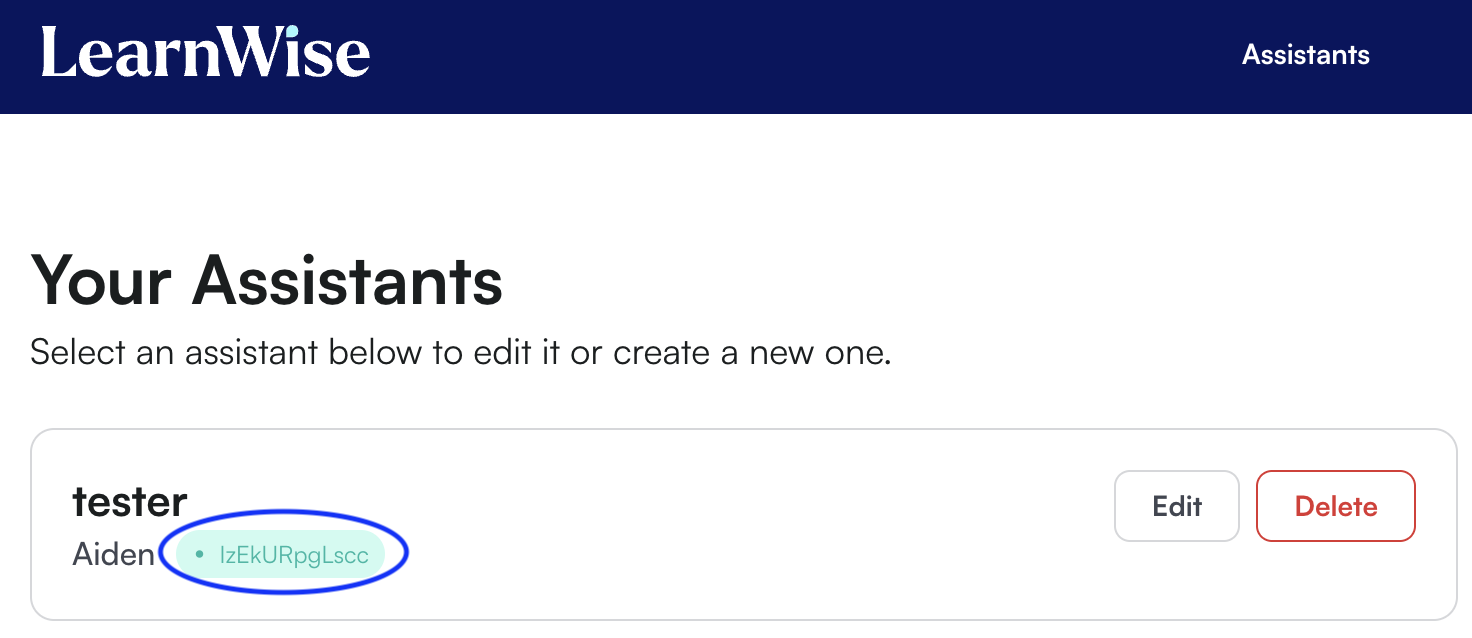
- The assistant ID appears in a colored badge next to the assistant name
- Copy this code - this is your assistant ID
Step 3: Create a custom script #
- Open a text editor (Notepad on Windows, TextEdit on Mac, or any code editor)
- Copy and paste this code:
// EDIT THIS: Add your assistant ID
window.learnWiseSetup = {
  host: "https://aiden.learnwise.ai",
  chatSrc: "https://chat.learnwise.ai",
  assistantId: "YOUR_ASSISTANT_ID_HERE",
};

// EDIT THIS: Add your approved course IDs between the quotes
const approvedCourses = ["FIRST_COURSE", "SECOND_COURSE"];

// Get the current course ID from Canvas ENV
function getCurrentCourseId() {
  // Canvas exposes course context via ENV.course_id
  if (window.ENV && window.ENV.course_id) {
    return window.ENV.course_id.toString();
  }
  return null;
}

// Check if the current course is approved
function shouldLoadButton() {
  const currentCourseId = getCurrentCourseId();

  if (!currentCourseId) {
    return false;
  }

  return approvedCourses.includes(currentCourseId);
}

// Only load the floating button if in an approved course
if (shouldLoadButton()) {
  var script = document.createElement("script");
  script.src = window.learnWiseSetup.host + "/chat_launcher.js";
  document.head.appendChild(script);
} - Make these edits:
To add your assistant ID, find this line:
assistantId: "YOUR_ASSISTANT_ID_HERE",Replace
YOUR_ASSISTANT_ID_HEREwith your actual assistant ID from Step 2.Example:
If your assistant ID islzEkURpgLscc, the line should look like:To add your course ID(s), find this line:assistantId: "lzEkURpgLscc",
const approvedCourses = ["FIRST_COURSE", "SECOND_COURSE"];Replace
#_COURSEwith your actual course ID(s) from Step 1. Keep quotes around each course ID, separate with commas, and keep the square brackets[ ].Examples:
Multiple courses:["54321", "67890", "13579"]
Single course:["54321"] - Save the file as learnwise_custom.js on your computer
Step 4: Upload the script to Canvas Theme Editor #
- Log into your Canvas LMS environment as an admin user.
- Click on Admin on the left main navigation bar and click the relevant ‘Account’.
- Click on Themes in the secondary left-side navigation.
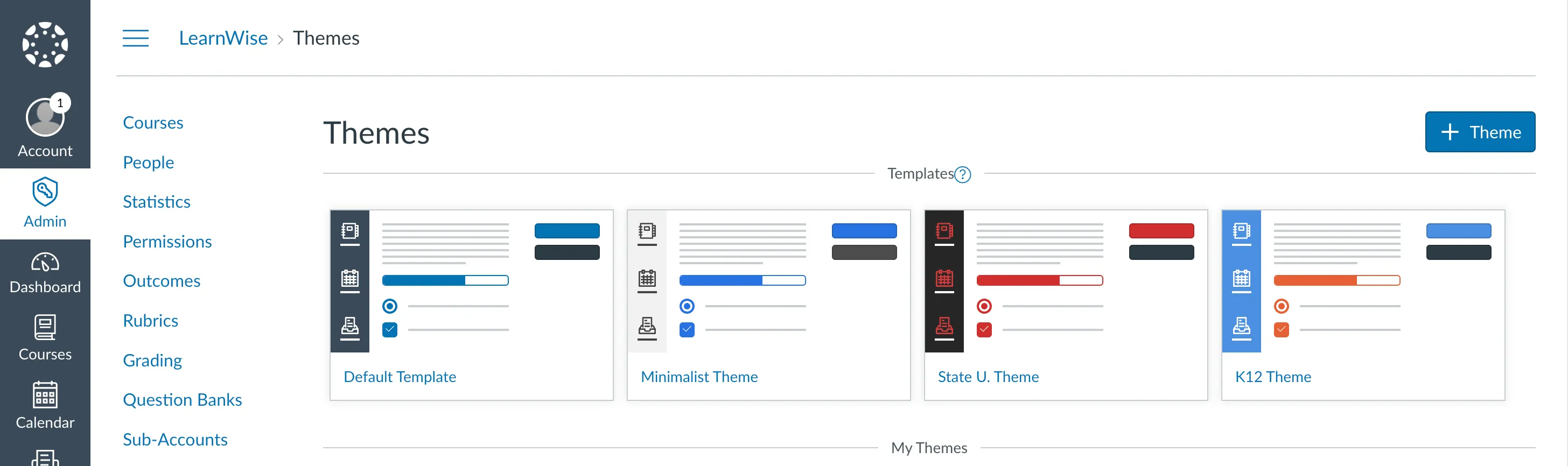
- Hover over your current theme and click Open in Theme Editor.
- Optionally, you could also choose to create a new theme.
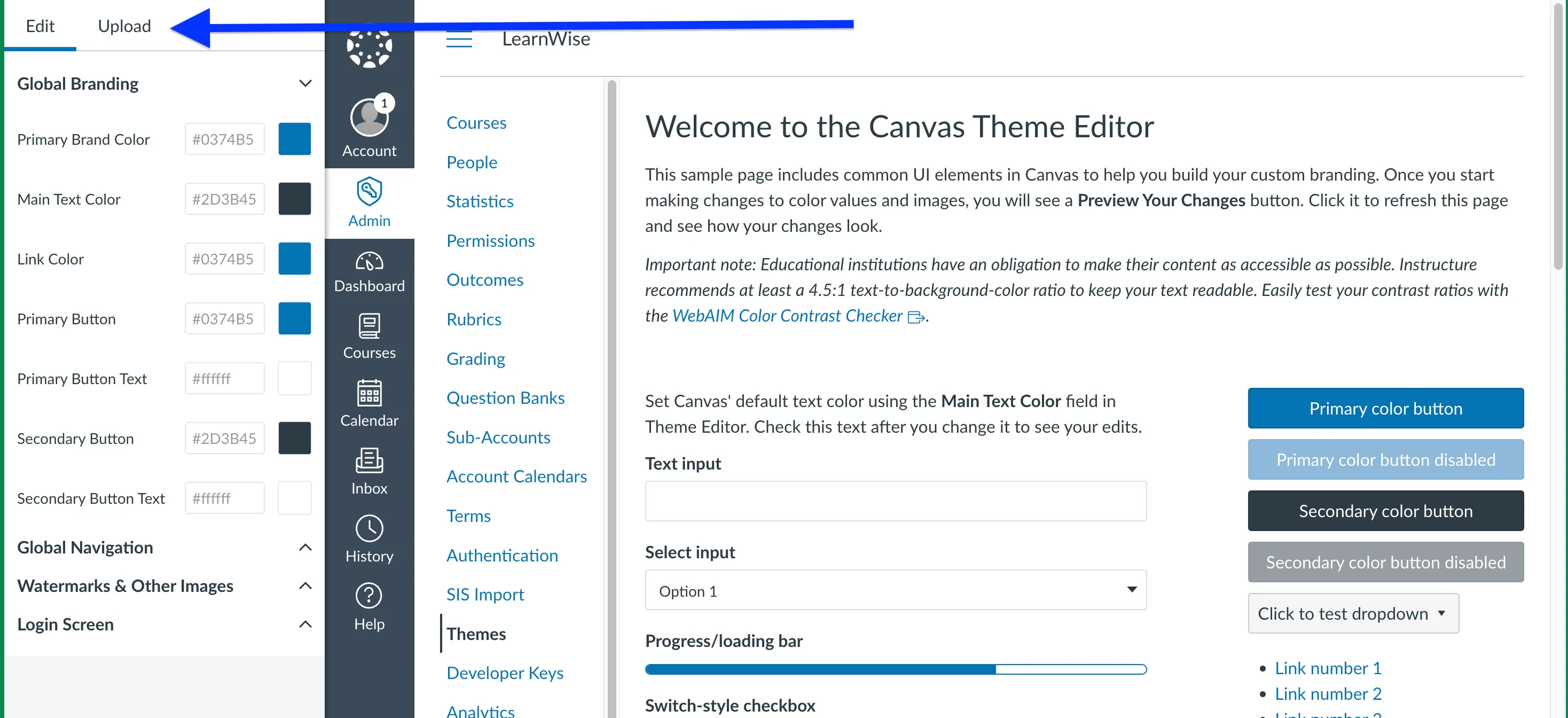
- In the Theme Editor, select the Upload tab.
- Locate the input for “JavaScript File”.
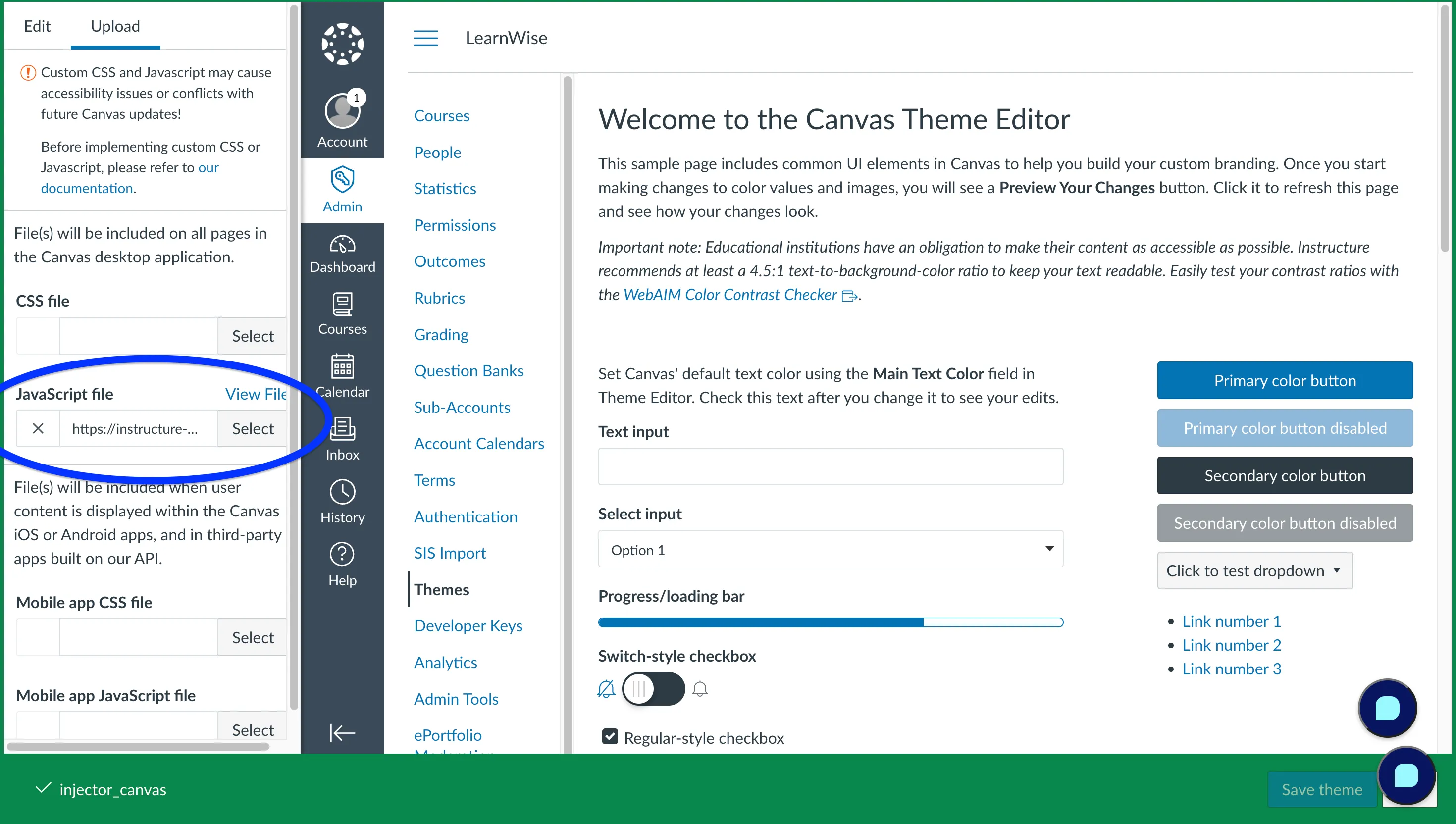
- Click the Select button and upload the learnwise_custom.js file that you created in the last step.
- Click ‘Save Theme”.
Need help? #
If you encounter any issues with this setup, please contact LearnWise support via help@learnwise.ai.
Still stuck?
Ask the LearnWise assistant. It answers from these guides.
Related guides
- Can I be selective around which website content I add to LearnWise?Build your assistant
- How are the multiple different knowledge sources prioritized?Build your assistant
- How can I add AI Student Tutor within Blackboard?Build your assistant
- How can I add an FAQ to my knowledge?Build your assistant
- How can I integrate a ticketing system?Build your assistant