

What is Assistant Handover and how do I set it up?
Route users mid-conversation to a specialist assistant using Flows — so the right assistant always handles the right question.
3 min readUpdated
On this page
What is Assistant Handover? #
Assistant Handover allows one LearnWise AI assistant to transfer an ongoing conversation to a different, more specialised assistant. Think of it like a phone call being passed from a general helpline to a specialist — the user stays in the same chat, but a new assistant takes over from that point.
This is useful when you have:
- A general assistant that handles broad queries, and one or more specialist assistants that handle specific topics (e.g. a dedicated course tutor, an IT support assistant, or an admissions assistant)
- Situations where a query falls outside what the current assistant is trained on
Key terms #
| Term | Meaning |
|---|---|
| Parent assistant | The assistant the user is originally speaking with |
| Sub-assistant | The specialist assistant the user is handed over to |
| Handover | The moment the conversation transfers from parent to sub-assistant |
How does it work for the user? #
When a handover is triggered:
- A plain text message appears in the chat (e.g. "Handing over to [Sub-assistant name]...")
- The sub-assistant immediately begins responding to the user's question
- The user can return to the parent assistant at any time by clicking the × button that appears in the chat interface
Setting up Assistant Handover — Step by step #
Step 1: Create your sub-assistant
Before configuring handover, make sure the sub-assistant you want to hand over to already exists. For more information about how to set up an assistant, click here.
- Log in to the LearnWise admin panel at admin.learnwise.ai
- Go to Assistants and create (or identify) your specialist sub-assistant
- Make sure its nickname is clear and recognizable — this is what users will see in the chat when the handover happens
- Train it with the relevant knowledge and configure it as needed
Step 2: Configure the Handover flow in your parent assistant
- Open your parent assistant in the admin panel
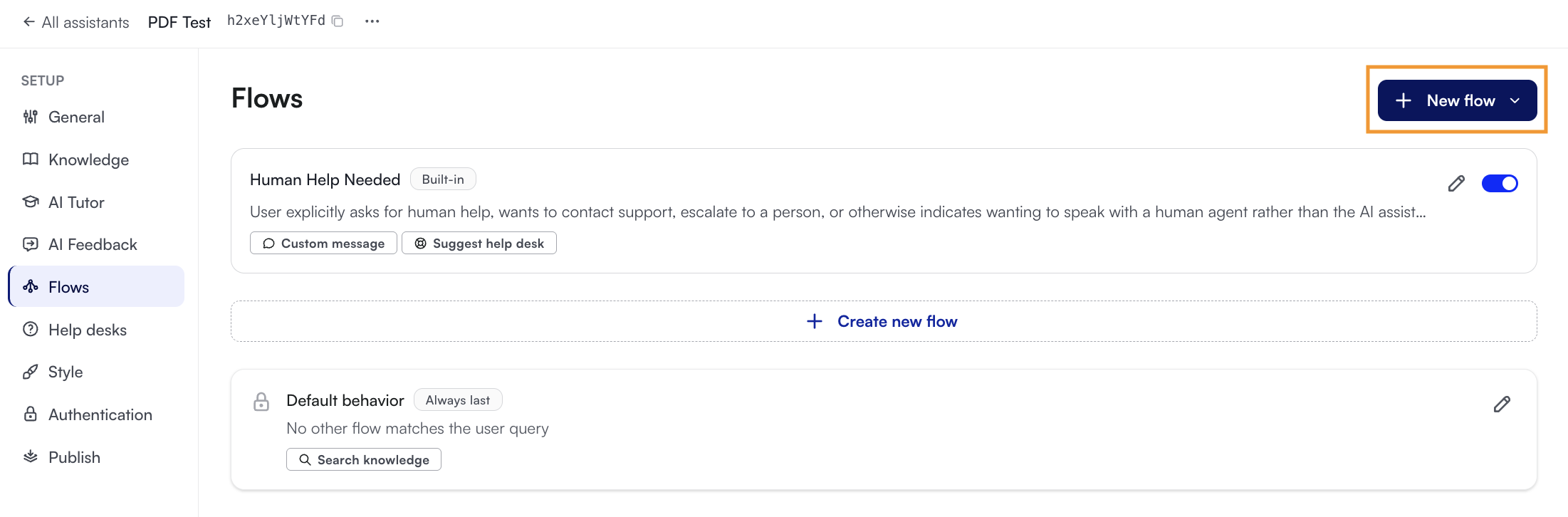
- Go to the Flows tab
- Click + New Flow and give it a clear name (e.g. "Hand over to Course Tutor")
- Define one or more triggers — the phrases or conditions that should cause the handover (e.g. "I need help with my assignment")
- Under Responses, click + Response and select Handover
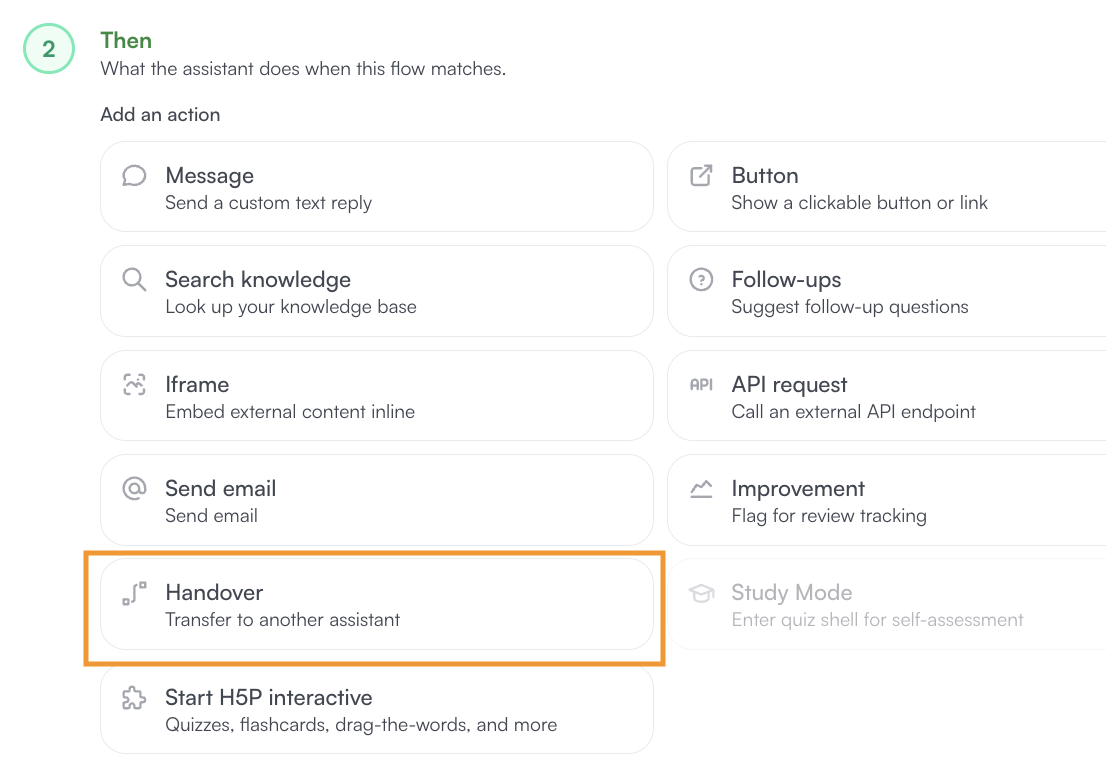
- Choose the target sub-assistant from the dropdown
- Click Save
⚠️ The Handover action must always be the last action in a flow. You can add other responses before it (such as a message), but nothing can come after it.
Authentication during handover #
If the sub-assistant requires users to be logged in (for example, to access course-specific content):
- The user will be shown a prompt asking them to log in or authorize the sub-assistant
- If they complete authentication, the handover proceeds normally
- If they decline, they are returned to the parent assistant
If the user is already authenticated, the handover happens seamlessly with no extra steps required.
Cross-course behavior #
Sub-assistants can be configured to cover multiple courses. If a user is on a course page that is not included in the sub-assistant's course list, the handover may still occur but the sub-assistant will not have course-specific context for that course. Make sure your sub-assistant's course configuration matches the scenarios in which it will receive handovers.
Things to know #
- The handover action can only be used once per flow
- Voice mode is not available while a handover is active — the user must return to the parent assistant first
- Nested handovers (sub-assistant handing over to a third assistant) are technically supported but not recommended during the Beta period
- The sub-assistant's own answering style and flow settings apply independently — the parent assistant's settings do not carry over
Related articles #
Still stuck?
Ask the LearnWise assistant. It answers from these guides.
Related guides
- What are triggers and their corresponding responses in Flows?Build your assistant
- Can I be selective around which website content I add to LearnWise?Build your assistant
- How are the multiple different knowledge sources prioritized?Build your assistant
- How can I add AI Student Tutor within Blackboard?Build your assistant
- How can I add an FAQ to my knowledge?Build your assistant